• Skip to primary navigation
  • Skip to main content

PMI

  • Home
  • Products
  • Library
    • Videos
      • All
      • Bolt Quality Tests
      • Promotional Videos
      • Support Videos
      • Power Quality Decoded
    • White Papers
      • All
      • Artificial Intelligence
      • Case Studies
      • Communications
        • All Communications
        • Cellular Communications
        • General Communications
      • Distributed Generation
      • IEEE Standards
      • Power Quality
        • All Power Quality
        • Analyzing Waveforms
        • Flicker
        • PQ Data Analysis
        • PQ Theory
      • Products
        • All Products
        • Boomerang
        • Boomerang SCADA
        • Box Recorder
        • Canvass
        • Eagle
        • Flex CT
        • Guardian
        • Merlin™
        • Meter Sockets
        • PQ Canvass
        • ProVision
        • Revolution
        • TLAR
        • Using PMI Recorders
      • Voltage
        • All Voltage
        • CVR
        • Voltage Sag
        • Voltage Unbalance
      • Harmonics
  • Training
    • All
    • PDH Eligible Classes
    • On-Site Training
    • Live Webinars
  • Support
  • Our Company
    • About
    • Contact
    • Join Our Team!
    • Receive our Newsletter
    • PQ Resources
    • Power Quality Solutions
  • Account
  • Cart - 0 items
  • All
  • Getting Started
  • Provision Shortcuts
  • Recorder Hookup
  • Updating Firmware
  • Watcher Folder
  • Downloads

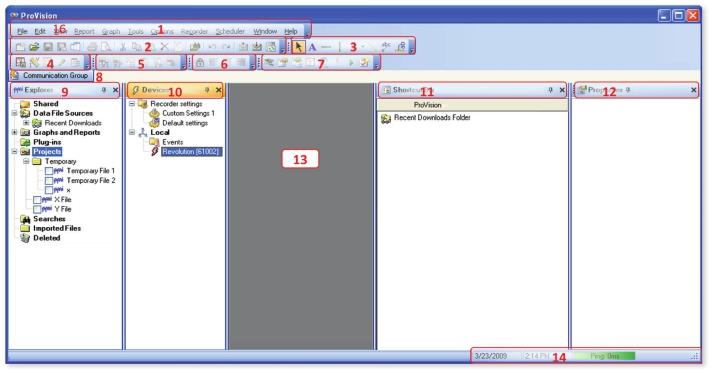
The Provision User Interface

The Provision user interface

The Provision user interface

  1. Menu Toolbar: File, Edit, View, Report, Graph, Tools, Options, Recorder, Scheduler, Window, and Help menu
  2. Standard Buttons: Create a New Project, Open, Save, Save Graph As Template, Merge Files, Print, Print Preview, Cut, Copy, Paste, Delete, Edit Report Header, Find in Files, Undo, Redo, Send Via E-mail, Receive Via E-mail, and Sync Mobile buttons
  3. Graph Annotation Buttons: Pointer For Annotation, Text Annotation, Horizontal Line Annotation, Vertical Line Annotation, Arrow Annotation, Line Annotation, Pointer Annotation, and X Axis Annotation buttons
  4. Advanced Buttons: Capture View, Scale Factor, New Mixed Graph, Legend Editor, and Select Plots buttons
  5. Waveform Buttons: V/I Waveform, Real Power Waveform, Harmonic Graph, Vector Graph, Parametric Waveform, and Record Waveform buttons
  6. Trace Moving Buttons: Unlock X Axis, Left Justify On Axis, Center Justify On Axis, and Right Justify On Axis buttons
  7. Recorder Buttons: Add, Retrieve Settings, Initialize, Identify, Date and Time, Standby, Ready, and Add Event buttons
  8. Communication Group Window: Displays the status of communication tasks
  9. Explorer Tree: Watcher folders, Recent Downloads, Graphs and Reports, Projects, Searches, Imported Files, Deleted Files
  10. Devices Tree: Recorder Initialization Settings, Events, and connected recorders
  11. Provision Shortcuts
  12. Properties Window: Properties of currently viewed graph
  13. Main Workspace: Main workspace where all graphs and reports will open
  14. Date, Time, and Provision Intercommunicator Status: Place file in Projects folder, right-click on the file, and select Send by E-mail
    1. Select Send selected object to the following address (Microsoft Outlook users only) and type in recipient’s e-mail address, or select Save object to file you could send later, type in file name, browse to desired directory, save the file, and send via e-mail as an attachment.
  15. View Menu: Use the View menu to hide and unhide the Communication Group Window, Explorer Tree, Devices Tree, Shortcut Bar, Status Bar and Properties Window. These can also be pinned or unpinned so that they are either always displayed or automatically minimized when the cursor is moved away from them.

Have a PQ question? Ask Merlin™ — free. Send it to askmerlin@powermonitors.com or text (540) 383-3144.

Power Monitors, Inc. — Tools you Need. People you Trust.

Power Monitors, Inc. is an industry-leading product design and manufacturing firm based in Mt. Crawford, Virginia. PMI® strives to solve power quality problems by listening to our customers and working with them to design and manufacture products. Total customer satisfaction is the primary goal of all PMI® staff.

24/7 Tech Support 800.296.4120

Resources

  • White Papers
  • Videos
  • Training
  • Live Webinars
  • PQ Resources
  • Support

Company

  • About Us
  • Contact
  • Careers
  • Newsletter
  • Product Registration
  • Terms & Conditions
800 N Main St, Mt Crawford, VA 22841 | Toll Free 800.296.4120 | Fax 540.432.9430
© 2026 Power Monitors, Inc.