• Skip to primary navigation
  • Skip to main content

PMI

  • Home
  • Products
  • Library
    • Videos
      • All
      • Bolt Quality Tests
      • Promotional Videos
      • Support Videos
      • Power Quality Decoded
    • White Papers
      • All
      • Artificial Intelligence
      • Case Studies
      • Communications
        • All Communications
        • Cellular Communications
        • General Communications
      • Distributed Generation
      • IEEE Standards
      • Power Quality
        • All Power Quality
        • Analyzing Waveforms
        • Flicker
        • PQ Data Analysis
        • PQ Theory
      • Products
        • All Products
        • Boomerang
        • Boomerang SCADA
        • Box Recorder
        • Canvass
        • Eagle
        • Flex CT
        • Guardian
        • Merlin™
        • Meter Sockets
        • PQ Canvass
        • ProVision
        • Revolution
        • TLAR
        • Using PMI Recorders
      • Voltage
        • All Voltage
        • CVR
        • Voltage Sag
        • Voltage Unbalance
      • Harmonics
  • Training
    • All
    • PDH Eligible Classes
    • On-Site Training
    • Live Webinars
  • Support
  • Our Company
    • About
    • Contact
    • Join Our Team!
    • Receive our Newsletter
    • PQ Resources
    • Power Quality Solutions
  • Account
  • Cart - 0 items

ProVision Mobile Initializing and Retrieving Settings

By Nick Crook · January 1, 2011

← Back to White Papers

Abstract

This whitepaper is an introduction to ProVision Mobile and demonstrates how, much like its desktop counterpart, it can be used to initialize and retrieve settings from a recorder.

Initializing and Retrieving Settings

Once the recorder has been connected to the Field PC and ProVision Mobile has established a link to it, the Main Menu is displayed, as shown in Figure 1. The Main Menu displays information such as the model of the PMI recorder attached, and its serial number. Also available are options for interacting with the recorder. This paper discusses the Initialize and Retrieve Settings.
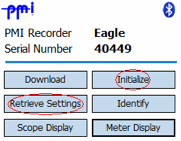
Main menu
Figure 1. Main menu

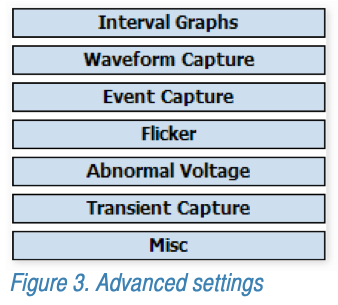
After selecting the Initialize option, ProVision Mobile displays initialization settings with default values, as shown in Figure 2. These settings are displayed across multiple pages. These pages can be accessed using the Next and Back buttons. Additional settings can be reached via the Advanced button, as shown in Figure 3. Some settings are only applicable to certain recorder types. Settings that are not applicable will not be accessible.
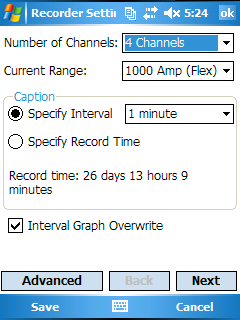
Initialization settings
Figure 2. Initialization settings
Figure 3. Advanced settings

From the initialization settings screen, selecting Cancel will return to the Main Menu and all changes will be discarded. Selecting Save will display a prompt to initialize the recorder with the new settings. Selecting Yes will transfer the settings to the recorder. This may take a few moments depending on the recorder and connection type. When the transfer is complete, select Close to return to the Main Menu.

To edit settings already stored on the recorder, it is necessary to retrieve them first. Do this by selecting Retrieve Settings from the Main Menu. It may take a little while for the settings to transfer depending on the recorder and connection type. After the retrieval is complete, select Open. The Initialization settings are displayed. However, instead of default values, the settings displayed are those retrieved from the recorder; they can now be edited and modified. These settings can then be used to initialize the recorder as described previously.
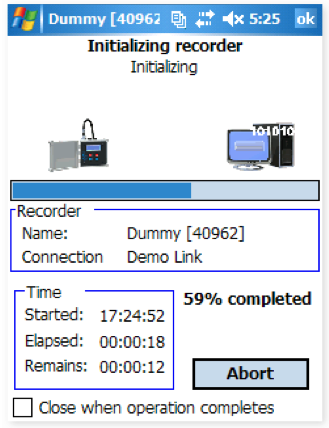
Figure 4. Retrieving settings

Being able to retrieve settings and reinitialize the recorder is necessary for modifying how and what data is recorded. The mobile nature of the Field PC allows retrieval and initialization from recorders still connected to the source they are monitoring. Utilizing these tools can be invaluable for scenarios in which physically disconnecting, using desktop ProVision to modify the settings and then reconnecting is not feasible.

Have a PQ question? Ask Merlin™ — free.

Send it to askmerlin@powermonitors.com or text (540) 383-3144.

Want the PDF version of this white paper?

Have a PQ question? Ask Merlin™ — free. Send it to askmerlin@powermonitors.com or text (540) 383-3144.

Power Monitors, Inc. — Tools you Need. People you Trust.

Power Monitors, Inc. is an industry-leading product design and manufacturing firm based in Mt. Crawford, Virginia. PMI® strives to solve power quality problems by listening to our customers and working with them to design and manufacture products. Total customer satisfaction is the primary goal of all PMI® staff.

24/7 Tech Support 800.296.4120

Resources

  • White Papers
  • Videos
  • Training
  • Live Webinars
  • PQ Resources
  • Support

Company

  • About Us
  • Contact
  • Careers
  • Newsletter
  • Product Registration
  • Terms & Conditions
800 N Main St, Mt Crawford, VA 22841 | Toll Free 800.296.4120 | Fax 540.432.9430
© 2026 Power Monitors, Inc.