
Abstract
With the introduction of the cell Guardian, 1 GB of memory in a PQ recorder is increasingly common. Although the resulting large files can provide a wealth of data, they can be a challenge to handle locally. To address these challenges, a new version of ProVision has been released (version 1.70). The main change for this new version is to add support for a new file format designed specifically for use with very large PQ files. One of the main advantages of this new file format is a smaller memory footprint during recording download and during viewing reports and graphs. The smaller ProVision memory footprint reduces the PC memory requirement to download or analyze a large PQ file. Also, a standalone program recording file downloader program is included with the ProVision installation.
New File Format
There is a new recording file format available with ProVision, using the .NSF extension. The ProVision user interface behaves the same when viewing recordings and graphs for either recording file format. The only change that a user should see is in the recording file name shown in the ProVision explorer tree view. ProVision still fully supports the existing XSB format, and the older XSF file format.
The new recording file format is used for Revolutions and the new cell Guardian. This is because the large memory capacity of those devices allows download of large recordings. The new recording file format is most helpful with the large downloads. The format has been designed for maximum efficiency and small memory usage specifically when working with very large data sets.
Choosing the Download File Format
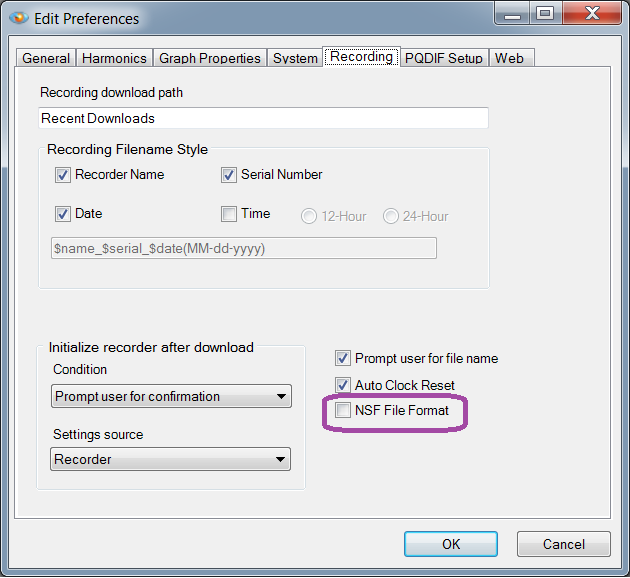
The standard recording file format (XSB) is still used by default for downloading recordings from all devices. The download method can be changed in the Preferences dialog. To change this preference, go to the Options menu and choose Preferences to display the preference dialog. When the Preferences dialog appears, choose the Recording tab. See Figure 1.
In the Recording preference dialog tab, there is a checkbox labeled “NSF File Format”. When this checkbox is selected, NSF recording file format is used for downloads from Revolutions and cell-enabled Guardian devices, and the older XSB file format is used for all other devices. When the “NSF File Format” checkbox is not selected then the older XSB recording file format is used for all device types.
Reduced Memory Footprint
The new file format recording files are written to disk during download as data is received from the recorder. The previous recording format (XSB) is stored in PC memory during download. This “in memory” download can cause very large recordings to have trouble downloading due to the memory size in the PC. The new format recording file only holds individual download record types (such as stripcharts) in memory during the download. When a recording file is read in for reporting or graphing, only the required records are read from the recording file. The old recording format (XSB) files must be read into memory in their entirety for reports and graphs, requiring a larger memory footprint for viewing.
Standalone Downloader
Included in the 1.70 version of ProVision is a new stand-alone recording downloader program. This program, RecordingDownloader.exe, can download recording files in the new NSF recording file format from some PMI devices. The RecordingDownloader.exe is installed to the same location as ProVision.exe. This is usually the C:\Program Files (x86)\Power Monitors, Inc\ProVision directory.
The devices that can be downloaded using this new stand-alone recording downloader are Revolutions and Guardian devices using TCP either by Cell or Wifi or Revolution devices using USB connections.
Note: ProVision cannot be running on the same computer at the same time when using the USB connection so it must be stopped before running the RecordingDownloader.
The stand-alone downloader can be used in a command script to download recordings. These scripts can be run by Windows task scheduler to automate recording downloads. The stand-alone downloader is a console program that can be run from a command prompt.
The command line options for the RecordingDownloader program are:
-i IP address— device IP address used for TCP downloads.-r— do download.-u serial number— serial number used for USB downloads.-Du— list all USB connected PMI devices.-Dt— scan network for TCP PMI devices.-?— get help message and exit.
Examples
When downloading from a TCP device such as a Revolution or Guardian over Cell or WiFi you need to know the IP address of the device. An example TCP download command would be:
"C:\Program Files (x86)\Power Monitors, Inc\ProVision\RecordingDownload.exe" -i 192.168.4.39 -r
An example USB discover command would be:
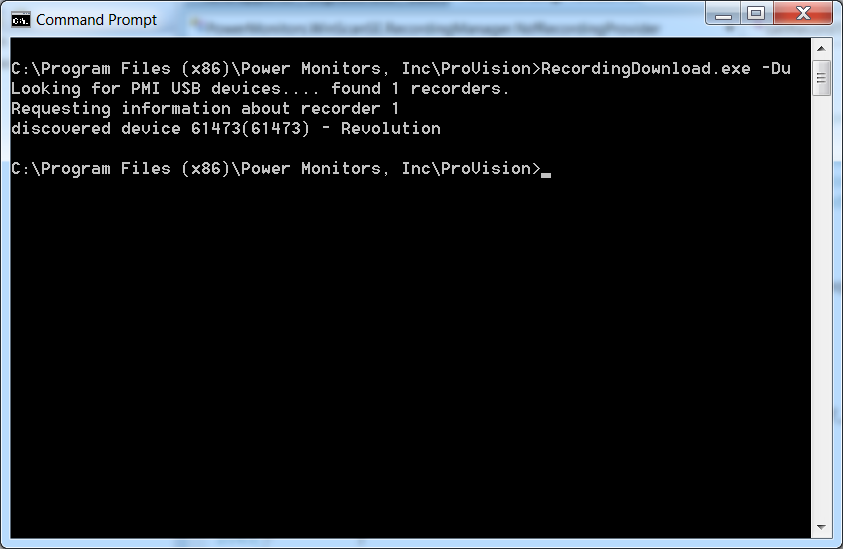
"C:\Program Files (x86)\Power Monitors, Inc\ProVision\RecordingDownload.exe" -Du
Figure 2 shows the output of the above command with one Revolution connected by USB.
To download a recording from that USB device you would type:
"C:\Program Files (x86)\Power Monitors, Inc\ProVision\RecordingDownload.exe" -r -u61473
If you leave off the -r download flag you get identification information about the device including serial number, device platform, firmware version.
The standalone downloader may be invoked manually from the command line, or called from a script as part of a larger automated process.
PQ Canvass
Although the NSF format and internal ProVision changes reduce the PC requirements for handling very large datasets, an even simpler system is available for the cell Guardian. PQ Canvass, a PMI-hosted cloud-based PQ analysis package, allows you to avoid handling large files at all. With PQ Canvass, the cell Guardian streams PQ data as it occurs directly to the cloud. Log in with a web browser any time to analyze the data, all without downloading the entire data set to your PC. In addition, SMS or email alerts are available for instant notification of a PQ event. The cell Guardian may also be downloaded with ProVision by cell connection or USB, in parallel with PQ Canvass operation.
Updating ProVision
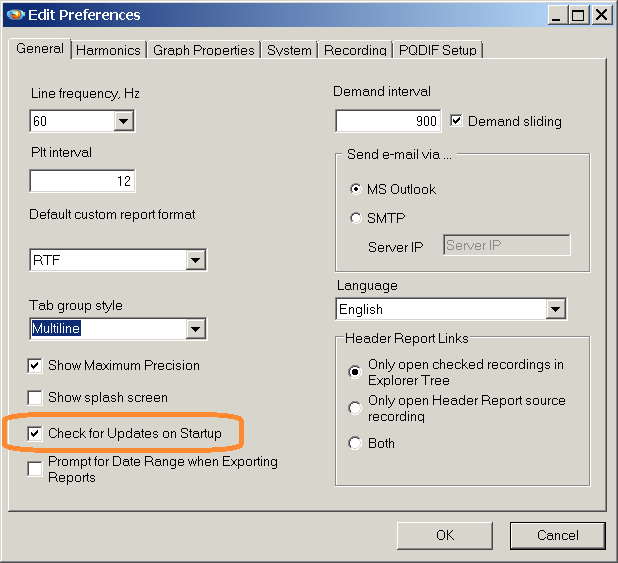
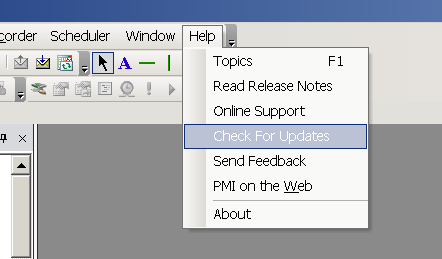
If auto-update checks are enabled, ProVision will detect that version 1.70 is available, and prompt to download and update itself. Auto-updates are enabled by default, but if disabled, they may be re-enabled under Options, Preferences (see Figure 3). A manual check may be performed under Help, Check for Updates (Figure 4). The ProVision installer is also available for download here: https://powermonitors.com/product/provision/
Conclusion
The rapid increase in file size due to the Revolution and cell Guardian called for internal changes in ProVision and a new file format optimized to reduce PC memory requirements. The NSF file format, in conjunction with ProVision 1.70 is designed to grow as PQ datasets grow in size and complexity. A standalone download program is also provided to assist in using large files in scripted, automated systems.