• Skip to primary navigation
  • Skip to main content

PMI

  • Home
  • Products
  • Library
    • Videos
      • All
      • Bolt Quality Tests
      • Promotional Videos
      • Support Videos
      • Power Quality Decoded
    • White Papers
      • All
      • Artificial Intelligence
      • Case Studies
      • Communications
        • All Communications
        • Cellular Communications
        • General Communications
      • Distributed Generation
      • IEEE Standards
      • Power Quality
        • All Power Quality
        • Analyzing Waveforms
        • Flicker
        • PQ Data Analysis
        • PQ Theory
      • Products
        • All Products
        • Boomerang
        • Boomerang SCADA
        • Box Recorder
        • Canvass
        • Eagle
        • Flex CT
        • Guardian
        • Merlin™
        • Meter Sockets
        • PQ Canvass
        • ProVision
        • Revolution
        • TLAR
        • Using PMI Recorders
      • Voltage
        • All Voltage
        • CVR
        • Voltage Sag
        • Voltage Unbalance
      • Harmonics
  • Training
    • All
    • PDH Eligible Classes
    • On-Site Training
    • Live Webinars
  • Support
  • Our Company
    • About
    • Contact
    • Join Our Team!
    • Receive our Newsletter
    • PQ Resources
    • Power Quality Solutions
  • Account
  • Cart - 0 items

Establishing a Connection to the Field PC

By Nick Crook · January 1, 2011

← Back to White Papers

Abstract

The Field PC is a handheld, ruggedized device running Windows Mobile and offering a wide array of features. This whitepaper serves as an introduction to the Field PC and one of its many capabilities. The PMI Field PC is preloaded with ProVision Mobile, the portable version of our communication software. It supports connecting to recorders via USB cable, serial cable, or Bluetooth, and makes communicating with your recorders in the field that much easier.

To connect your recorder, first select the connection type you would like to use—USB, serial, or Bluetooth—from the ProVision Mobile main screen. For USB and serial connections, ensure the cable connected to the recorder is firmly inserted into the corresponding port on the Field PC.
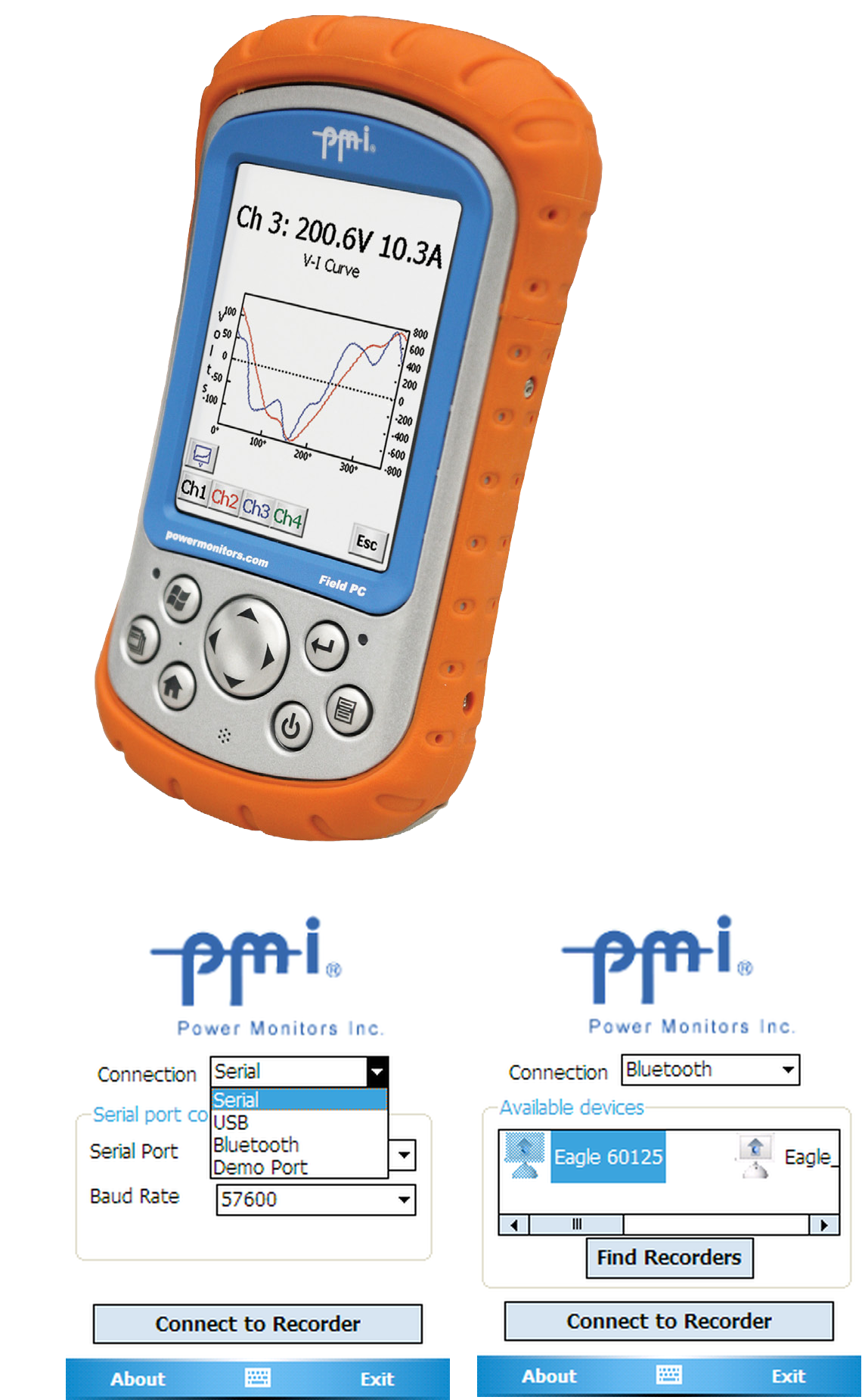
FIgure 1. To connect to a recorder, first select the connection type you would like to use.
FIgure 2. The Bluetooth option provides list of available devices. Select your device and then click “connect to recorder.”

Different connection settings will be displayed based on what type you have chosen. For serial connections, you can select a different port or baud rate aside from the default. For USB connections, all settings are handled internally and do not need to be modified. For Bluetooth recorders, the option to scan for recorders in the area is shown. Simply click “Find Recorders”. It will take a few moments for ProVision Mobile to scan for Bluetooth devices in the area, then present you with a list of those it found. Select the PMI recorder you wish to connect to.

When you have finished choosing your connection type and adjusting the settings, click the “Connect to Recorder” button. ProVision Mobile will establish the link, and present you with options to transfer your recording and initialize the recorder.

If you wish to try ProVision Mobile’s capabilities without connecting a recorder, a demo mode is available. Simply select “Demo Port”. Note using the demo mode only simulates a recorder, and does not connect to a USB or serial recorder if one is attached, nor to a Bluetooth recorder if one is in range. There are no settings that need to be adjusted; simply click “Run Demonstration” to simulate the connection.

Establishing communication between the recorder and ProVision Mobile is essential for other options. Once the link has been established, ProVision Mobile can retrieve the recording, initialize the recorder, and even display waveforms in real-time. This makes the Field PC and ProVision Mobile invaluable assets for interacting with recorders.

Have a PQ question? Ask Merlin™ — free.

Send it to askmerlin@powermonitors.com or text (540) 383-3144.

Want the PDF version of this white paper?

Have a PQ question? Ask Merlin™ — free. Send it to askmerlin@powermonitors.com or text (540) 383-3144.

Power Monitors, Inc. — Tools you Need. People you Trust.

Power Monitors, Inc. is an industry-leading product design and manufacturing firm based in Mt. Crawford, Virginia. PMI® strives to solve power quality problems by listening to our customers and working with them to design and manufacture products. Total customer satisfaction is the primary goal of all PMI® staff.

24/7 Tech Support 800.296.4120

Resources

  • White Papers
  • Videos
  • Training
  • Live Webinars
  • PQ Resources
  • Support

Company

  • About Us
  • Contact
  • Careers
  • Newsletter
  • Product Registration
  • Terms & Conditions
800 N Main St, Mt Crawford, VA 22841 | Toll Free 800.296.4120 | Fax 540.432.9430
© 2026 Power Monitors, Inc.