
Introduction
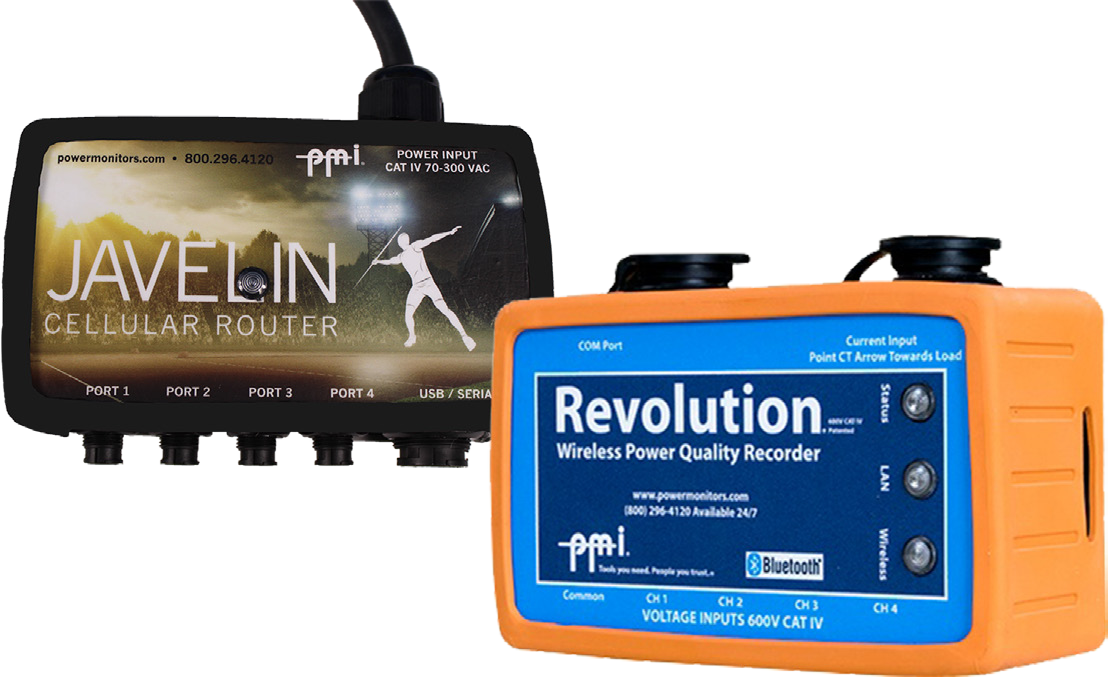
The Javelin is a utility-friendly cell router, providing communication access to devices in the field such as capacitor controllers, reclosers, voltage regulators, and DER inverters. A Javelin may also be used with any PQ recorder with an Ethernet port. By networking a Revolution PQ recorder with a Javelin, it is easy to extend the life of an existing 3G cell Revolution, or turn a non-cell, ethernet Revolution into a 4G-capable power quality recorder capable of sending email PQ alerts and working with Canvass, PMI’s cloud-based data collection and analysis system.
In this whitepaper, a Javelin will be configured to provide remote access to an Ethernet Revolution, allowing remote connections from ProVision, PMI’s PC-based PQ software. In addition, the Javelin will allow the Revolution to use Canvass, providing email/SMS alerts, web-based data analysis, and burst capability for live readings.
Configuring the DHCP Server on the Javelin
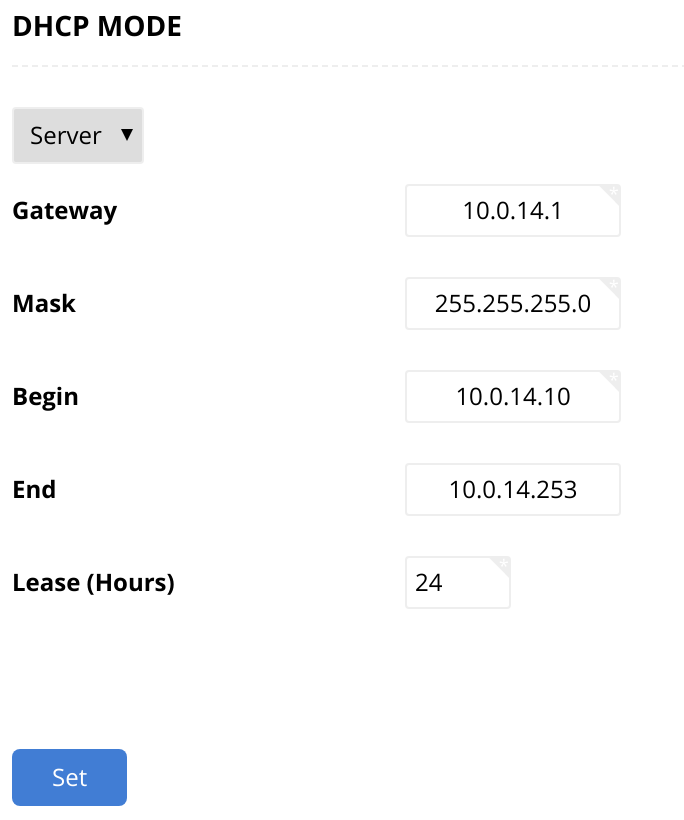
By default, the Javelin is in DHCP client mode so that if it gets plugged in to an existing network, it won’t compete with the main DHCP Server. The only way to access the Javelin’s web interface is via USB, which will act as an ethernet gadget, and navigating to https://172.16.32.1 in a web browser. If this is the first time accessing the Javelin, the self-signed security certificate will need to be accepted, and the Javelin will need to be activated with the one-time activation code provided. On the LAN tab of the web interface, set the “DHCP MODE” to “Server”, and enter the “Gateway” (the IP address in the subnet that will be assigned to the Javelin itself), the “Mask” for the subnet, and the “Begin” and “End” of the pool of IP addresses that will be assigned to DHCP Clients. It may be prudent to increase “Lease” time to more than 24 hours if DHCP is used on the Revolution, to ensure that port forwarding rules remain correct if there is a power interruption. In this example, the Javelin’s IP address is set to 10.0.14.1, and subnet mask is 255.255.255.0.
Configuring the Revolution to Use DHCP
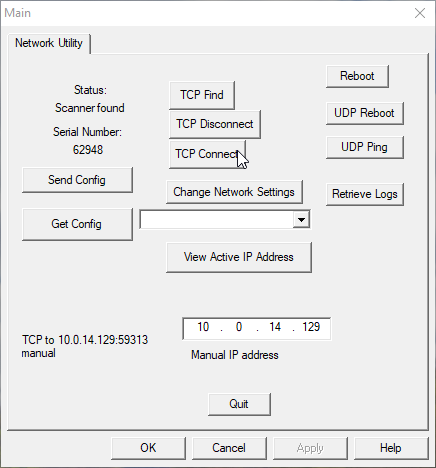
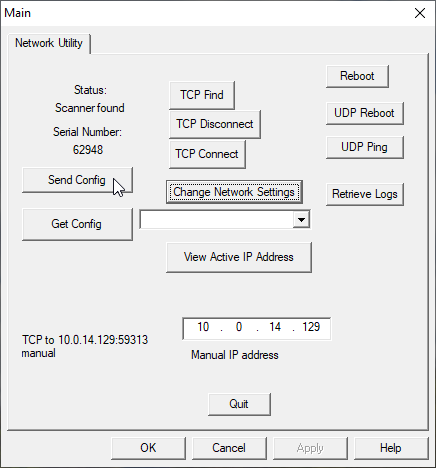
Configuring the DHCP settings on an ethernet Revolution is accomplished with the SNet Utility. SNet will need to be placed in and run from the C:\Program Files (x86)\Power Monitors, Inc\ProVision\ws directory in order to function properly. Both the Revolution and the computer using the SNet Utility will need to be connected via ethernet cable to the Javelin. By default, an ethernet Revolution will be configured to use DHCP. The IP address for the Revolution can be found in the DHCP Clients list on the Javelin, and entered into the “Manual IP address” field in the SNet Utility. Clicking on “TCP Connect” in the SNet Utility will establish a connection to the Revolution, after which clicking “Get Config” will update the Status and Serial Number fields to show the connected device’s details.
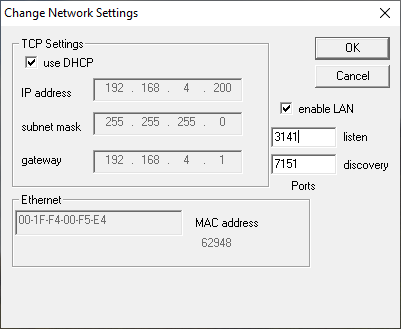
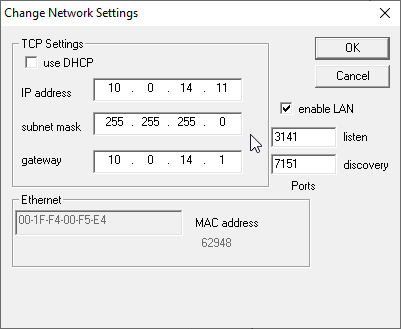
Clicking on “Change Network Settings” will bring up a window to modify the DHCP settings. If the “use DHCP” box is checked, the Revolution will use DHCP and the fields below it will be disabled. This window also provides the MAC address of the Revolution.
Configuring the Revolution with a Static IP Address
For port forwarding, it is recommended to set a static IP address rather than using DHCP, although it does add complexity. To set a static IP address for the Revolution, uncheck the “use DHCP” checkbox, which will enable the manual IP settings below it. Enter an IP address in the same subnet as the Javelin’s DHCP server, so that the Javelin can communicate with the Revolution. Set the subnet mask and gateway to be the same as the Javelin’s DHCP server configuration. In this example, an IP address of 10.0.14.11 was selected for the Revolution, with a subnet mask of 255.255.255.0 and a gateway of 10.0.14.1 (the Javelin’s IP address). After clicking “OK”, clicking “Send Config” on the Main window of the Snet Utility will update the configuration on the Revolution. Restarting the Revolution via “UDP Reboot” or cycling the power to it will cause the Revolution to start up using the manually configured IP address.
Configuring the Javelin’s Firewall
In order to connect to the Revolution that is connected to the Javelin, a port forwarding rule must be created. In this example, only one rule is needed, which is to forward TCP traffic from any IP address (0.0.0.0/0) on port 3141 (the default ProVision port on the Revolution) to the static IP address that we assigned to the Revolution (10.0.14.11) and port 3141.
In order to increase security, it is recommended to only allow traffic from specific IP addresses, so that not just anyone can connect to the Revolution.
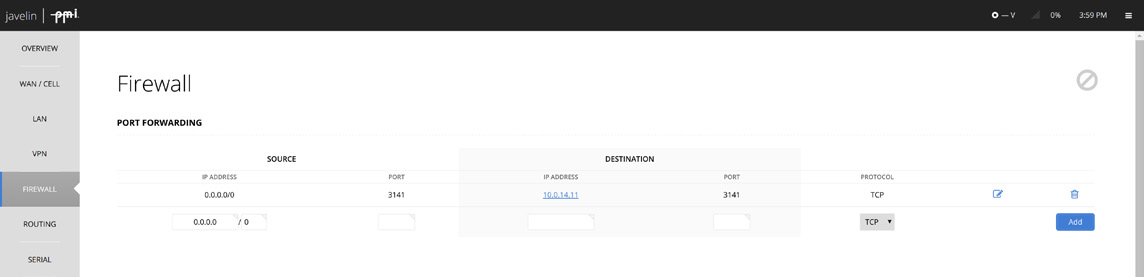
In order to receive burst commands and set trigger thresholds from the Canvass website, port 65211 must be forwarded to the Revolution. The command will typically originate from the IP address 54.88.177.125, if the Javelin is on the public Verizon network. So for a Javelin on the public Verizon network, port forwarding traffic from 54.88.177.125 on port 65211 to 10.0.14.11 port 65211 will let Canvass communicate with the Revolution as if it were a normal Cell Revolution. Additionally, to make sure Canvass can communicate with the Revolution properly, our Tech Support will need to be notified of the Javelin’s public IP address.
Connecting to the Revolution with ProVision
To connect to the ethernet Revolution that is networked with the Javelin, it can be added to ProVision like any other cell Revolution. Click on the “Recorder” menu, then “Recorder communication settings”, then “Add…” and select “TCP/IP”. The “Address” should be set to the Javelin’s cell modem’s IP address, in this example, it is 10.8.0.200. Additionally, the “This is a Cell connection” checkbox needs to be checked.
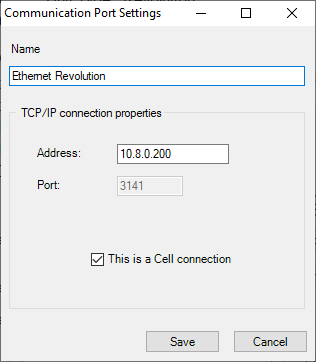
After the device is added, clicking the “Recorder” menu, then “Connect Recorder” and then selecting the Ethernet Revolution option that was just added will connect to the Revolution over the cell connection provided by the Javelin.
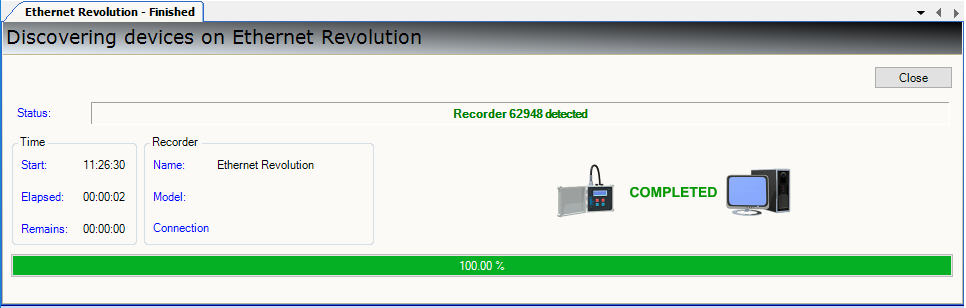
From there, the recordings can be downloaded, the Revolution initialized, and anything else a regular cell Revolution can do.
Conclusion
Whether the goal is to extend the life of existing hardware, or make an easy upgrade to remotely-accessible power quality recorders, using a Javelin networked with a Revolution is a quick and easy solution. Once 3G service ceases, a Javelin is nearly a plug and play solution to access power quality data without rolling trucks, while also utilizing existing equipment.
