
Abstract
The ability to store and apply multiplicative scaling factors to voltage, current, and power data is a new feature recently added to the cloud-based Canvass system. Scale factors have a variety of uses, from reflecting primary-side voltage or current readings, applying PT/CT calibration data, and even correcting for backwards CTs. This white paper discusses how custom scale factors can be applied to data in Canvass, while highlighting some of the differences between their applications in Canvass versus ProVision.
Differences Between ProVision and Canvass
One of the major differences between Canvass and ProVision is that in Canvass there is no concept of a “recording session.” The devices reporting to Canvass are “always on”, always sending data into the system and are usually at least semi-permanent in location. Due to this semi-permanence, scale factors are applied on a device-by-device level. They are not user- or time-specific – if User A configures device 10008 with specific voltage and/or current scale factors, then User B will also see the same scaled values over all recorded data in Canvass for this device.
In a sense, it can be said that the application of scale factors are “retro-active” in Canvass – even if the device had been sending data from the field for over a year, once the scale factors are entered in Canvass, then all data stored from that device – even that data from a year ago – is scaled with the new factors.
All of this is a fairly significant departure from the behavior of custom scale factors in ProVision. (For more information on custom scale factors in ProVision, see white paper Using Scale Factors for PT/CT Ratios and Per-Unit Analysis in ProVision). In ProVision, scale factors are stored with a data file, and are only applied to that recording session.
While there are several differences between ProVision and Canvass when it comes to how custom scale factors are applied, their fundamental function remains the same: they are a set of multiplicative constants that are applied to each channel of voltage and current. Also, as in ProVision, real, reactive and apparent power have both voltage and current scale factors applied to them.
Other Considerations
It is worth noting that any scale factors applied to Revolutions in Canvass have no bearing on recordings in ProVision. Conversely, if a set of custom scale factors is applied in ProVision they will not be reflected in Canvass. As with the other Revolution data types, the Revolution Canvass operation is completely independent of its ProVision recording operation. There is also no history of scale factors in Canvass – if the factors are changed and saved then they immediately replace the previous scale factors in the database. Any following graphs or reports will reflect the new scale factors, even for older data from that device.
An additional deviation from ProVision is that real-time readings in Canvass are also scaled. This is true for all devices that report into Canvass – all types of Boomerangs and Revolutions.
Finally, CSV exports from Canvass have scale factors applied to all channels of voltage, current, and power as well.
Configuring Custom Scale Factors in Canvass
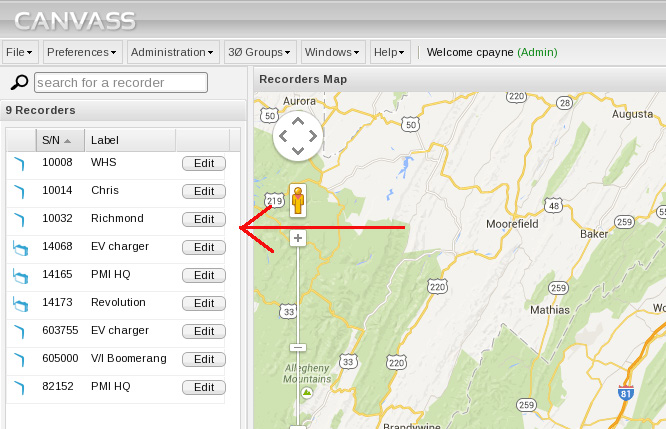
Setting up custom scale factors in Canvass is pretty straightforward. Start by locating the device on the left-hand side of the screen in the Device Panel, as shown in Figure 1. Once the device has been located, click on the “Edit” button next to the device’s label and serial number. The device settings window will now be visible. Click on the “Scale Factors” button at the top of this window (Figure 2).
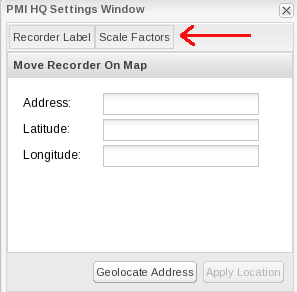
Clicking on the “Scale Factors” button will display the device scale factors window. This window contains a grid (more like a mini spreadsheet) that contains fields for each channel that the selected device is capable of recording.
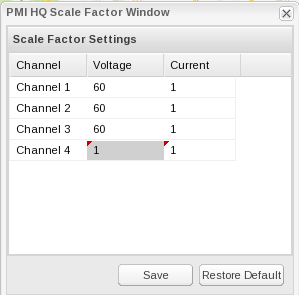
In Figure 3 the author has selected 60 as the scale factor for channels 1, 2 and 3 for RMS Voltage. This particular device is connected to the 120V/208V service entrance at PMI, so the 60x scale factor reflects the primary distribution voltage at this location. Channel 4 was left at 1x for neutral-ground monitoring.
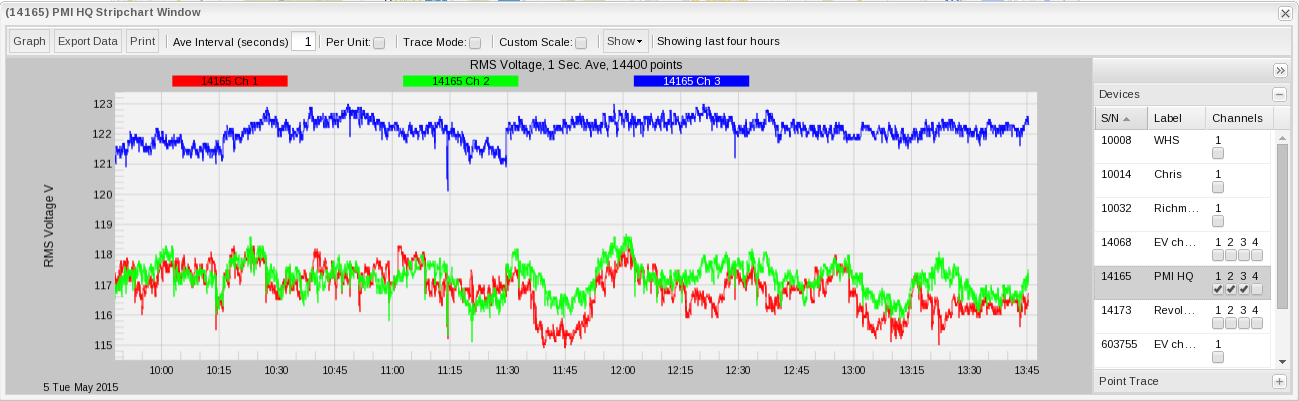
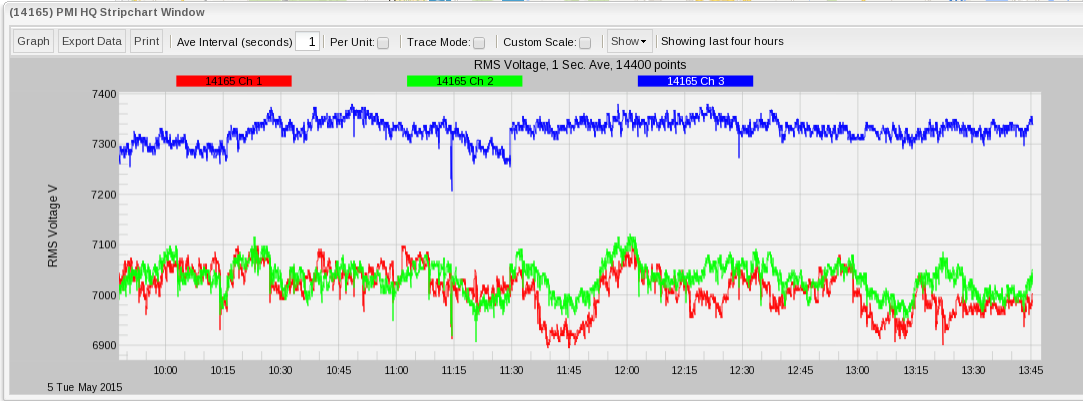
The screen shots below show the RMS Voltage for PMI Revolution 14165 which, as mentioned above, is connected to the facility’s service entrance. The first image (Figure 4) shows the pre-scaled RMS voltage values. The second image (Figure 5) shows the scaled values that will show the primary voltage as it enters the facility.
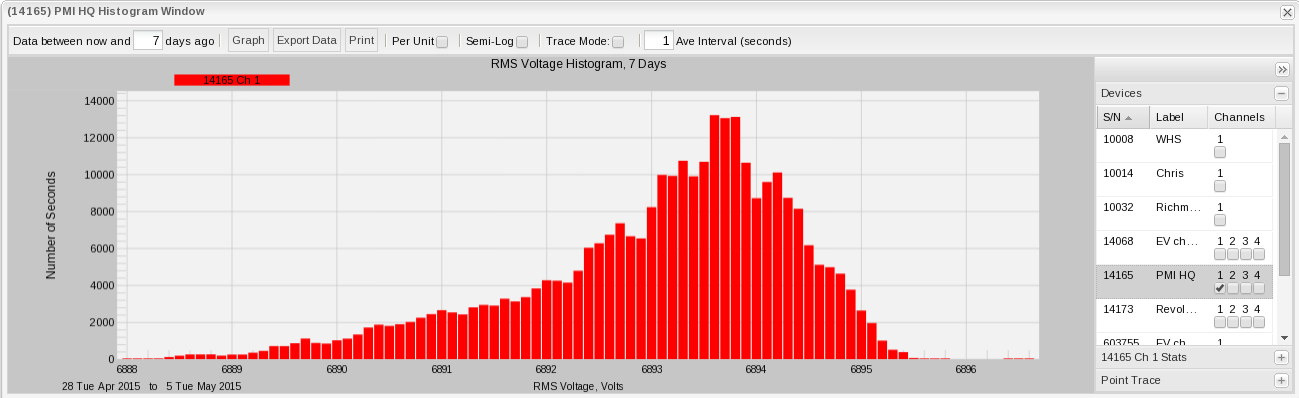
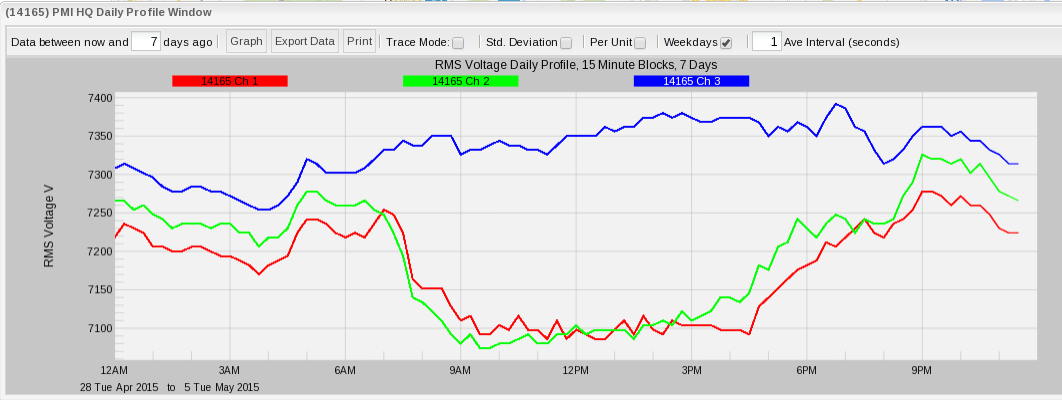
In addition to stripcharts, histograms (Figure 6) and daily profiles (Figure 7) also have the custom scale factors applied.
Custom Scale Factor Use Cases
A few common scenarios that necessitate the use of custom scale factors include the application of PT/CT ratios to reflect their primary values; correcting for backwards CTs; and switching the power flow direction for distributed generation (photovoltaic and wind turbine generation).
In the case of inverting the power flow for distributed generation, simply applying a factor of -1 to current will suffice. In most cases, utilities will view local generation as negative power, however – on occasion – for the generator it may be desirable to view that generation as positive power. In Canvass, applying a -1 scale factor to current easily switches the polarity for real and reactive power, while leaving apparent power unchanged.
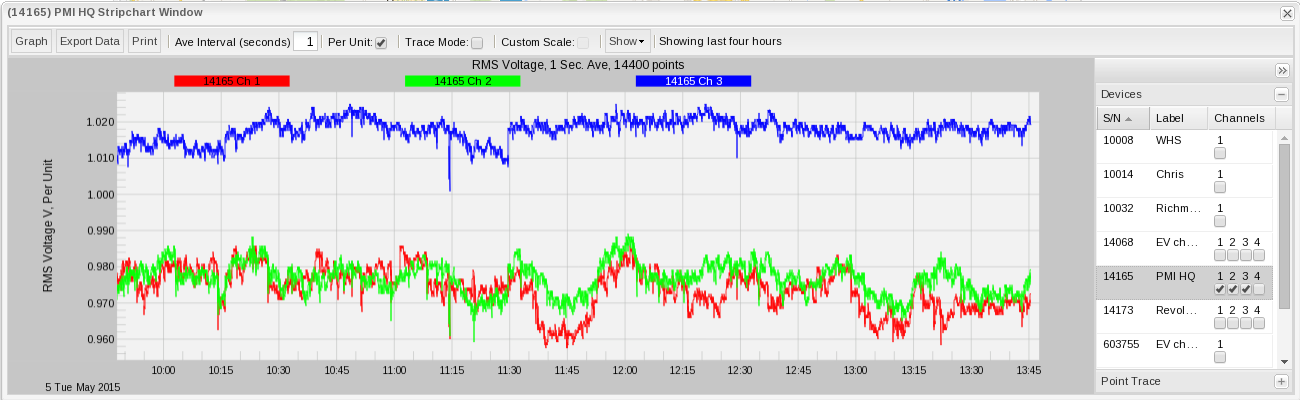
Unlike ProVision, Canvass has a built in per-unit scaling function. Thus, for per-unit analysis, scale factors need not be applied unless the user is using non-standard nominals or if viewing current or apparent power where no standard nominals exist. Canvass actually looks at the recorded voltage and makes an intelligent guess as to what the nominal is supposed to be and therefore allows the user to see per-unit values by simply selecting “Per Unit” as a graph option as shown in Figure 8. Sometimes, however, the voltage values are far enough from a standard value that an incorrect nominal is computed by Canvass, necessitating the use of a custom scale factor in order to see per-unit values.
Conclusion
The application of custom scale factors in Canvass is a very easy and straightforward process. By taking advantage of this new Canvass feature users can address a wide range of power measurement tasks that previously required exporting data or manual adjustment.
