
Abstract
ProVision, the power quality diagnostic software provided by Power Monitors, is consistently maintained and updated as new features are added and existing ones are updated. Some of these are minor, whereas others are significant modifications, regardless of whether or not these modifications are readily apparent to the user. However, regardless of the scope of the change, a new build of ProVision is created and made available.
The most commonly used builds of ProVision are 1.32, 1.51, and, most recently, 1.61. WinScan, the predecessor to ProVision, is also commonly used. It is recommended to always use the most recent version of ProVision in order to have access to the latest features and updates. Some of these latest features available in ProVision 1.61 not present in previous versions are the upgrade manager, new graph and report types, the mixed graph tool, and new settings and initialization options.
This whitepaper serves as an overview of the upgrade process, and how different ProVision files and settings are handled by the new version.
Uninstalling Previous Products
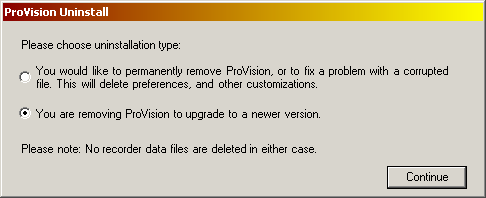
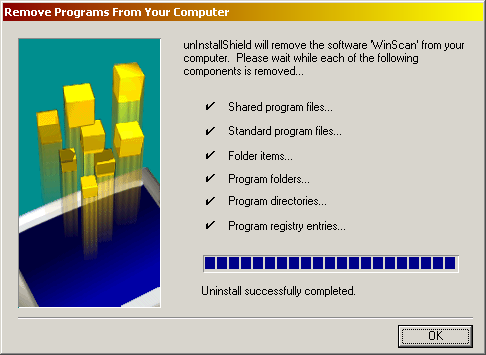
In order to upgrade to new PMI software products, previous versions of ProVision must be removed. On windows-based systems, this can be accomplished by opening the Start menu, selecting Control Panel, then choosing “Add or Remove Programs”. Then highlight the version currently installed—and select “Remove”. From here, simply follow the prompts. When uninstalling ProVision, a special dialogue appears where the uninstallation context can be specified: either full or partial as shown in Figure 1. Selecting a full uninstall will remove customization and preference settings along with the program, while selecting a partial uninstall will only remove the program and leave behind any customization files. Note that regardless of the uninstallation context, no recording files are removed. It is also possible to remove WinScan with this method (Figure 2) but not necessary.
Upgrading from WinScan
WinScan is older software, and, while technical support is available for it, it is no longer supported with updates. It is possible for WinScan and ProVision to be concurrently installed.
The most recent version of ProVision can be downloaded at www.powermonitors.com. At the main page, select “Download ProVision”, then the “Download Now” graphic. After verifying PMI account credentials, the installer package can be downloaded. After the download, simply double-click the installer package to begin the setup process. Once the setup process is complete, the new version of ProVision can be launched.
Recordings downloaded with WinScan are saved as ISF files, which is a different format than the XSB one used by the latest version of ProVision. The ISF files can be imported into ProVision by selecting the File menu, then the Import option. Navigate to the directory containing the previous recordings downloaded with WinScan, in ISF format, and select OK. This will convert each file to the XSB format used by ProVision. These newly-converted recordings will be available for access in the “Recent Downloads” folder. This import operation creates new XSB files and does not modify or remove the existing ISF ones.
Upgrading from ProVision 1.32
ProVision 1.32 can be uninstalled in a procedure similar to WinScan. Note that due to the limitations of the Windows OS, it’s not possible to maintain concurrent installations of both ProVision 1.32 and a newer version. However, once ProVision 1.32 has been removed, a new version can be installed.
Note that not all customizations and settings will be carried over to the new version. Views that have been saved, custom graph templates, and mixed graph templates will be carried over to the new version and can be used directly. References to watcher folders will be lost—this is not to mean that the actual folders and their contents have been destroyed, only that ProVision is no longer actively monitoring them. These previous watcher folders can be easily added back to the ProVision user interface by right-clicking “Data File Sources”, selecting from the resultant context menu “Add Watcher”, then navigating to the new folder.
Customized initialization templates will not be carried over. However, it is possible to archive these templates, if desired, prior to uninstalling ProVision 1.32. In 1.32, right-click the template to keep and select the “Send by e-mail” entry. In the resultant dialogue, select the radio button for “Save object to file you could send later”, specify a filename, and select OK. Then, after the new version has been upgraded to, open the File menu and select Open, then navigate to the file. ProVision will parse the file, recognize the settings template, and add it to the user interface.
Recording files downloaded using 1.32 are saved in XSF format, opposed to recording files downloaded with later versions, which are saved in XSB format. However, later versions of ProVision will recognize XSF files and still display them in Recent Downloads or in any other watcher folder. Attempting to open the XSF file in later version of ProVision will cause ProVision to convert the file to XSB format, and open the converted file instead. The original XSF file is left intact as part of this conversion.
Upgrading from ProVision 1.51
ProVision 1.51 has the same runtime limitations as 1.32, such that it’s not possible to run both it and a newer version concurrently. As with upgrading from 1.32, saved views and custom graph templates will be carried over to the new version and can be used directly. Furthermore, mixed graph templates that have been carried forward from 1.32 will be propagated forward as well. Watcher folder references will also be lost, but can be added again using similar steps. Custom initialization templates will not be carried over, but can be archived and exported back in.
The recording format used by ProVision 1.61 is the same XSB format as those used by 1.51. Therefore, it is not necessary for ProVision to perform the conversion routine, so the recordings will be immediately available. In each case, custom events and modifications to the menu systems and toolbars will not persist between settings.
Conclusion
Due to this modification in recording format, and the ever-changing nature of ProVision, it is recommended that if ProVision is installed on multiple computers, that they are all upgraded consistently with the same version. This can prevent issues that would occur such that if a modification is made to a recording using 1.61 saved in the XSB format, it can still be opened by other users. However, due to the difference in format, it would be inaccessible to any users with WinScan or ProVision 1.32, since they use the ISF and XSF format respectively.
