
Abstract
PMI’s Revolution can be configured to use a cellular modem as one of its many different means of connectivity. When this option is present the modem can be configured in one of two ways: with a static IPv4 address or with a dynamic IPv4 address. A static IP address is always the same, and thus easy to program into ProVision for connection. A dynamic IP address may change at any time, presenting a difficulty for establishing an outside connection. To keep track of dynamic IP addresses, PMI hosts a service that logs the most recent address of each Revolution, and ProVision queries this log to connect to a specific Revolution. This system is described in this paper.
History of the IP Address Resolution Server
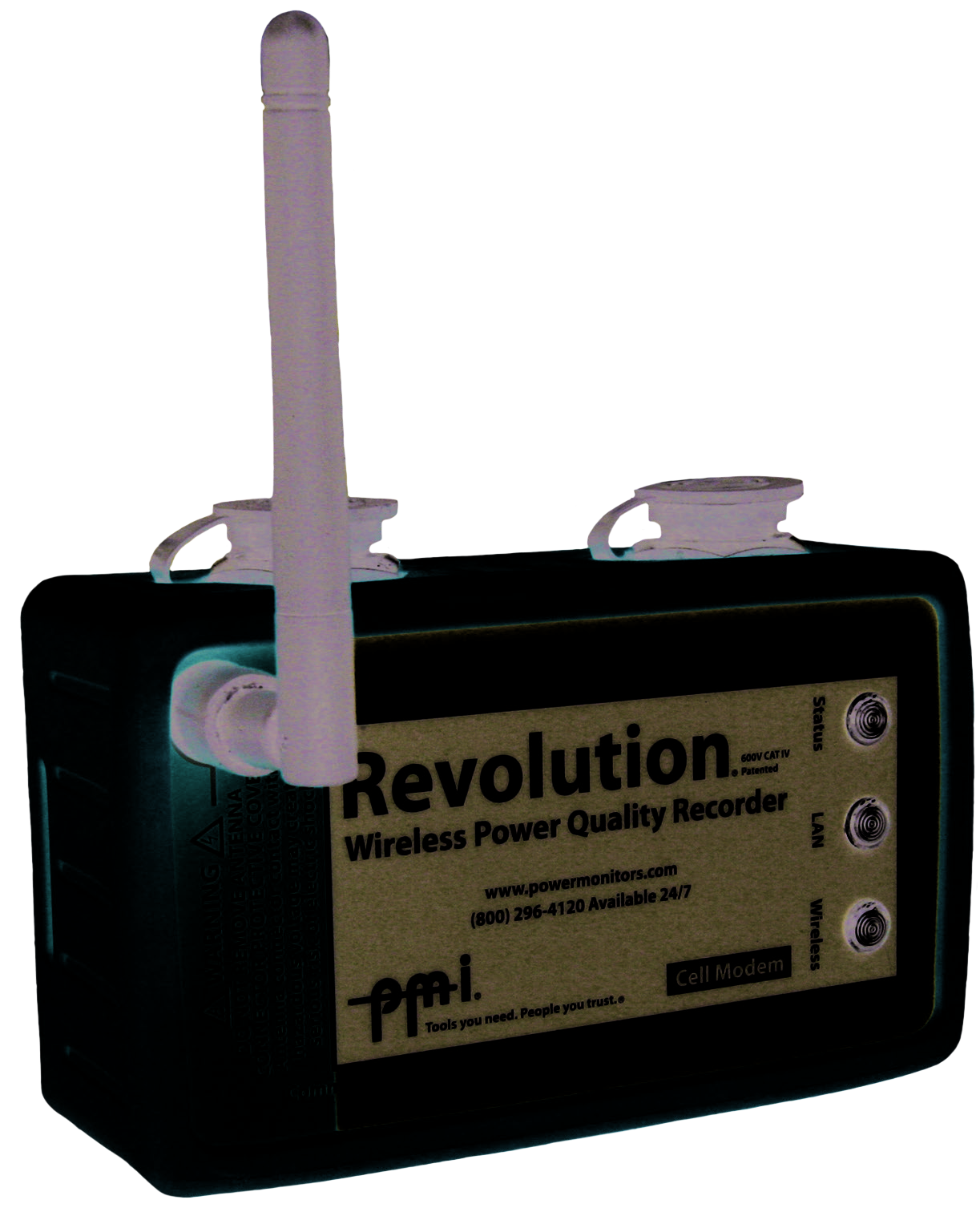
The IP Address Resolution Server has been around since the first cell-modem Revolution (Figure 1) was developed and shipped. The first version (which is still supported for those users who have not yet upgraded to the latest version of ProVision and Revolution firmware) operated on proprietary ports and used a proprietary protocol. Often times, this led to IT intervention (opening firewalls, granting special privileges, etc).
Configuring ProVision to use the first version of the service also required a bit of hand entry for pieces of information, such as the device’s serial number, that were prone to user error.
The New IP Address Resolution Server
Version 2 of the IP Address Resolution server is an almost completely new implementation. Instead of using a custom service with non-standard ports and a proprietary protocol, the new service now uses the standard HTTP protocol on TCP port 80 – the exact same type of traffic and content that a web browser handles. This new service is supported in ProVision 1.61 build 5581 and later.
The service has also been modified to group devices into “accounts” that require credentials to gain access. This was done for a number of reasons, chief among them being added security and ease of use for the customer. Now, when a user connects to the service through ProVision, they are informed by the service which devices are available to connect to instead of being forced to enter that information manually. (Please see below for information on how to connect to and use the service from ProVision.)
Finally, all traffic that is passed between ProVision and the service is protected using AES-128 bit private key encryption that is unique to each account. Each key is unique for each different account and no “default value” is ever used. (PMI does not use the same “standard” key for each user and then leave it to the user’s discretion to change it on their own. When each account is configured by PMI it is done so with a key that is unique to the customer.)
The accounts are set up in such a way that each utility has one, single, unique set of credentials that must be shared by any and all users that intend to connect to a cell-modem Revolution through the service. This was done, essentially, to simplify management on the user’s end. There is no need to configure multiple users with different roles and access to different devices – there is just one set of credentials.
If an event occurs in which it becomes necessary to reset / remove / alter these credentials in any way, then the user can simply email PMI support (support@powermonitors.com) or call 1-800-296-4120 and ask to speak with a Technical Support representative. There is no direct way to change credentials from ProVision itself – this is because the credentials are shared among multiple users and allowing a single user to change them could cause confusion among the other users, especially if they were unaware that the credentials had been changed.
Finally – while the default configuration is to place all of a customer’s Revolutions into a single account that can be shared by all users of the system, PMI does understand that it may be desirable to segregate these devices by user or field site or using some other criteria. Under these circumstances, PMI can create multiple accounts for a single utility, i.e. Utility-West and Utility-East. It must be noted, however, that a Revolution can “belong” to only a single account – there is no way to “share” a Revolution among accounts.
A Note About Static IP Addresses
As mentioned above, it is possible when provisioning service for a cell-modem Revolution to select to either use public, static IPv4 addresses or public, dynamic IPv4 addresses. When provisioning service from the wireless provider to use a static IPv4 address, as was the case with the first version of the service, the user can simply add the device to ProVision as an “Ethernet Connection” (TCP/IP).
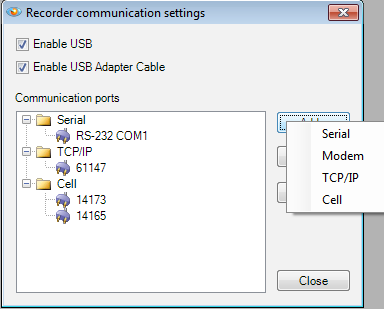
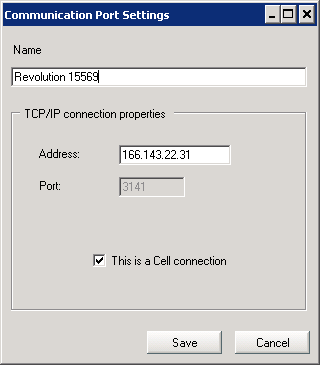
Start by selecting the Recorder menu, and then select “Recorder Communication Settings.” A Recorder Communication Settings dialog will appear with a list of previously established connections (if they exist, Figure 2). Click on the Add button. The dialog will display a list of four options: Serial, Modem, TCP/IP, Cell. Select the TCP/IP option. The “Communication Port Settings” dialog will now appear, as shown in Figure 3. Add a name (this can be anything the user desires – the device’s serial number, location – anything that will help the user identify the device) and an IP address, check the “This is a cell connection” checkbox, and then select “Save.”
Once the device has been saved / added, the user can connect to it as with any other recorder.
Connecting to a Cell-Modem Revolution from ProVision Using the New IP Resolution Service
Initiating a connection with a cell-modem Revolution in ProVision is a much improved (in terms of security, stability and ease of use) process. To start with, the user must first have their PMI supplied credentials for the new IP Resolution service. If a PMI representative has not yet been in contact, please feel free to call or email PMI Technical Support (support@powermonitors.com / 1-800-296-4120). The registration and configuration process should take only a few minutes.
Once the credentials have been obtained, it’s essentially a two step process.
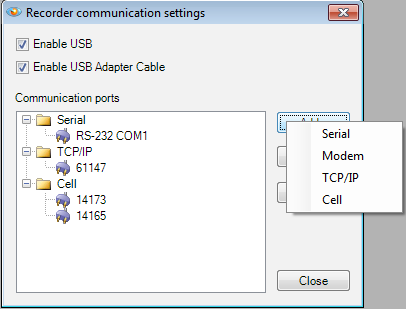
As with the process for adding a device with a static IP address, begin by selecting the Recorder menu and then select the “Recorder Communication Settings” menu item. The “Recorder Communication Settings” dialog (Figure 4) will again appear. Click on the Add button, which will display four options: Serial, Modem, TCP/IP and Cell. In this instance, select the “Cell” option.
The “Add Cell Connection” dialog will now appear, as shown in Figure 5. At this point, the user should enter the credentials obtained below.
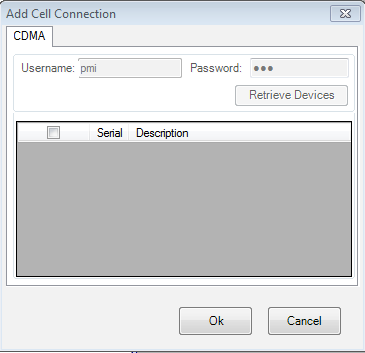
Next, click the “Retrieve Devices” button to get a list of Cell-Modem Revolutions that the PMI IP Resolution Service is aware of for the user’s account. These devices will appear in a list box that contains their Serial Numbers and a description (if available). Simply select (tick the check box) next to any device(s) that should be added and click “Ok.”
The devices are now available and can be connected to as with any other recorder in ProVision.
A Note on Proxy Servers
Some IT shops require the use of a proxy server in order to send HTTP (web) traffic through the internet. Since the new IP Resolution Service uses HTTP for communications, users that sit behind a proxy server may be affected. If this is the case, ProVision has been programmed to detect the existence of a proxy server and prompt for the proxy server’s credentials. If the user is unsure what these credentials are then an IT department member at the user’s facility should be contacted.
If the user does require proxy credentials and they have not yet been configured in ProVision, the user will see the following error (Figure 6):
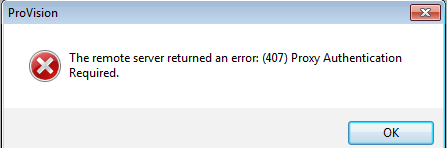
Immediately after the failed proxy dialog is dismissed, the user will be prompted to enter their proxy credentials, as shown in Figure 7. The user or an IT administrator can now enter the proxy credentials into the dialog and – if desired – select the “Save Username and Password” checkbox to cache them for future requests.
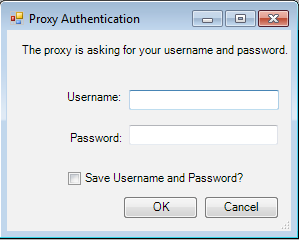
If the user (or IT administrator) has selected to save the proxy credentials, they are encrypted and cached on the local user’s machine. (This process will have to be repeated for any installation of ProVision that sits behind a proxy server.) If, however, the user (or IT administrator) selects not to save the credentials, then they will need to be entered each time that the IP Resolution Service is connected to.
Conclusion
The latest version of the IP Address Resolution Service provides an increase in security, stability and ease of use. By upgrading ProVision and the Revolution firmware, the user can take advantage of these new features and enable connection to cell Revolutions with dynamic IP address.
