
Abstract
PMI’s Revolution power quality recorders are available with Ethernet/networking capabilities which are easily configurable to allow quick connection and communication over a company’s network. One of these network capabilities is Simple Network Time Protocol (SNTP), which is used to synchronize computer clocks. This white paper will explain SNTP and discuss the different SNTP configuration options that are available on the Revolution.
SNTP
The Simple Network Time Protocol is a simplified version of the NTP time protocol that is used to synchronize computer clocks over the network. SNTP works with NTP time servers. These time servers can be anywhere on the network including the public available time servers found at http://support.ntp.org/bin/view/Servers or local organizational time servers. It is recommended that the local organizational NTP servers are used if available. Some organizations require organizational time servers to be used. SNTP uses UDP port 123. For SNTP to work with the Revolution recorder, access must be allowed on the port on all intermediate routers and/or firewalls.
Time on the Revolution
SNTP allows time synchronization with a high degree of accuracy. This allows time stamps of events from multiple recorders to be compared accurately. It is required to work correctly with Canvass.
The Revolution maintains two clocks; one for recordings and one for CANVASS reporting. The CANVASS reporting clock is maintained by SNTP; this is configured by PMI during the Canvass setup for each device.
The clock used for recordings can be set by both Provision and SNTP. You may choose which source is used for PQ recordings. Provision by default sets time when a recorder is initialized. This can be disabled in preferences. As shown in Figure 1, the “Auto Clock Reset” check box is highlighted. This check box tells Provision whether to set the recording clock on the Revolution. Do not have Provision set the clock and SNTP set the clock or the recording times and duration information may be confusing in the recording.
The advantage of setting the recording clock by SNTP is increased timestamp accuracy. Two possible sources of timestamp error are eliminated by using SNTP – initial PC clock accuracy when initializing with ProVision, and Revolution internal clock drift. Although many corporate networks automatically set PC clocks via time server, this is not always the case, and may not be reliable for laptops in the field that are not frequently synchronized or networked at all. The Revolution built in real time clock is a high accuracy, low-drift clock – less than 3 parts per million worst-case drift over the full temperature range (around 8 seconds per month), this drift can accumulate over long recordings, making it more difficult to compare events with other devices. With SNTP, the Revolution will periodically resynchronize its internal clock, eliminating any long-term drift, and any local PC time issues.
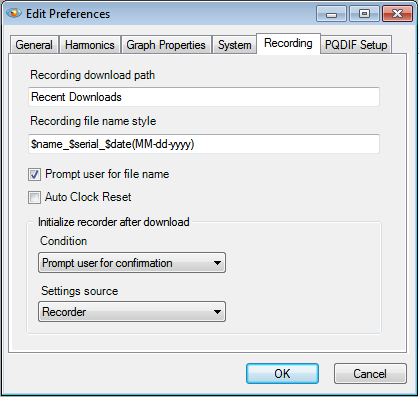
The Revolution clocks are set to one second accuracy. All timestamps at the one-second level or longer are affected by the SNTP or ProVision clock source. For event times within a second, the AC cycle number is used (e.g. waveform capture timestamps, event capture, etc.)
Revolutions and Canvass
CANVASS is PMI’s web-based database and data analysis package. With Canvass, the user can view voltage, current and power stripcharts, histograms and daily profile graphs for every data point that a device has ever registered to the PMI CANVASS data warehouse. See Figure 2. Since data from multiple scanners can be conveniently displayed together, time synchronization is important. SNTP must be configured if a device is reporting to CANVASS.
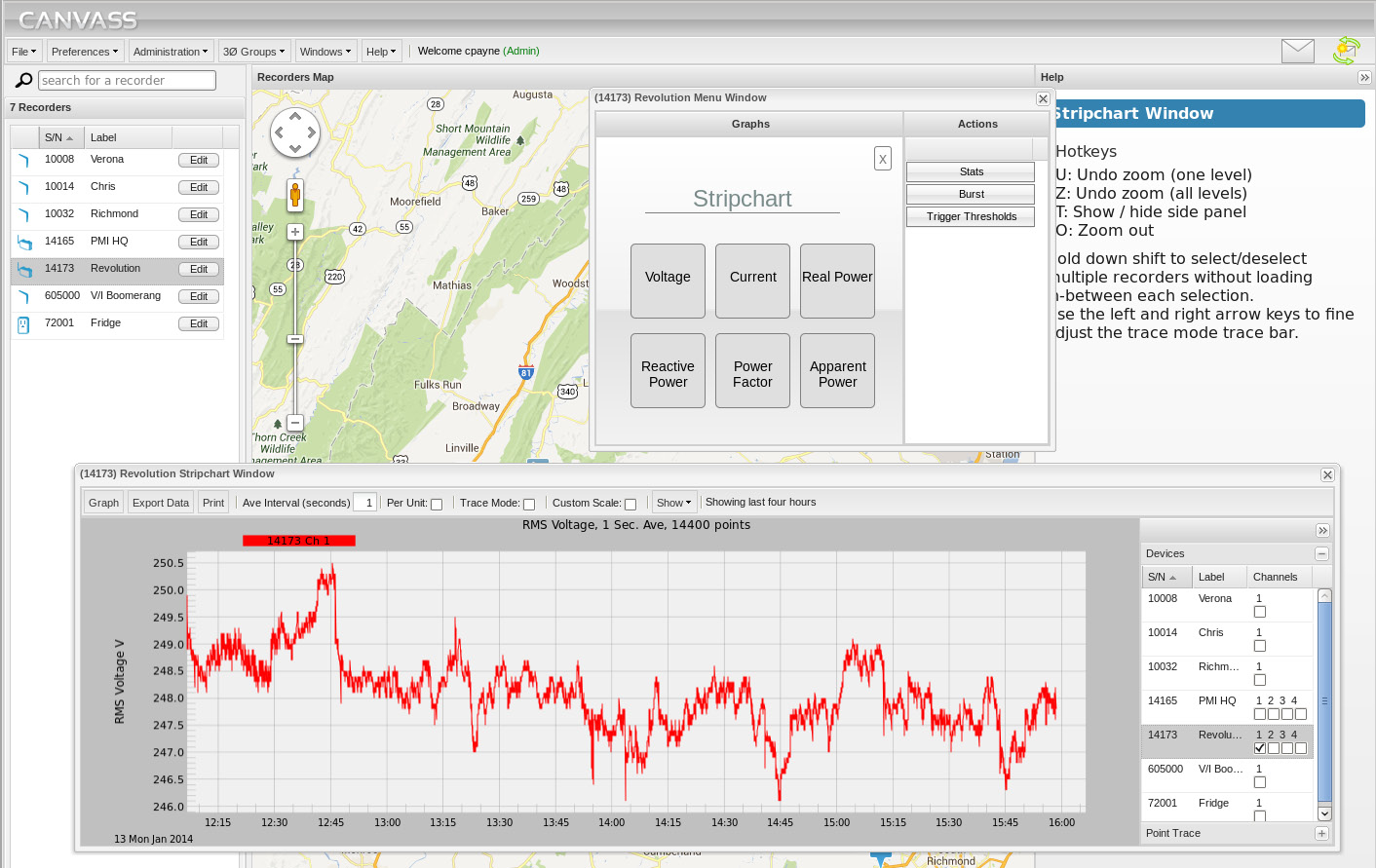
For Canvass use, PMI will configure the SNTP settings automatically as part of the Canvass setup. Although SNTP is required for Canvass, it is not required for ProVision recording. The Revolution can use SNTP/UTC time for Canvass data, and local/PC time for ProVision data. With this configuration, any ProVision time settings are used for PQ recording, but all Canvass data is still SNTP time synchronized, and is unaffected by any ProVision activity.
Configuring SNTP on the Revolution
Network settings, including the SNTP settings, can be configured using PMI’s Scanner Network Utility (SNET). The SNET utility can be requested by calling PMI Technical Support at 1-800-296-4120.
The SNET utility automatically discovers PMI Scanners connected by USB. Any USB-connected Revolution will appear immediately in the SNET utility. PMI Scanners using with TCP Discovery turned on can found on the local network by using the “TCP Find” button. Scanners not on the local network or not discovered with the “TCP Find” button can be entered by IP Address using the “Manual IP Address” entry field. A scanner needs to be selected, and the Connect button pressed to connect to the scanner. Setting changes do not take effect until the “Send Config” button is pressed.
The “SNTP Enabled” check box is used to tell the Revolution whether or not to use SNTP (Figure 3). This must be enabled for Canvass data, and would be automatically set by PMI during the original Canvass setup.
To use SNTP for the Revolution Recording clock use the “use SNTP for recording” check box. Check this to use SNTP for all timestamps in ProVision recorded data.
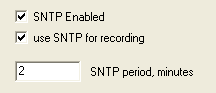
The SNTP period is the frequency that the Revolution updates its clock from SNTP. A four to six hour update period is recommended though the clock on the Revolution is accurate enough that one a day update should be sufficient to maintain time. The examples in the white paper use a two minute period so that there is more information in the “Time Sync” report.
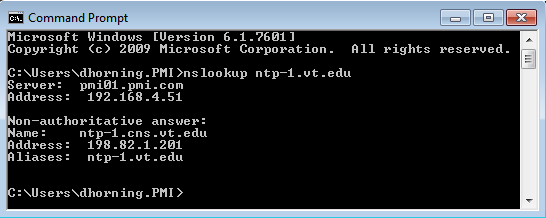
The Revolution power quality recorder allows configuration of up to four NTP servers. Configuring multiple servers allows the time to be maintained even if one of the servers cannot be contacted. Enter the IP addresses of your time server in the SNTP Server boxes. The NTP time servers must be configured by IP address. Figure 4 shows time servers configured from the public time servers at Virginia Tech. To get the IP address from a domain name use the nslookup command. Figure 5 shows the nslookup command to get the IP address (198.82.1.201) from the host name (ntp-1.cns.vt.edu). If you do not know which time servers to configure, contact your local network administrator.
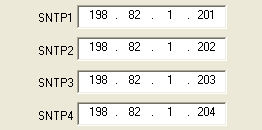
NOTE: No settings are sent to the Revolution until the “Send Config” button is pressed.
ProVision Time Synchronization Report
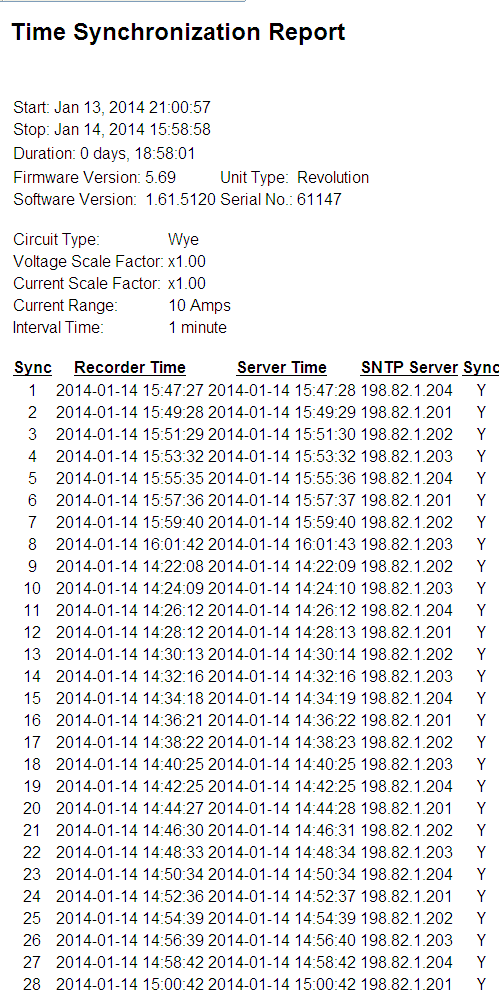
The Time Synchronization Report in Provision shows all of the SNTP time updates since the last recorder initialization. This report was released with firmware version 5.66, and updated in version 5.69. This whitepaper shows the 5.69 version of the report. See Figure 6. The time synchronization information is reset when the Revolution is initialized. The Revolution holds up to 50 time synchronization events. The newest events are kept, dropping the oldest events.
Conclusion
Power Monitors Revolution line of power quality recorders can use SNTP to provide accurate time updates for CANVASS reporting and recordings. The Scanner Network Utility can be used to configure the Revolution SNTP settings. SNTP must be used when the Revolution is reporting to CANVASS. The Provision Time Synchronization Report shows the SNTP time updates. Using SNTP for ProVision data eliminates any possibility of clock drift or PC time errors, and allows for accurate comparisons of events with other devices.
