
Abstract
The ProVision software package provided by PMI retrieves recordings from PMI recorders, analyzes data from these recorders, displays real-time waveforms, and much more. However, even though the majority of these tasks are interfaced through via ProVision, it’s not necessarily ProVision that determines and handles the course of some of these actions. Running behind the scenes and in tandem with ProVision is the ProVision Communicator Service: a program that acts as an intermediary between ProVision and recorders distributed by PMI. This whitepaper serves as explanation of the communicator service and its functionality.
ProVision Communicator Service
When ProVision runs, it connects to a background process known as the Communicator Service, which is also provided by Power Monitors and installed alongside ProVision. The Communicator Service acts as a bridge to handle communication between ProVision and PMI recorders. At predetermined intervals, the Communicator Service examines the system it is running on and scans for any device it can recognize as a PMI recorder, and subsequently alerts ProVision to any recorders that it has detected that weren’t there since the last update cycle when it checked. Furthermore, the service also alerts ProVision to the absence of any recorder which was previously connected and is now missing, in the event that the recorder has ceased responding or its connection had been abnormally terminated.
The behavior of the service is dependent on the current running operating system. When ProVision is launched under Windows XP, ProVision subsequently starts the communicator service as part of its startup routine, and stops the service when ProVision is closed. However, under Windows 7, both the start and stop action for the communicator service require Administrator Mode to perform. During the ProVision installation process, the installer notes the current operating system and adjusts the framework and parameters of the communicator service such that, under Windows 7, it isn’t necessary for ProVision to manually control it. Therefore, under general situations, it isn’t necessary for ProVision to start or stop the communicator service: simply connecting to it is sufficient.
As shown in Figure 1, the status of the communicator service in ProVision is visible in the status bar in the lower-right corner of the screen and is color-coded. When in the Connecting state, as shown, ProVision is configuring and launching the communicator service, if necessary, and connecting to it. This typically only occurs once each time ProVision is launched. After the connection has been established, the label updates to reflect the Ping as shown, which is the latency, or time delay, for how long it takes for commands sent between ProVision and the communicator service to be received by the other. Under ideal circumstances, the Ping should be as close to 0ms as possible. Higher values can cause a visible delay between when a recorder is connected to the system and when ProVision actively adds the connected recorder to the device tree. Finally, in the event that ProVision encounters an error while attempting to connect to the service, or ProVision fails to properly configure the service, or in exceptional situations where the service is not even present, the label updates to reflect the status Disconnected as shown. When ProVision is in the disconnected state, no interactions between recorders can occur.

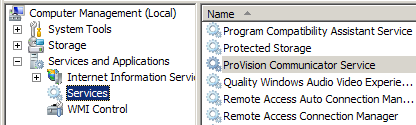
This only displays the status of the connection between ProVision and the communicator service, not of the service itself. The status of the Communicator Service can be viewed in the System Services area of the Computer Management dialogue, as shown in Figure 2. To access this, first open the Start menu, then right-click Computer. From the context menu that appears, select the Manage option. It will be necessary to allow the UAC to run the Computer Management dialogue in Administrator Mode. In the windows that appears, expand the node at the bottom of the left-hand pane (click the + sign next to Services and Applications) if it isn’t already expanded. Select the Services entry. This causes the window to the right to populate with all services currently installed on the system. This is where ProVision Communicator Service is listed, as shown.
The status of the service is dependent on the operating system, as previously mentioned. Since the communicator service does not innately have a graphical user interface, the only way to determine its status is by taking these steps. From here, the communicator service can be started or stopped manually. However, under normal usage, ProVision handles these operations internally.
Connecting to Another Communicator Service
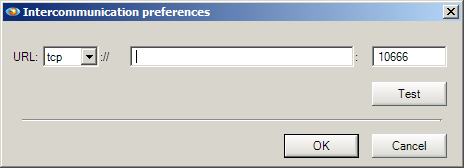
ProVision also allows the opportunity to connect to a communicator service present on another running machine, and access the recorders attached to and events corresponding with it. This can be convenient when a recorder is physically connected to another computer, but that computer is only accessible via network means. By connecting to the remote service, this allows ProVision to interact with the recorders attached to it as though they were connected to the local machine: recordings can be retrieved, the recorder can be initialized, and so forth. In order to connect to a running service on another computer, simply right-click anywhere in the open space in the device tree pane. Select Add Hub… from the resultant context menu that appears. This launches the Intercommunication preferences dialogue, where the network address of the computer to connect to and its port can be specified as shown in Figure 3. Once these parameters have been established, ProVision notes the new service and attempts to connect to it as well. Once the connection is successful, the service is added to the devices tree with its default name, which is the network address of the computer the remote service is running on. All recorders and events associated with that service are also listed as nodes attached to it.
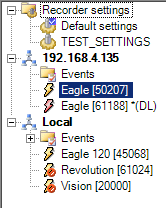
As shown in Figure 4, the communicator service attached to the local machine is designated in the Device Tree as Local. The recently-added communicator service, initially designated by its network address (in this case, 192.168.4.135) represents a communicator service running on the corresponding computer. The recorders attached to this computer are shown as nodes underneath, and can be interacted with as easily as the ones under the Local node. In this, it can be seen that one recorder is currently connected and idle, and that a recording is being downloaded from the second. The default name can be changed to something more meaningful by right-clicking the current name, selecting Rename from the resultant context menu, then entering the new desired name. Other options are available from the context menu as well. Some of these options are unique for remote services. These unique options are Connect on Startup, which, if checked, instructs ProVision to attempt to connect to the remote service in question in addition to its own when ProVision is launched. Another option, Delete, removes the connection to the specified service from the local system. However, a deleted connection can be recreated via the Intercommunication preferences dialogue. It’s even possible to add or edit event parameters on the remote service, or retrieve recordings that have been downloaded via scheduled events. Note that there will be a time delay when retrieving a recording this way, dependent on network latency and the size of the recording being transferred.
The communicator service is but one of the many components utilized by ProVision in order to maintain communication and connectivity with recorders. Since recorder communication is off-loaded to the communicator service, this is what actually makes it possible to connect to remote services via ProVision. This makes the communicator service a powerful component of ProVision, thus making it easy to access recorders connected to other computers across a network when it’s infeasible to physically be present.
