
Abstract
This whitepaper describes the use and customization of PQ recording templates in PQ Canvass, iPowerPad, and in the ProVision software. PMI recording devices can be initialized with many different configurable settings, such as recording interval for stripcharts, voltage and current thresholds for waveform captures, and many more. Recording templates simplify the use of initialization settings by providing you with settings presets for many common use cases, and also gives consistency to the recording when performed by multiple people.
Templates
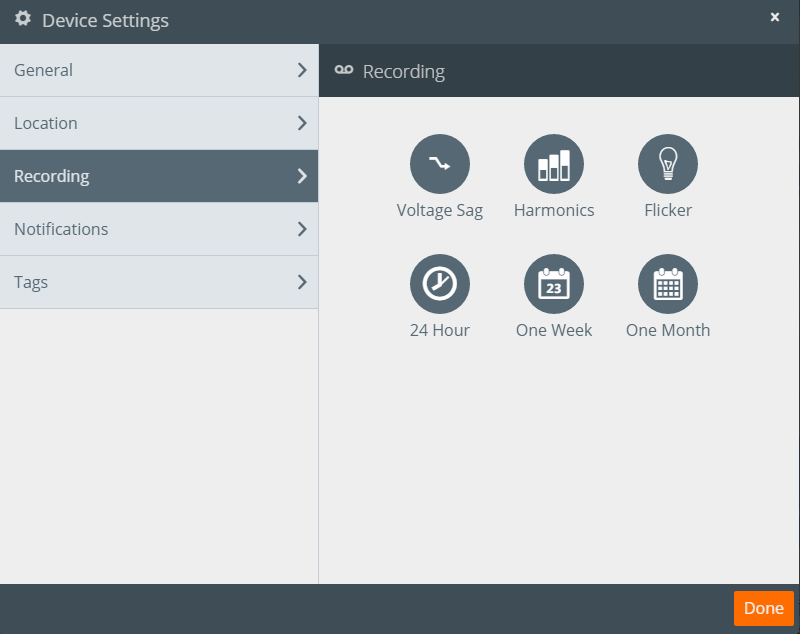
PQ Canvass and iPowerPad – our iPad application for use with the Guardian and cell Revolution line of devices – share a simple set of recording presets/templates (also shown in Figure 1):
- Motor Starts/Voltage Sag
- Harmonics
- Flicker
- 24 Hour
- One Week
- One Month
In both PQ Canvass and iPowerPad, presets may be used as-is, or values may be tweaked to fit your needs.
Motor Starts/Voltage Sag
The Voltage Sag preset records RMS Voltage and Current, with a 1 cycle interval. This time interval provides greater time resolution for precise measurement of motor start inrush currents and resulting voltage sags. This setup is also useful for switching events such as capacitor bank operations, UPS transfers, or other events that can be initiated on demand. If the event to be captured is infrequent or cannot be triggered, then a 1 second interval may be more suitable. Due to the cycle interval, harmonics and flicker stripcharts are not enabled.
The Waveform Capture settings are also geared towards motor start or other special voltage events. The post-cycle length is increased to 120 cycles (2 seconds) to give plenty of time for a long motor spin-up, or capture the system response to a step change in voltage from a switchover. The voltage and current channels for waveform capture is set to 3 to extend waveform length.
Harmonics
The Harmonics template is configured to detect harmful resonances on the line which may damage or otherwise adversely affect electrical equipment. Both voltage and current magnitudes for odd harmonics to the 15th are enabled, in addition to THD and frequency. This data will allow for the calculation of Total Demand Distortion (TDD), an important parameter for properly quantifying the amount of current harmonic distortion relative to the system size. The stripchart interval is set for 30 seconds, a good compromise between high resolution and longer recording time.
All power quantities (real, reactive, apparent power) and phase angle are also logged. Interharmonics are not selected – situations which call for interharmonic monitoring are usually complex, and the recorder should be configured specifically for that purpose. Periodic waveform capture is also enabled, to give snapshots of baseline “normal” waveforms which ProVision can use to compute more detailed harmonic parameters if needed.
Flicker
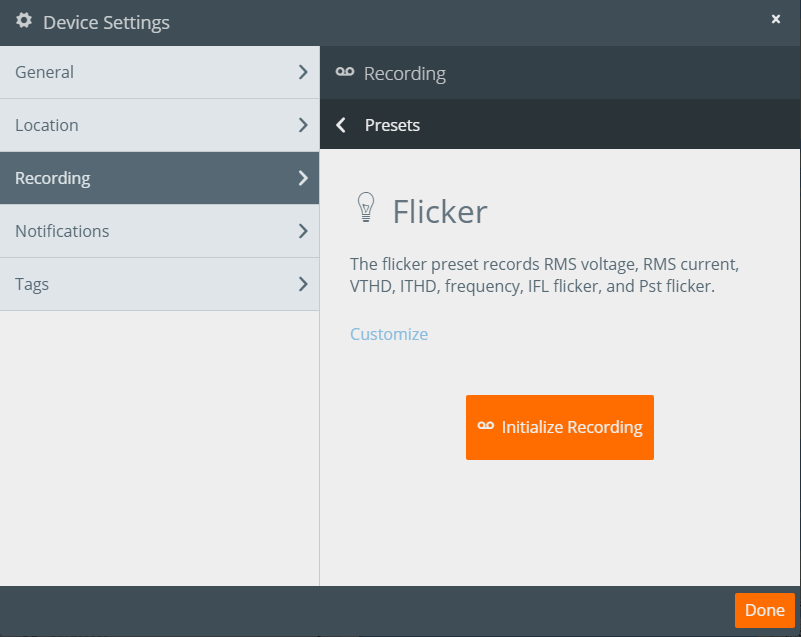
The Flicker template (Figure 2) is used for detecting when power quality issues may become noticeable by end users in form of flickering lights. Both IEEE 1453 and the older GE flicker curve recording types are supported. The Pst value is used to quantify the severity of the flicker, while the IFL value is more useful for correlating changes in flicker level with changes in loads, to help track down the source of the voltage fluctuations. Harmonic THDs for voltage and current are also enabled, but no individual harmonics. A stripchart interval of 5 seconds provides good resolution for correlating load changes to flicker events.
24 Hour
The 24 Hour template is specifically designed for monitoring power quality over a 24 hour period, recording as much information as possible without exceeding the recorder’s internal storage. The 1 second interval is chosen for high time resolution, with all major voltage, current, and power parameters enabled (including THD, frequency, and flicker). With the use of PQ Canvass, or large memory recorders, the recording time may be significantly longer than 24 hours, while still preserving the high resolution of the 1 second interval. All power parameters, THDs, and Pst flicker are enabled, along with hourly periodic waveform snapshots.
One Week
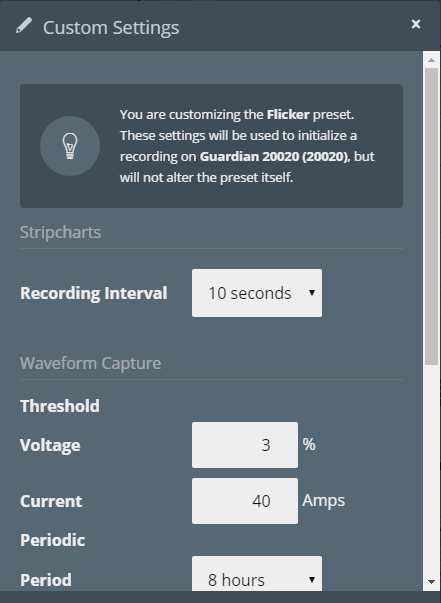
The One Week template is designed for monitoring power quality over a 7 day period. The settings are identical to the 24 Hour template, except for a 10 second stripchart interval, and 8 hour periodic waveform snapshots (as shown in Figure 3). This is a good general-purpose template to use when the original complaint is vague or not much is known about the situation.
One Month
The One Month template is for monitoring power quality over a full 30 day period, and is the least detailed of the time period-specific recording templates available. The settings are similar to the One Week template, but with a 30 second stripchart interval and daily periodic waveform snapshots. This template is also useful for locations where not much is known about the specific problem (or even if there is a real problem). The longer recording time is also useful if the monitor will be left in place until the customer calls with another complaint (resulting in an unknown recording time), or if the monitor will be left in place permanently.
Use of a larger interval for a longer recording time is not as important when using a cell-connected device such as the cell Guardian or Revolution. Using PQ Canvass or ProVision, local data storage on the monitor itself is not a limitation, and finer intervals in templates like the 24 Hour or 1 Week setup may be used as needed.
PQ Canvass
Using and customizing recording template in PQ Canvass is simple. Log into PQ Canvass, and select the Devices view from the main menu. From the list of devices, tap the expander menu button, and then tap the Device Info icon. In the Device Info dialog, tap the Settings button (bottom-right). In the Device Settings window, select “Recording”, and you will see a list of icons representing the available recording templates.
Tap any template to view its description. From here you can either go ahead and initialize the device and start a new recording using the template’s presets, or tap the “Customize” link to view or edit the preset values prior to initializing.
iPowerPad
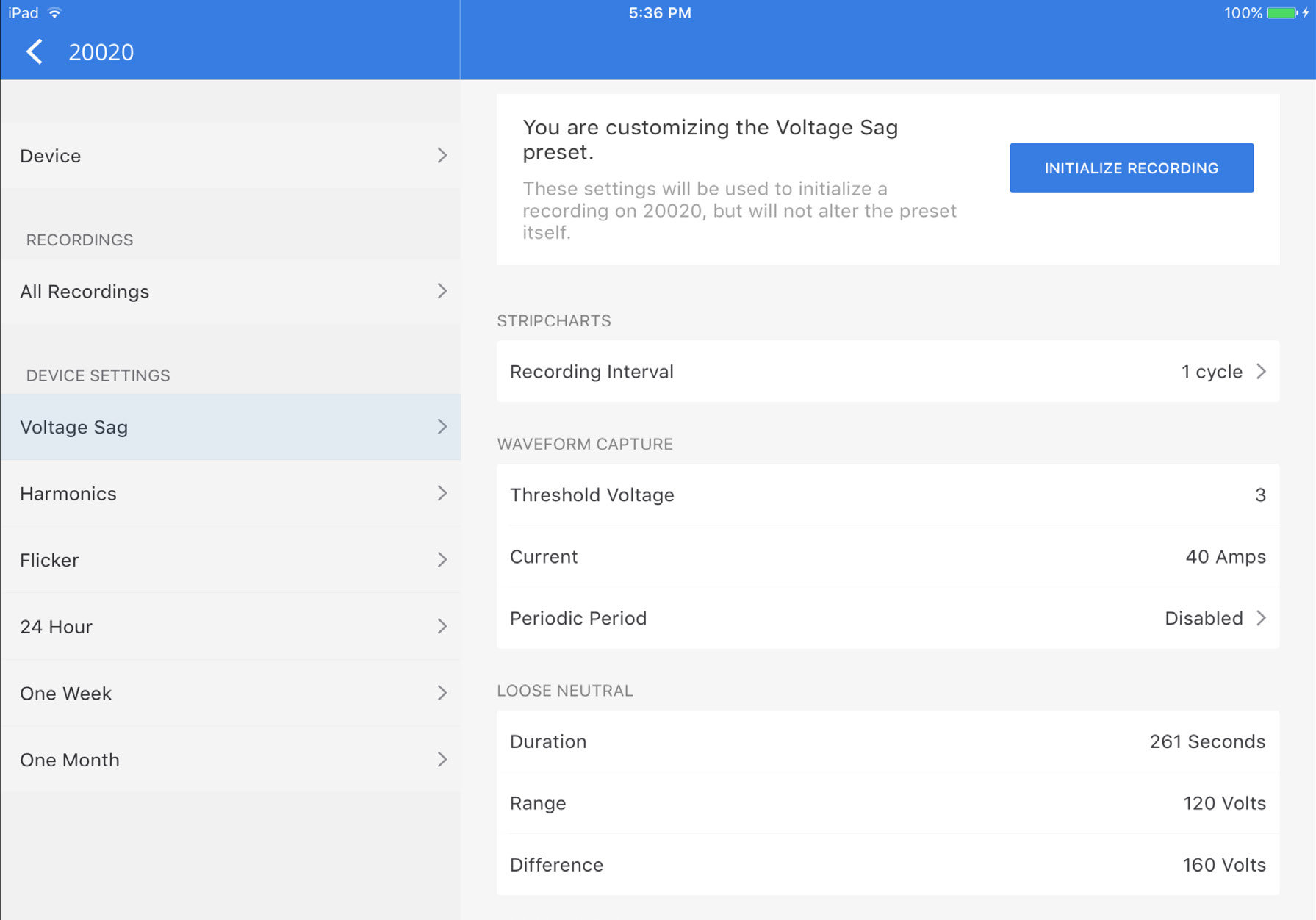
The iPowerPad application for the iPad (available in the Apple App Store) includes the same recording initialization templates as PQ Canvass. To access the templates, open the iPowerPad app, which will take you to the Devices screen. Tap the configuration icon on a Device list item. In the left sidebar, you will see the “Device Settings” section (shown in Figure 4). Here are listed all 6 initialization templates. Tap one to view and edit its settings, or to initialize a new recording, using the blue “Initialize Recording” button in the top-right corner of the screen.
ProVision
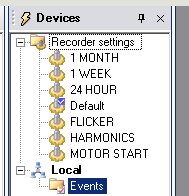
ProVision also allows you to use recording initialization templates, however they do not come bundled with the ProVision software. You can download the ProVision initialization templates here. Once you have downloaded the template files, you will need to install them in ProVision. Choose File, Import on the settings file to load it into ProVision. It will appear in the Recorder Settings Folder in the Devices panel, as seen in Figure 5.
Conclusion
Standard templates for PQ recording save time, and also give consistency to PQ investigations. Six templates have been presented here, available with PQ Canvass, iPowerPad, and ProVision for different recording needs. These can be used directly, and also modified to create new templates for more specialized needs.
