
Abstract
Over the years, operating systems have slowly emerged from simple command-line interfaces to fully robust graphical user interfaces, from the early iterations of DOS to, most recently, Windows 7. Aside from the graphic changes, so also has been how these different operating systems function with regards to system memory, typically referred to as Random Access Memory (RAM). Most Windows-based operating systems are transitioning from 32-bit architecture to 64-bit architecture. These operating systems have also been released as different products: Windows 7 being the successor to Windows XP. This also affects ProVision and WinScan, the communication software used by PMI recorders. This white paper is a brief overview of the differences between 32 and 64 bit versions of windows, how Power Monitors software operates with each, and how some settings in this software differs between Windows XP and Windows 7.
Memory Usage
At the most basic level, a 32 bit operating system only has enough memory addresses to address up to 4 GB of RAM. However, some of these memory addresses are automatically reserved by the operating system to handle other devices such as graphics and audio cards. As shown in the Memory Resource Monitor in a computer running a 32-bit version of Windows 7 (Figure 1), 1025 MB of the memory addresses are in Hardware Reserved status. (This value is dependent on the computer’s hardware configuration and may vary as such.) This means that even though the memory is there, it can’t be accessed simply because the operating system doesn’t have enough addresses to access both it and other devices with onboard memory, such as video cards. In the graphic below, even though 4 GB of system memory is physically present in the computer, only 3 GB of it can ever be used. As such, any memory configuration in a 32-bit operating system that exceeds 4 GB—including any memory reserved by devices such as graphics and audio cards—is ultimately inaccessible and therefore uneconomical.
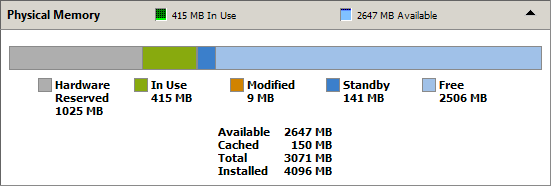
In a 64-bit version of Windows, significantly more memory addresses are available. In Windows 7 Professional and Ultimate, up to 192 GB of memory can be accessed: this is significantly more than any current end-user workstation even has physical space for. However, due to licensing issues, only 16 GB of memory can be accessed in Windows 7 Home. In the graphic above, the Hardware Reserved section would be trivially small or would not even exist on a 64-bit computer, since it isn’t necessary for the operating system to share addresses between the system memory and other devices. However, for certain devices such as graphics processors that require memory but do not have any of their own, this memory will be reserved by the device and consumed in the Hardware Reserved memory.
In addition to available memory addresses, compiled programs may only run properly on the type of operating system for which they are compiled—a 64-bit program cannot run on a 32-bit version of Windows. However, Windows 7 64-bit does offer support for some 32-bit programs, such that a 64-bit operating system can emulate a 32-bit version of itself. Nevertheless, it isn’t possible for all programs to be accessed in this way. Continuing in this motion, some programs are built as multi-platform: that is, they can be installed on both 32-bit operating systems where they run as 32-bit applications, and on 64-bit operating systems where they run as 64-bit applications.
To determine whether the current version of Windows is 32-bit or 64-bit, from the Start button, right-click “Computer” and select Properties from the resultant context menu. An information panel will appear. The value in the “System Type” field in the System category correlates to the type of operating system installed.
ProVision
To determine the current running version of ProVision, simply check the title bar of the application. This gives information about both the version of ProVision and the build number. If the title bar is simply “ProVision” then this is indicative of 1.32. Version 1.51 will have the version number and an explicit build number. Both versions of ProVision—1.32 and 1.51, up to build 3875—are only available exclusively to 32-bit versions of Windows. This is due to certain third-party tools that ProVision incorporates being available only for 32-bit operating systems.
However, more recent versions of ProVision 1.51—the most recently-released version being 4275—have the capability to run as a 32-bit application on both 32-bit and 64-bit operating systems. When installing these newer builds of ProVision, the installer automatically detects whether the operating system is 32-bit or 64-bit, and performs the proper steps necessary in order to ensure the application will function properly on the detected operating system. This all occurs as part of the installation process and it is not necessary for the user to provide any input regarding the type of operating system.
Builds of ProVision prior to 4275 can be successfully installed on a 64-bit platform. However, these builds will not function as intended and will most likely exit prematurely with an error message. For this reason, do not attempt to install or run any of these prior builds on a 64-bit platform.
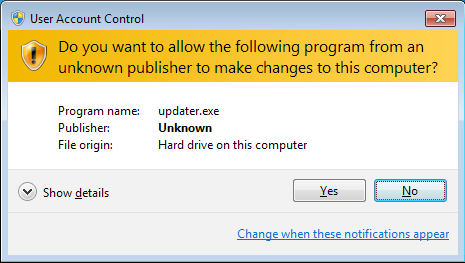
Windows 7 also includes the User Account Control, or UAC for short (Figure 2). When a program requests elevated permissions, the UAC intervenes, as shown, and prompts the user to confirm giving the requesting program those permissions. Selecting “No” prevents the program from running entirely, while selecting “Yes” allows the program to run with elevated permissions. The program is commonly said to be running in “Administrator Mode” or “as an Administrator” when allowed to run using these elevated permissions. Installing any end-user program typically requires the installation to be performed as an Administrator. It is currently not necessary for ProVision to run in Administrator Mode.
The PMI USB Driver
The PMI USB driver installer also detects whether the operating system is 32-bit or 64-bit prior to the installation process, and ensures the proper drivers are installed based on the operating system version. This also occurs as part of the installation process and it is not necessary for the user to provide any input regarding the type of operating system. Versions of the PMI USB Driver deployed with previous versions of ProVision are not compatible with 64-bit operating systems and the driver installation process will not complete successfully. Ensure the most recent driver software from PMI is being used in order to ensure a smooth and correct installation.
The most recent version of the PMI USB driver can be downloaded from the PMI website. To determine what version of the PMI USB driver is currently installed, expand the “Jungo” node in the system device manager. Right-click the “WinDriver” node and select Properties from the context menu. Selecting the “Driver” tab provides information about the installed driver, including “Driver Version”. The currently available version is 10.3.0.0, as of this paper’s release. If the system does not have this version of the USB Driver installed, but does have a build of ProVision of 4275 or greater, it is recommended the USB Driver be upgraded if USB connections will be made.
WinScan
WinScan is built exclusively for 32-bit operating systems, and, while capable of being successfully installed and run on a 64-bit platform, it cannot actually establish communication links with PMI recorders. For this reason, it is advised to install and run WinScan solely on 32-bit operating systems; not being able to establish communication links with PMI recorders renders it purposeless.
Conclusion
It’s important to consider when upgrading Windows from a 32-bit version to a 64-bit version which PMI software products will still function as intended, and which PMI software products are appropriate for the current version of Windows. Software products that may have functioned flawlessly on previous versions of Windows may no longer function as intended and may necessitate downloading more recent versions and builds from PMI’s website.
