
Abstract
PMI’s Desktop PC Software, ProVision and WinScan, use a variety of different file formats to accomplish a number of different tasks. This white paper will discuss each of these file formats and what role they play.
A complete listing of the various PMI file formats and which versions of the PMI PC software can load and view them, is available in the following table:
File Format Matrix
| BIN | ISF | XSF | XSB | EVM | GZ | |
|---|---|---|---|---|---|---|
| WinScan | R | R/W | ||||
| ProVision 1.32 | R | R | R/W | R/W | ||
| ProVision 1.50 | R | R | R | R/W | R | R/W |
| ProVision 1.51 | R | R | R | R/W | R | R/W |
Key: R=Read, W=Write
WinScan File Formats
WinScan produces a recording file format with the .ISF extension. The ISF file format is a proprietary binary format developed by PMI to store data from a recorder and is only generated by WinScan. All versions of WinScan are capable of reading and writing this file format. ProVision can import ISF files and convert them to either the XSF or XSB format.
ProVision File Formats
ProVision can produce a number of different file types, depending on the actions taken. Prior to version 1.50 of ProVision, recording files were saved to the .XSF file format. Starting with ProVision 1.50, the recording file format has changed to .XSB. The primary difference between these two formats is the internal format of the file (XSF being ASCII based XML and XSB being a binary format). For performance reasons, XSB is far superior and, when given the option, PMI highly recommends converting from XSF to XSB files.
In addition to the recording files, ProVision can produce two different types of “envelope” files used in sending recordings through email. These two file types are .EVM and .GZ. The .EVM file is an XML file that contains elements of recordings, custom graphs and other items from ProVision that a user may wish to email to a colleague or to PMI for analysis. The .GZ file format is a recording file compressed with the gzip compression algorithm.
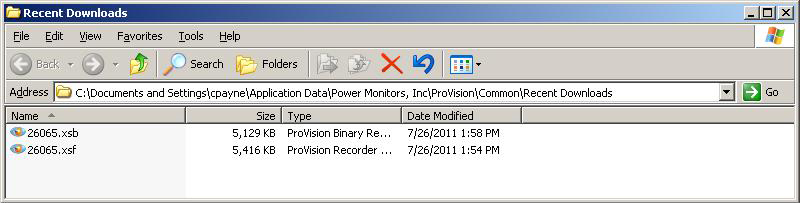
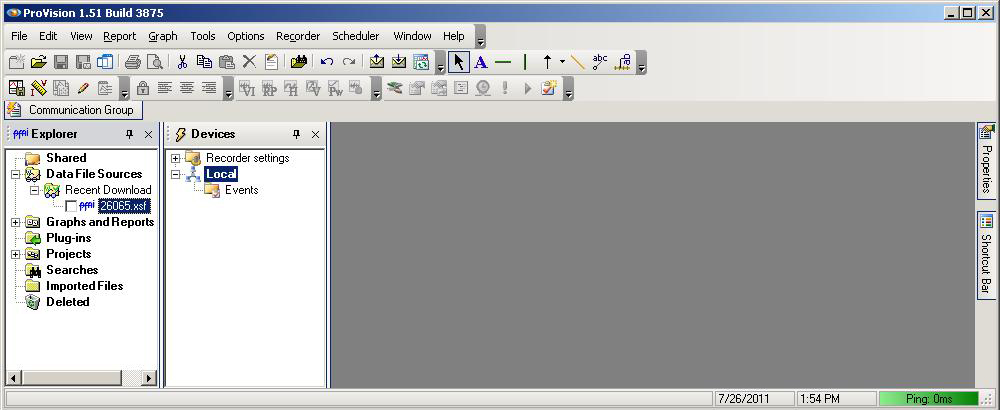
All versions of ProVision are capable of reading and displaying the contents of ISF and XSF files. When imported into ProVision (see ‘Importing Files to ProVision’ below), ISF files are immediately converted to the XSF file format. Starting with version 1.50, all XSF files are converted on the fly to the XSB format by default (Figure 2). During the conversion process, the original .XSF file is untouched – a copy of the file converted to XSB is created and that is the file that ProVision shows in the file tree, as shown in Figure 3.

NOTE: While ISF and XSF files can be converted to the XSB format, the reverse is not true. All recordings downloaded with ProVision 1.50+ are saved in the XSB format and XSB files are not reverse compatible with prior versions of ProVision or WinScan.
Importing Files to ProVision
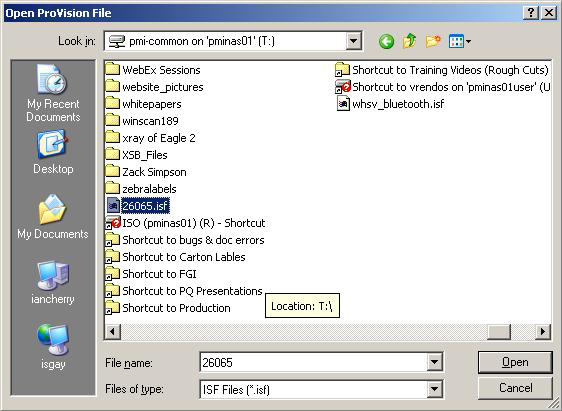
Importing ISF files into ProVision is a simple task. Once ProVision has loaded, simply select File –> Open. A file selection dialog box (Figure 4) will appear. At the bottom, you may toggle between showing all recording file formats (.xsb, .xsf, .isf, etc.). Select the ISF type. Next, navigate to the directory containing the ISF file to be converted. Double-click on the ISF file, or click on it once and then click Open in the dialog box. You will be notified when the conversion process has finished.
NOTE: The File –> Open functionality is not just for converting ISF files to XSF or XSB files. This function can be used to easily open any ProVision supported recording time from anywhere on the user’s PC or on the user’s connected network.
Advantages of XSB Over XSF
The binary XSB file format provides several advantages over the XSF format, the foremost among them being performance. The XSB format does not require a digital document signature, requires a significantly smaller (sometimes as much as 30% less) memory footprint to load and takes up significantly less space on disk than its XSF counterpart. It is the only format capable of storing a full 1GB revolution recording in a way that will allow it to be analyzed by a PC.
BIN File Format
The BIN extension is affixed to PMI’s recorder firmware files. It can be uploaded to a recorder from both WinScan and ProVision. When uploading firmware to a recorder, the user does not directly select a firmware file for uploading – instead, the PC software (either WinScan or ProVision) will look through the application’s respective “firmware” folder and select the appropriate file based on the recorder type.
NOTE: The BIN file format was also used as a recording file format prior to WinScan. WinScan can load a BIN file and convert it to the ISF format.
Conclusion
PMI’s PC software produces and manages several different files formats all in order to leverage the greatest technology available while providing a seamless experience to the user.
