
Abstract
The Revolution and VisionPro are PMI’s most powerful and versatile power analyzers. The Revolution is capable of transient waveform capture, recording readings for selected intervals at one-cycle resolution, and can even capture events that last less than one cycle. The Revolution is available with different amounts of internal memory: 16 MB, 128 MB, 512 MB, and 1 GB. The VisionPro offers the same functionality as the Revolution and is available with 1 GB of internal memory; for purposes of this paper, it can be referenced as a Revolution with 1 GB of internal memory.
ProVision software, which comes standard with all PMI analyzers, provides options that allow the amount of memory used to store recordings to be modified. This whitepaper shows how much internal memory ProVision should instruct the Revolution or Vision to use based on the primary computer that will be used to retrieve recordings, how to modify this memory value, and how to determine the maximum memory.
Selecting the Proper Memory Percentage
The Interval Graph Memory Usage is a percentage dependent on the internal memory available. For example, selecting 50% for a Revolution with an internal memory of 512 MB will cause the Revolution to only use 256 MB for recording storage. The chart below shows the maximum values to initialize Interval Graph Memory Usage to based on the amount of RAM (Random Access Memory) in the system ProVision is installed upon that will be used to retrieve recordings. It is required that a 64-bit version of Windows be installed for any system containing greater than 4GB of RAM. It is advised not to exceed the recommended percentage, as ProVision will not be able to successfully retrieve the recording, and will instead produce an error message. This error message may not be produced immediately as ProVision will still attempt to retrieve the recording, which can be a lengthy process for the 1 GB Revolution. The recording will remain on the Revolution until the next time the Revolution is initialized.
Recommended Memory Settings
| System RAM | Internal Memory | Recommended Percentage |
|---|---|---|
| 2 GB | 128 MB | 100% |
| 2 GB | 512 MB | 50% |
| 2 GB | 1 GB | 25% |
| 4 GB | 128 MB | 100% |
| 4 GB | 512 MB | 100% |
| 4 GB | 1 GB | 75% |
| 6 GB | 128 MB | 100% |
| 6 GB | 512 MB | 100% |
| 6 GB | 1 GB | 100% |
These values were arrived at by adjusting the amount of available system RAM in a computer running Windows 7, with ProVision being the only application loaded into memory. Performance may vary depending on factors such as the operating system and other applications which may be running. In the event that a recording retrieval fails, closing existing applications to release memory or rebooting the computer to purge memory will give ProVision more memory space to work with and increase the chance of success of retrieving the recording. To view a list of all running applications, Windows Task Manager can be used. Launch it by the keyboard shortcut Ctrl+Shift+Escape, or by right-clicking the taskbar and selecting Start Task Manager. Applications can be closed by selecting it from the list and clicking End Task. Doing so decreases the percentage of used Physical Memory shown at the bottom of the Task Manager window. Make sure that only applications that are no longer needed are closed in this manner.
This chart only pertains to the amount of memory necessary to retrieve the recording from the scanner: once the recording has been retrieved, to open the recording file, 2 GB of system RAM is sufficient, even for recordings retrieved from Revolutions with 1 GB of internal memory that utilize 100% of it. This is due to differences in how ProVision retrieves the recording from the Revolution, how the file is saved once it is retrieved, and how files are opened. While retrieving recordings, ProVision is working directly with the raw data received from the Revolution—only when the entire recording has been transferred can it be saved to a file. Once received, the recording is converted into the file format used by ProVision. This conversion process is memory intensive, hence the values in the above chart. When opening recordings saved as files, this conversion process is not necessary, and therefore not as much system memory is required.
Determine the Total Amount of Internal Memory
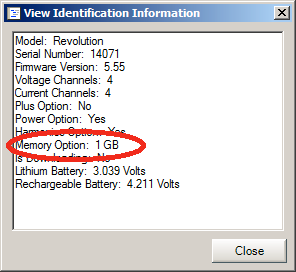
In order to view the amount of internal memory as well as other information about the recorder, first ensure ProVision is running and has established a communication link with the Revolution, and that the Revolution is listed with its serial number in the “Devices” window. Right-click the recorder and, from the context menu that appears, select Identify. It may take a few moments as ProVision queries the recorder and transfers identification information. When this completes, click the View button. A window similar to the one shown in Figure 1 will appear, although the data values may differ. These are all the identifying characteristics of the Revolution. Marked is Memory Option. This value reflects the total amount of internal memory the Revolution has available for recording.
Determine the Amount of System Memory
In order for ProVision to retrieve the recording stored in a Revolution, the system ProVision is running on must have the necessary amount of RAM. The amount of installed memory can be accessed via the Windows Control Panel. To do so, first open the Start Menu, then select Control Panel. Then, select System. This displays basic information about the current system, such as the version of windows. Of interest are Installed Memory and System Type. The installed memory field directly correlates to the above chart for the column System RAM. The closest value in the column above that does not exceed the Installed Memory should be used when determining the magnitude of the recording the receiving system can handle from the Revolution. Also note the System Type field, which displays whether the operating system is 32-bit or 64-bit. It is required for a 64-bit operating system to be installed for more than 4 GB of RAM to be effective; otherwise the memory in excess of 4 GB will not be accessible.
Modifying How Much Memory Is Used
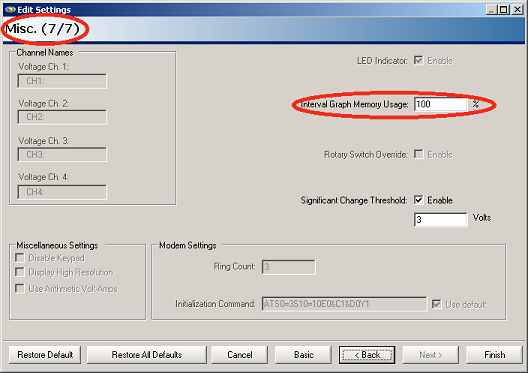
By default, the Revolution will make use of 100% of its internal memory. However, this can be infeasible in circumstances where not necessarily all of the recorded data are desired, or if the computer to retrieve the recording has a limited amount of system memory. The percentage of used memory can be modified via recorder initialization in the Advanced Initialization Settings. Right-click the recorder and from the context menu that appears, select Initialize. This launches the Basic Screen. Click the Advanced button, then select Next until reaching screen 7 of 7, Misc options, as shown in Figure 2.
Also marked is the field Interval Graph Memory Usage. This value can be set for any percentage up to 100% to modify the actual amount of internal memory the Revolution will use for storage. Given the magnitude of some of these recordings, it may not be possible for the downloading computer to receive the entire recording, depending on how much RAM the system has. Refer to Table 1. Changing the Interval Graph Memory Usage value will require reinitializing the recorder with the new value.
Conclusion
The recording versatility of the Revolution allows all types of power quality data to be recorded. Adjusting the percentage of internal memory is another way the Revolution can be customized in order to meet changing power quality data needs and requirements.
