
Abstract
This white paper describes the proper steps to optimize your recorder’s memory for longer record times and better resolution of data.
Most of our recorders offer multiple channels for recording; some are all used in certain configurations but not always. In order to optimize your recording for maximum memory and shorter interval periods, turn off the unused channels when initializing the recorder. In a few quick steps you can conserve memory, prevent false triggering, and shorten your interval time for higher resolution recording. In this discussion you will learn the proper steps to optimize your recorder’s memory.
The Eagle 440, Revolution, Vision, and Vip+ have 4 channels of Voltage and Current. Most 3-phase applications only have three connections, unless neutral to ground measurements are desired. When monitoring a 3-phase application turn off the 4th channel to maximize the recording time. Not only will you get more interval, waveform, and transient memory you will also prevent false triggering due to noise on the unused channel. A lot of customers will tie the unused channel to another channel, this is redundant and unnecessary.
Another situation you might encounter is needing to use 4 channel recorders for residential recording. In this situation memory could be doubled and resolution could be higher if you simply turn off channels 3 and 4.
Below are steps required to turn OFF unused channels during the initialization procedure.
Disabling Stripchart or Interval Data Channels
-
In the Basic screen (1/7), select the desired number of channels needed for your application (Figure 1). The basic screen is the stripchart or interval screen, turning the unused channels OFF disables the interval data for that particular channel. Doing this will conserve critical memory and give you longer record times and better resolution if so desired. Disabling unused channels also gives you cleaner reports/graphs without confusion of irrelevant data found in unused channels.
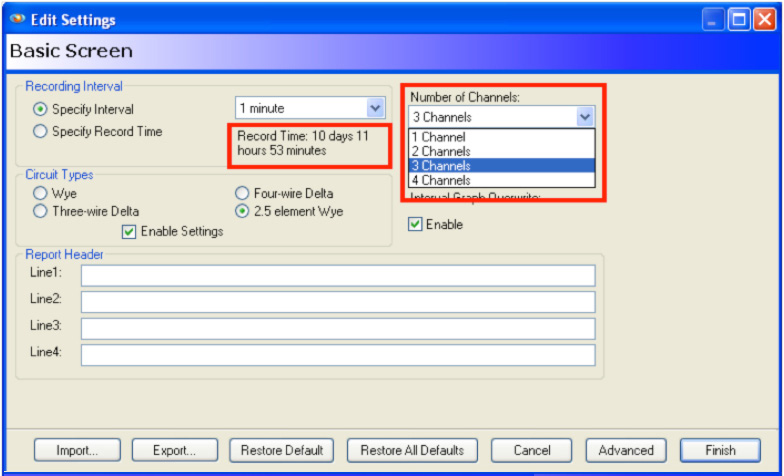
Figure 1. Select the desired number of channels. NOTE: This turns off Voltage and Current plus any PQ Stripcharts selected and does not disable waveform capture data for unused channels (see below for further details on disabling waveform data).
-
Finish initialization procedure as normal.
Disabling Waveform Capture Data Channels
-
In the Waveform Capture screen (2/7), select the desired number of channels needed for your application (Figure 2). Keep in mind you can select Voltage and Current channels independently giving you more flexibility. Disabling unused channels will conserve waveform memory giving you more waveform captures throughout the recording. Disabling unused waveform channels also gives you cleaner graphs without confusion of irrelevant data found in unused channels.
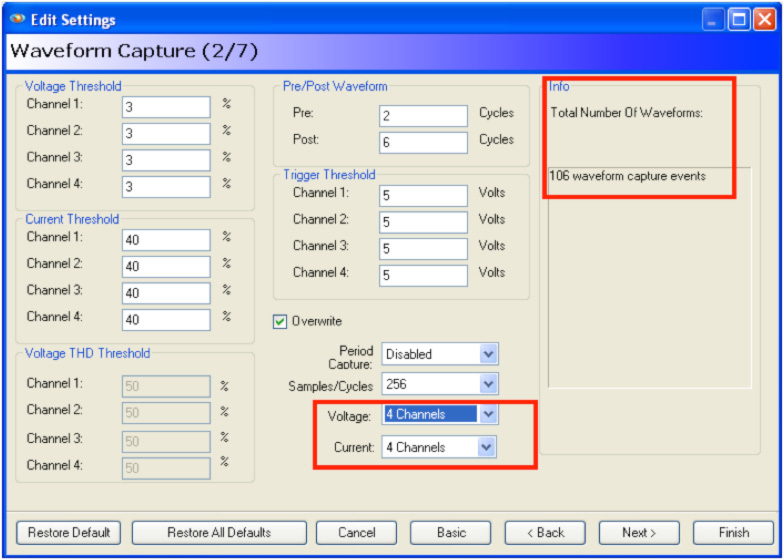
Figure 2. Select the desired number of channels. -
Finish initialization procedure as normal.
Conclusion
Optimizing the memory in a recorder is quite simple using the steps above. Taking a few minutes to preplan your recording session can optimize the memory usage in your recorder and also create more attractive recordings. You cannot always optimize your recording session, but when possible it’s well worth the time and effort.
