
NMS (or Network Management Software) is an application designed and developed by PMI for managing and configuring Boomerang voltage monitors. This white paper focuses on the different layers of security and how to configure them for NMS administration.
Security Layers
NMS has several different layers of security – from file system level controls, to user access controls, role based access control, security auditing, checksum validations and verifications and high levels of encryption in certain areas. Each of these layers has a means of being configured to the user’s specification either through the application itself, through operating-system level adjustments or through system-level security adjustments (ActiveDirectory, as an example).
The following sections break out each of the layers mentioned above to provide more in-depth details on how (to an extent) each layer is implemented, which configuration options are available for each, what the default configurations are and some examples of what those configurations should be, given specific requirements. Additionally, each section will list all of the configuration files that need to be modified in order to adjust the security parameters. After the conclusion, there is a reference section that lists each file and its respective security configuration parameters (or a brief description of the role it plays in the grand scheme of security).
File System Level Security
The NMS uses file-system-level security configurations for preventing access and modification to certain configuration and security database files. These security parameters can be specified and managed in a number of ways, depending on the operating system. For Windows-based systems, the configuration can be set either directly by the user (file attributes) or through ActiveDirectory group policy management. On UNIX-based systems (Mac OS X and Linux), these can be managed by setting the “owner”, “group” and “other” file permission bits.
The following files should be managed through file-system level security:
keyfile.aes – This file should have read-only access to non-administrative users. This file contains the randomly-generated 128-bit encryption key used for application-level encryption. If the contents of this file are modified, then the boomerang database is rendered useless. It is very important that once this file is generated, it is not modified.
nms_checksum.md5 – This file should have read-only access to non-administrative users. This file contains the specialized MD5 checksum for the java executable (nms.jar) that is used when the application first starts. If this file is edited or tampered (or if its contents no longer match the specialized MD5 checksum of the nms.jar file) the NMS application will not execute.
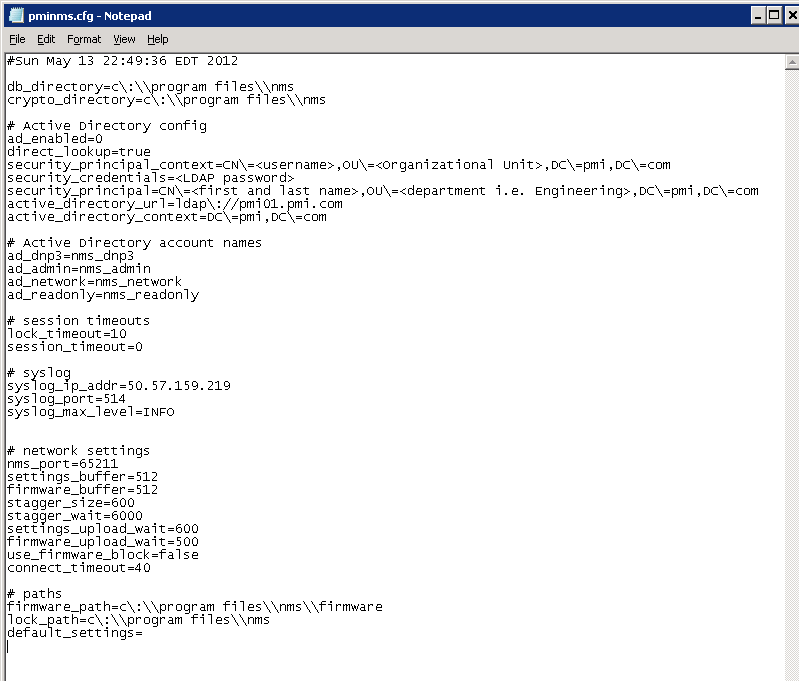
pminms.cfg – This is the primary configuration file for the NMS software (Figure 1). All of the application-specific configuration options (security and non-security options) are contained within this file. It is recommended that users only be given read-only access to this file.
pminms.ndb – This file is the boomerang database. It is recommended that non-administrative users only be given read-only access to this file. (Adding new boomerangs to the database or removing existing boomerangs from the database requires administrative privileges (see Role Based Security below for more information) and would dictate that users having the NMS Administrator role also be given write access to the pminms.ndb file. If administrative users do not have write access to the file, then new boomerangs cannot be added to the system and existing boomerangs cannot be removed.)
pwd.dict – This file contains the credentials and some other authentication information for each of the boomerangs in the boomerang database. Because of its sensitive contents, the file has been encrypted. Only administrators should have write-access to this file (for the same reason that write access is needed for application administrators – without write access the boomerang database cannot be modified). Non-administrative users, as with all of the other files thus far mentioned, will need read-only access.
userlog.cdb – This file contains login and security auditing information for sites using ActiveDirectory authentication. Because of its contents, the file is encrypted. Every user (administrators and non-administrators) need to have both read and write access to this file. When a user attempts to authenticate with ActiveDirectory upon application initialization, the results of that attempt are written to this file as shown in Figure 1. Once a user has successfully logged in, those results are accessible to the user (so that they may see when they last successfully logged in and how many invalid attempts to log in with their credentials had been made prior to their successful login). [For screen shots of what these audit prompts look like and for more information on how to configure the NMS to use ActiveDirectory, see the section entitled ‘User Access Controls (Active Directory)’ below.]
User Access Controls (Active Directory)
The NMS software allows for integration with Microsoft ActiveDirectory to provide role-based access from within the application. This role-based access is available even on NMS installations deployed to UNIX-based systems (Mac OS X and Linux).
The way that the NMS breaks out roles within the application is by assigning each application menu its own role. The following menus are available from within the NMS: File, DNP3, Network, Read-Only, Admin and Help.
The File and Help menu are available to all users. They provide basic functionality allowing the user to save and clear the application console, quit the application or seek help for a specific task. The remaining menus, however, are made available (visible and accessible) through ActiveDirectory group membership.
The ActiveDirectory group names for each menu are specified in the pminms.cfg file (see the section entitled ‘File System Level Security’ above for more details on how to secure this file). The entries in the pminms.cfg file listed immediately below define which ActiveDirectory group corresponds to which menu in the NMS software. The values for these parameters should be the case-sensitive ActiveDirectory group names that have been previously defined by an ActiveDirectory administrator.
ad_dnp3 – Members of this A/D group will be able to see and access the menu items in the DNP3 menu.
ad_network – Members of this A/D group will be able to see and access the menu items in the Network menu.
ad_readonly – Members of this A/D group will be able to see and access the menu items in the Read-Only menu.
ad_admin – Members of this A/D group will be able to see and access the menu items in the Admin menu. It is also recommended that members of this A/D group be given write-permission to all of the configuration and security files listed in the ‘File System Level Security’ section above (on Windows Systems). This will allow for one central location to manage all NMS-based security options.
In addition to the ActiveDirectory groups listed above, there are additional ActiveDirectory specific options available in the pminms.cfg file. These additional parameters are listed below:
ad_enabled – This option allows an administrator to enable or disable ActiveDirectory authentication within the NMS. Allowable options for this field are 0 (disabled) and 1 (enabled).
active_directory_url – This specifies the URL for the ActiveDirectory server that will be used for authentication. The LDAP protocol (ldap://) should be specified as part of the URL when setting this field. Note the escape sequences for certain special characters (\ is the escape character) – escaping certain special characters that have a special meaning in the configuration file is necessary. The NMS ships with a pminms.cfg file that contains samples of LDAP URLs complete with escape sequences.
direct_lookup – If this option is set to false, then the user specified in security_credentials and security_principal is used to authenticate with ActiveDirectory and then the credentials that are supplied by the user are verified to belong to their respective ActiveDirectory groups under the authority of the security_credentials. If the direct_lookup option is set to true, then the users own credentials (those supplied when logging in) are used to both connect to the ActiveDirectory server and verify their own group membership.
security_credentials – If direct_lookup is set to false, then this option must be set to a password for the user specified by security_principal that has permissions to do group lookups.
security_principal – This is the LDAP query string specifying the domain, organization, user and any other relevant portions of a user defined within ActiveDirectory that has permissions to perform group lookups. This option is not necessary if direct_lookup is set to true.
active_directory_context – This parameter specifies the default ActiveDirectory context for all users logging into the NMS.
NOTE: PMI recommends using direct_lookup = true. This is because if false is specified, then a username and password have to be stored in plaintext in the pminms.cfg file. Since each user that uses the NMS application has to have read access to the configuration file, each user will be able to see these plaintext credentials.
Security Auditing
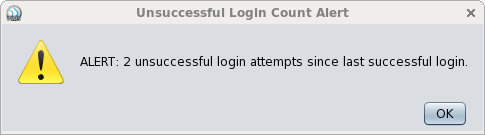
The NMS application itself provides for some elementary security auditing. If a user has enabled ActiveDirectory authentication, then each time that a user enters invalid credentials, a counter is incremented in the user database (see userlog.cdb in the section entitled ‘File System Level Security’). Once user has successfully logged in, a dialog is displayed alerting the user to the number of successive invalid logins that were attempted with their username. Once the user has successfully logged in, this number is reset to 0 and the “Last Successful Login Time” is set to the current session start time. (The last successful login can be accessed from within the Help menu, by selecting “Login Information.”) as shown in Figure 2.
In addition to tracking the ActiveDirectory interactions, the NMS software can also be configured to send log entries to a SYSLOG server (Figure 3). These log entries consist of every user action that is taken during a login session in the NMS. Examples include connections to boomerangs, uploading settings, downloading status information, identifying boomerangs, adding new entries to the boomerang dictionary, removing boomerang entries from the dictionary, etc.

The SYSLOG settings can be configured during installation. The installer does prompt the user to enter SYSLOG server information during the installation routine, but these settings can also be modified at a later date by setting the following entries in the pminms.cfg file:
syslog_ip_addr – This can be the IP address OR the hostname of the SYSLOG server.
syslog_port – This field specifies the port to use for SYSLOG logging. The default is 514.
Encryption
PMI has elected to use a 128-bit encryption algorithm to secure certain parts of the NMS application. Several of the database files that contain sensitive user or security-related information have been encrypted using a randomly generated 128-bit key that’s produced at installation time. (New encryption keys can be produced by the administrator, but all of the old database files that had previously been encrypted with the old key will no longer be accessible. All boomerang and user dictionaries will have to be regenerated).
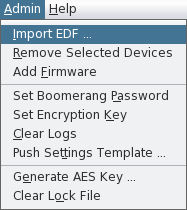
The AES algorithm is also used to encrypt some aspects of the NMS to Boomerang communication. Each boomerang can be assigned a unique encryption key and password through the Admin application menu (Figure 4). Additionally, whenever a Boomerang is (or group of boomerangs are) imported into the Boomerang database, the user is prompted for the Boomerang’s password. The default password that is set in the boomerang at the factory prior to shipment is unique to each recipient. It is recommended that upon delivery an administrator resets the password on the devices. (Note that in the event of an accidental (or intentional) deletion of the boomerang database file, each device will have to be re-added with whichever password was assigned by the administrator. There is no ‘master password’ – if the boomerang database is deleted and the password forgotten, the device will have to be returned to the factory to have its firmware image reflashed.)
Multi-Platform Support
The NMS application has been built and compiled to run on the Java 6 runtime engine. By building the application entirely in Java, PMI has created a software product that will run identically on every platform that has a supported Java runtime (Solaris, Linux, Mac OS and Windows). This application has been tested and verified to run on Red Hat Enterprise Linux 5 and 6, Mac OS X and Microsoft Windows XP, Server 2003 and Windows 7. (The NMS will run on the 32 and 64-bit versions of each platform listed above.)
List of Security-Related Files
Table 1 contains a listing of each of the security-related files and their recommended access levels for both administrators and non-administrator users.
| Filename | Description | ADM Read | ADM Write | User Read | User Write |
|---|---|---|---|---|---|
| keyfile.aes | Auto-generated encryption key file | X | X | X | |
| nms_checksum.md5 | Application executable checksum file | X | X | X | |
| pminms.cfg | Main application configuration file | X | X | X | |
| pminms.ndb | Boomerang Database file | X | X | X | |
| pwd.dict | Boomerang credentials dictionary | X | X | X | |
| userlog.cdb | User authentication audit log file | X | X | X | X |
NOTE: It is only necessary for the administrator to have write access to the keyfile.aes file in the event that a new encryption key needs to be generated from within the NMS application. When the application is first installed, this key is generated automatically by the installer. It is recommended that no one have write access to this file, because of the ramifications resulting from its corruption.
Conclusion
The many different layers of security that have been built into the NMS software will allow shops of all sizes and needs to deploy the application in a manner which fits their requirements.
