
Abstract
This white paper will discuss the installation process for NMS (Network Management Software) that is used to configure Boomerang Low Voltage Sensors and the default files that are generated by the installer. It also discusses the file permissions required for the system to operate and an overview of how to move or make a copy of the system. The Boomerang is a single-phase, voltage only sensor equipped with a cellular modem capable of reporting into PMI’s proprietary Canvass web-based power quality analysis portal or into an organization’s SCADA system.
Prerequisite Requirements
The NMS software requires that Oracle Java JRE (Java Runtime Engine) version 1.6 be installed. If it is not already installed, it can be downloaded from the Oracle website via: http://www.oracle.com/technetwork/java/javase/downloads/index.html. The computer must also be logged in to an account with permission to write to the file system and create folders.
Installation Steps
The Network Management Software comes as a ZIP file called nms_installer.zip. Unzip this file into a folder.
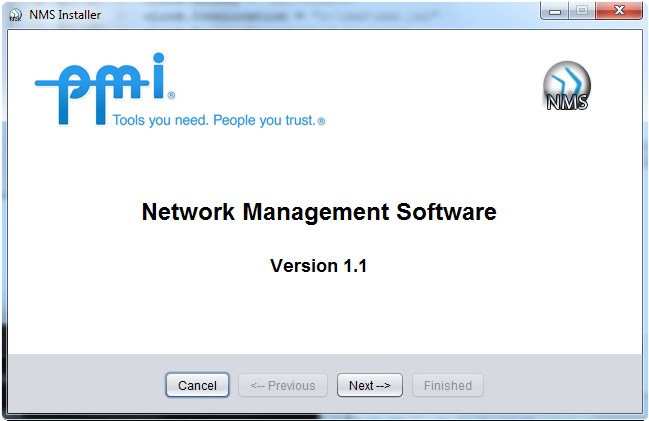
Navigate to the folder where the system has been unpacked and click on install.bat. Alternatively, when using the command line, simply type install from the directory where the unpacked installation files are located. This will launch the NMS Installer (Figure 1). The NMS installer is a wizard style program that creates the NMS directory structure, copies files to their proper locations, generates the master configuration file, and then creates an encryption key.
Use the Next button to advance to the next step in the process. Abort the installation process at any time by clicking the Cancel button. Canceling will produce a warning as shown in Figure 2.
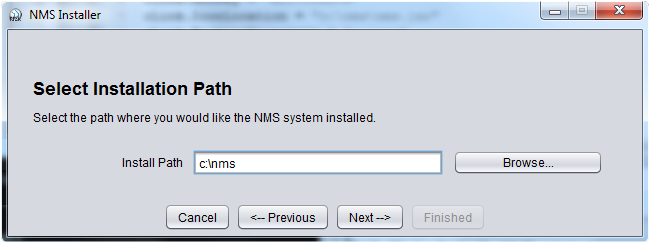
Select the installation location as shown in Figure 3. This must be in a location that you have the system permissions to create files. This is where the actual program will reside along with its configuration files. For a list of other files located in this folder and their purpose, see “Files Created” section of this document. Once you have selected a base location, click on the Next button.
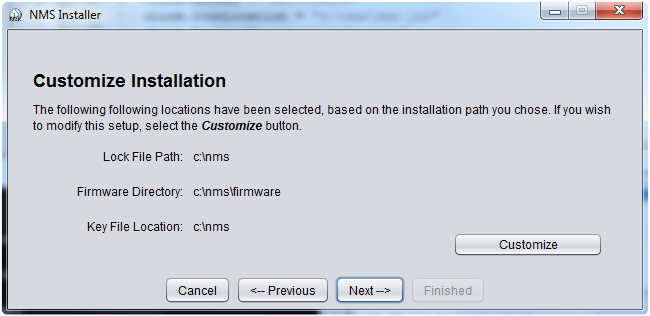
The system will display the default folder structure of the system based on the chosen default path. This structure includes optional sub-folders for the following:
- Lock File Path: Defines where the NMS system places lock files.
- Firmware Directory: The location where Boomerang firmware files, along with their master dictionary, are stored.
- Key File Location: The location where security related files are stored. This includes the encryption key as well and the encrypted password dictionary.
For information on the exact files stored in each location and their function, it is detailed under the heading “Files Created” (Figure 4).
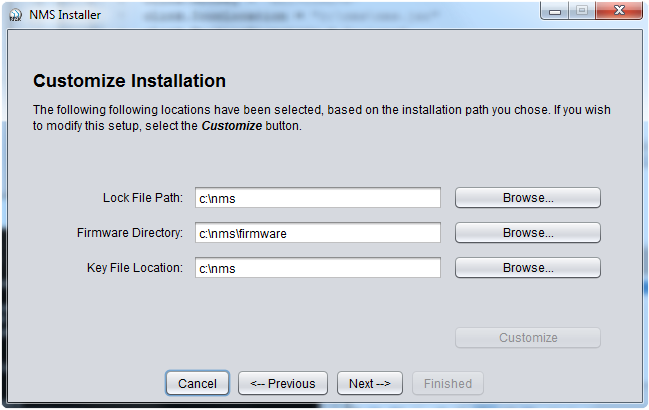
If it is more preferable for these files to be located in a different location, click the Customize button and modify the defaults to another chosen location, as shown in Figure 5.
When you are satisfied with the installation locations, click the Next button and the installation will begin.
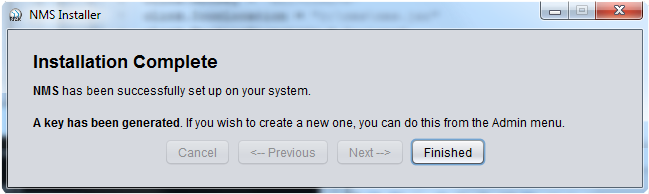
Upon successful completion, an AES encryption key will be generated in the folder specified as Key File Location (Figure 6). A new key may be generated from the Admin menu of the NMS software. If your system permissions allow, an NMS shortcut will appear on the Desktop.
In the event an error occurs during the installation process, a list of errors will appear. You can click on the Previous button to go back to any of the earlier steps.
Files Created
The NMS Installer creates the initial files required for NMS to operate. This section lists the files created and their purpose. The actual location of these files will be determined by the selections made during the installation process.
Base Folder Files
- default_map.xml – This file contains the column definitions for EDF to pminms.ndb mapping. This file should remain static. Only PMI will issue a new default_map.xml file.
- nms.ico – The NMS Icon that can be used to create custom shortcuts.
- nms.jar – The nms.jar file is the “Executable Jar File” or Java executable. This is the actual application. When there are new releases of the application, this is the file that will be replaced (for patches, upgrades, etc.).
- pminms.cfg – The NMS configuration file. This contains the settings NMS uses during runtime.
- pminms.ndb – This file holds the boomerang serial number and IP address definitions. It is the “database” file that drives the application and is stored in an XML format.
Firmware Folder Files
This folder acts as a repository for Boomerang firmware files.
- firmware.list – This text file contains a list of all firmware that has been added to the system by a member of the nms_admin group. The file can be altered by hand (but should only be done when removing an entry from the list). To remove an entry from the firmware list, simply remove the line that starts with the firmware description. The file is in the following format:
<firmware description>; <path_to_firmware_file>
Key Folder Files
- keyfile.aes – This file contains the randomly-generated 128-bit (16 byte) AES encryption key that is used to encrypt/decrypt the password dictionary file.
- pwd.dict – The dictionary file for encrypted Boomerang passwords.
Lock File Folder
This folder will only exist if a custom location was selected during the installation process. This folder will be empty. It is used by NMS to create lock files at run-time to prevent multiple instances of the application from running at the same time. While the NMS application is running, the following file will exist:
- .pmi_nms.lock – This zero-length file is used as a lock to prevent multiple instances of the NMS from running. This file is created and deleted as needed by the NMS automatically.
File Permissions
The following table lists the file permissions needed for NMS to function either as a user or an administrator.
| Filename | User | NMS Admin |
|---|---|---|
| default_map.xml | Read | Read/Write |
| keyfile.aes | Read | Read* |
| pminms.cfg | Read | Read/Write |
| pminms.ndb | Read | Read/Write |
| pwd.dict | Read/Write | Read/Write |
| firmware.list | Read | Read/Write |
| nms.jar | Read | Read |
| .pmi_nms.lock | Read/Write | Read/Write |
* For keyfile.aes, individual write access should be granted through Active Directory as needed. This will ensure that only specific users (even among those that are members of the nms_admin Active Directory group) can regenerate a new AES keyfile.
The .pmi_nms.lock file is created and deleted automatically by the NMS. Each user must have file create permissions in the directory where this file is located, and must be able to create, read, and delete this file.
Copy/Move Procedure
If you need to move your NMS system to a different location or copy it to another machine, use the following procedure:
- Create the new destination directory.
- Copy all files and directories from the CURRENT NMS installation INTO the new installation.
- Edit the pminms.cfg file to ensure that all paths are pointing to the NEW installation directory. Settings entries that should be checked are:
- lock_path – directory where the .lock file is placed*
- db_directory – directory of the pminms.ndb file
- firmware_path – directory where firmware files and firmware.list are placed
- crypto_directory – directory where the keyfile.aes and password.dict files are placed
- Launch NMS in new location.
* The .lock file is used to prevent multiple instances of the NMS application from running concurrently. In order to prevent multiple instances from running on separate machines, the lock file must be placed in a shared directory (such as on a file server) that can be seen by both machines.
Conclusion
The information provided here is intended to simplify the process of installing NMS (Network Management Software) and to provide a complete understanding of the default files that are generated by the installer. It also discusses the file permissions required for the system to operate and an overview of how to move or make a copy of the system.
