
Abstract
The Boomerang Low Voltage Sensor is the latest product from Power Monitors, Inc. The Boomerang is a single-phase, voltage only sensor equipped with a cellular modem capable of reporting into PMI’s proprietary Canvass web-based power quality analysis portal or into an organization’s SCADA system. This white paper will discuss the features and capabilities of the NMS (Network Management Software) that is used to configure and manage the Boomerang Low Voltage Sensors.
Brief Overview of Capabilities
The primary purpose of the NMS is to allow the user to configure multiple devices either individually, in batches or one at a time. In addition to the configuration features, the NMS does provide some primitive polling and reporting capabilities that allow the user to identify the device, retrieve the devices current status and to look at some of the key points of the device’s configuration and logs.
Since the NMS was primarily designed for users who wish to deploy the Boomerang Low Voltage Sensor to their SCADA systems– which are typically very heavily secured– the NMS was designed with security in mind. One of the primary security features that has been implemented within the NMS is role-based access integrated with an LDAP server (to include Microsoft Active Directory). Some other security features to note: each Boomerang can have its own password for password-protected communication with the NMS; AES 128-bit encryption is used between the NMS and the Boomerang Low Voltage Sensors during communication; and all sensitive NMS-related data is encrypted with AES 128-bit encryption using files that reside on the local operating system, allowing system administrators to apply additional security through file permissions and other local or site-specific protocols.
Role-Based Menu System
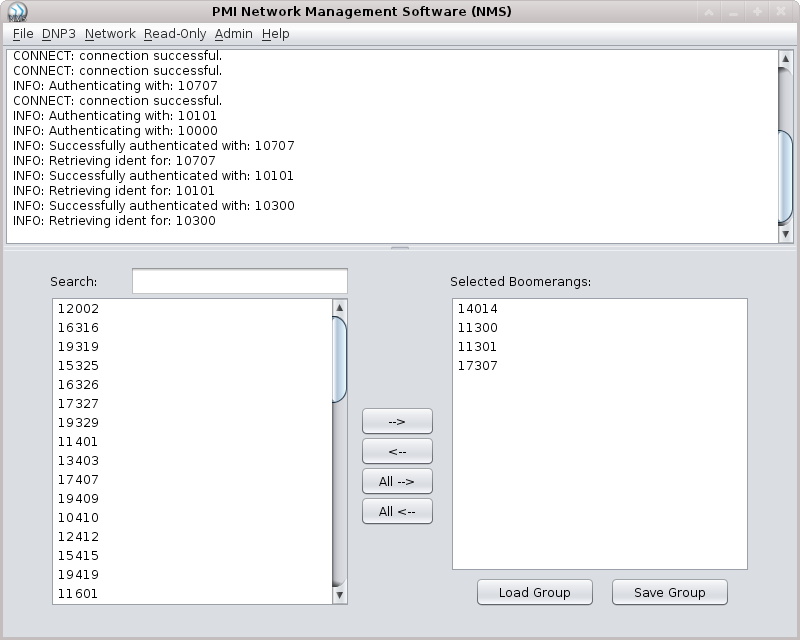
The NMS interface is shown in Figure 1. By default, each menu in the user interface of the NMS software corresponds to a group defined in an LDAP server (with the exceptions of the File and Help menus). The DNP3, Network, Read-Only and Admin menus only appear if the user that is logged in is a member within the corresponding LDAP groups.
As the menu names imply, each role is broken out into a set of functional operations. Some of the operations include getting and setting Boomerang DNP3 settings, clearing DNP3 point counters, identifying devices, retrieving device status and setting Boomerang passwords. A brief list of each menu’s operations is listed below:
DNP3
- Get DNP3 Settings
- Send DNP3 Settings
- Clear DNP3 Point Counters
Network
- Push Firmware
- Get Settings
- Enable DNP3
- Disable DNP3
- Enable SMS
- Disable SMS
- Reboot
Read-Only
- Retrieve Logs
- Get DNP3 Points
- Device Status
- Identify
Admin
- Import EDF
- Remove Devices
- Add Firmware*
- Set Boomerang Password
- Set Encryption Key
- Clear Logs
- Push Settings Template
- Generate AES Key
- Clear Lock File
*The Add Firmware menu item was placed in the Admin menu for security reasons. The process of pushing firmware to the Boomerang Low Voltage Sensors is a three step process. First, an administrator must retrieve the latest firmware from PMI. Once downloaded, the firmware file has to be “added” to the NMS through the “Add Firmware” menu item. This prompts the administrator for a description of the file, then adds the firmware file to a catalog of available firmware revisions that can be pushed to devices from the Network → Push Firmware menu item.
LDAP Integration
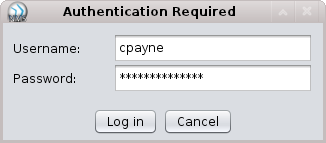
The NMS software integrates– by default– with an LDAP server for authentication (Figure 2) and role lookup. There are three configuration options for the LDAP settings:
Disabled. In this mode, LDAP authentication is turned off and every user of the software defaults to having all of the defined roles and menus.
Direct. This method prompts the user to enter their credentials (even though they have already logged into the system) as an extra security precaution. Once logged in the users will see only the menus corresponding to their group memberships within the LDAP server.
Non-direct. In this mode, the system administrator creates an LDAP user whose sole purpose is to take the identity of the user that is presently logged into the system, and provide that name to the LDAP server for the group membership query. Basically speaking, whichever user is logged into the computer that is running the NMS software will be verified for group-membership at the LDAP Level.
The User Interface
Beyond the menu system, the NMS also has two other primary user interface elements: The status pane (Figure 3) and the Boomerang selection panel (Figure 4).
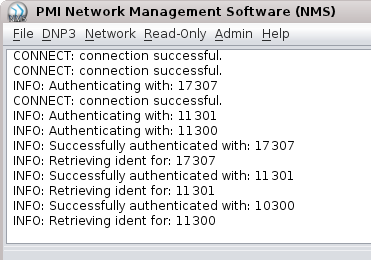
As shown in Figure 4 and 5, the status pane provides a real-time set of status updates for the communication events initiated by the NMS software. Each step in the device communication– from connection, authentication, sending the request for information or upload and, if necessary, receiving a response from the Boomerang– is documented in the status pane as it occurs for each selected device.
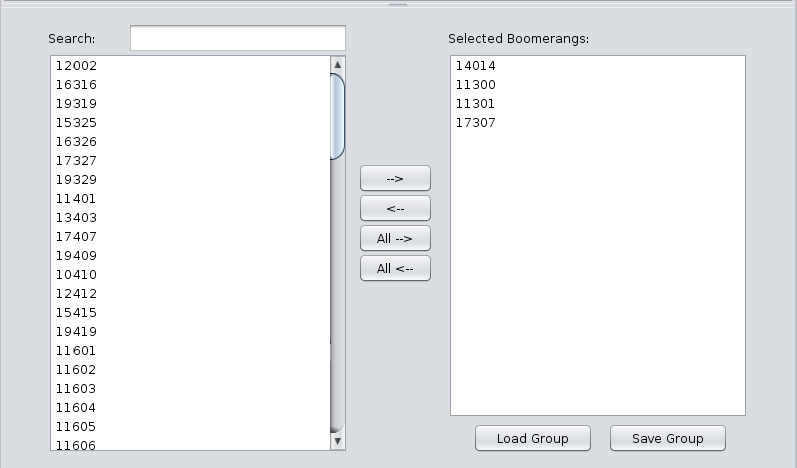
The Boomerang Selection Panel is used to select Boomerangs to operate on. As show in the example image above, four Boomerangs have been selected. There is no limit to the number of boomerangs that can be selected and operated upon at a time.
In some cases a user may wish to operate on the same group of Boomerangs repeatedly. For this reason, the NMS has a “Load Group” and “Save Group” set of buttons below the “Selected Boomerangs” column. Clicking on “Save Group” will save all of the Boomerangs that are currently selected to a file specified by the user. When a user selects “Load Group”, they are prompted for the filename of a previously saved group file which will then be loaded into the “Selected Boomerangs” column.
Reports
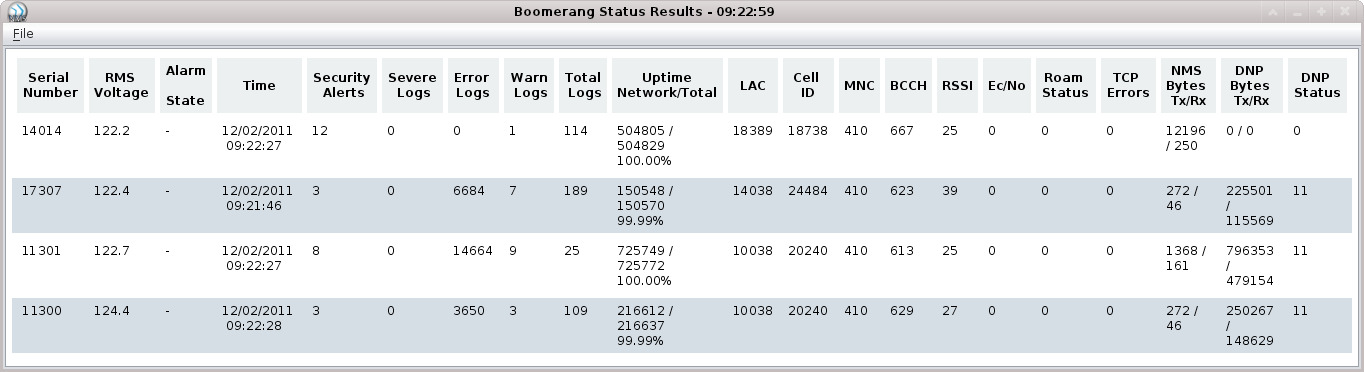
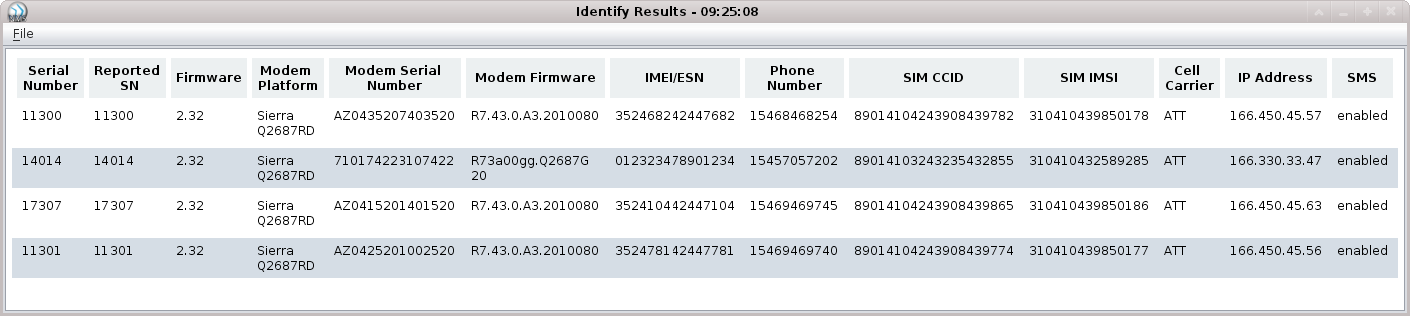
The NMS software comes equipped with some basic reporting functionality. Two of the primary reports are for “Device Status” and “Identify.” Examples of each report are shown in Figures 5 and 6.
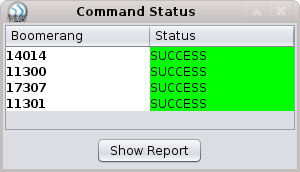
Since the communication is primarily over a cell network, sometimes latency issues may cause delays in connection or transmission of data. For that reason, the NMS has added a status indicator panel that shows the status of each request in a color-coded, real-time grid. As each operation completes a stage in the communication process, the status indicator is updated. As a communication fails or succeeds, the color of the status panel changes to red or green respectively (Figure 7).
Each report window is labeled with a description of the type of report and the date and time that the report was created. This is useful in scenarios where a user may wish to keep several reports open and poll a set of devices of a period of time.
The reports that are rendered in the report window are in HTML format. These reports can be exported in their original HTML format (for printing from a web browser) or they can be exported as a CSV file.
Conclusion
Whether it is a one or two, hundreds, or thousands of voltage devices, PMI NMS software makes configuring and maintaining the Boomerang Low Voltage Sensors a simple task.
