
Abstract
ProVision, the power quality data analysis software provided by PMI, is constantly modified to meet the changing needs of engineers and technicians, and to ensure compatibility with other hardware and software products available from PMI. The latest version of ProVision is always available for download from the PMI website. The upgrade manager, until recently, served to alert the user that a new version of ProVision was available and presented a quick method to access the PMI website to obtain the new version. However, this still necessitated the manual uninstallation of the previous version, and manually installing the new one. The latest version of ProVision, build 5086, updates in-place eliminating the need for manual uninstallation prior to an upgrade.
The upgrade manager in ProVision has had additional features and functionality added to it since its inception, and can now download and upgrade ProVision in place. These features are available in ProVision build 5079 and later. The very latest build, 5086, is available by clicking here. It will still be necessary for users of previous versions to manually obtain and install this one from the PMI website. This whitepaper serves as an overview and demonstration of the new features and functionality available in the upgrade manager.
Overview
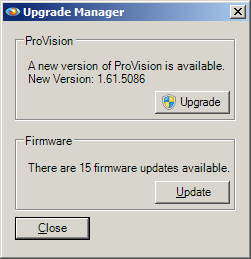
Within ProVision, the upgrade manager first determines if an upgrade is available and enables the option to upgrade appropriately (Figure 1). When this option is selected, ProVision will close and launch the upgrade service. The service then connects to Power Monitors and downloads the upgrade package. Once the upgrade package has been retrieved, its contents are extracted and applied to ProVision. Finally, the upgrade service closes and ProVision is automatically restarted.
A Mention of UAC
Administrator rights are required for the service to run properly. In Windows 7, admin rights are requested by the service when it is launched, and if denied, the service simply fails to run. In Windows XP, if the service is not run by an administrator, the service will alert that it has insufficient privileges and close. Typically, Windows will request administrator credentials when the service is invoked. While this is largely automatic, explicitly choosing the user can be done by holding the shift key, right-clicking the application for the service, and selecting “Run As” from the context menu. In the resultant dialogue, the desired user to run the service as can be specified.
Note that while a user can grant administrator rights to the service, the service still requires unfettered access to the directory ProVision is installed to. While granting administrator rights is typically sufficient in this regard, a group policy may be in place such that while a user may be able to run the service as an administrator, the service will still have insufficient privileges due to the group policy superseding the rights the user can grant. Furthermore, in addition to group policy, some third-party software may cause interference. Therefore, ensure the user granting privileges to the service is not limited by any group policy disallowing write access, such as a system administrator.
Functionality Within ProVision
Previously, the upgrade manager functioned solely by determining if the current running version of ProVision was out-of-date, and, if so, providing a hyperlink to download the newer version. In the new interface, shown, the changes to the upgrade service are shown. When the upgrade manager runs, it requests from Power Monitors the most recent available version. This received value is then compared against the version running. The upgrade manager then displays the appropriate message that either ProVision is up-to-date or a newer version is available.
If a new version is available, the “Upgrade” button is enabled.
NOTE: It is highly recommended that all recorders be disconnected prior to beginning the upgrade.
The actual upgrade service exists as a separate process, and requires administrator privileges previously mentioned, hence the shield icon. If administrator privileges are not granted to the service or are unable to be granted, the upgrade is not performed and ProVision remains open. However, once privileges are granted, ProVision exits automatically and the upgrade service is launched.
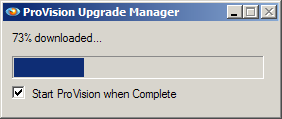
The upgrade service downloads the upgrade package from Power Monitors. Once the package has been received, the package contents—new binaries and components—are extracted and replace the existing ones. Finally, the service closes itself and restarts the upgraded version of ProVision. Note that at any point during the upgrade, the state of the checkbox for “Start ProVision when Complete” can be changed as shown in Figure 2. If cleared, the upgrade service remains open and can be exited manually by selecting the “Close” button. This can be useful when needing to only perform the upgrade but not necessarily to resume the ProVision session.
External Functionality
The upgrade service exists as a separate program and thus can be launched independently. It exists as provisionupgrade.exe in the default directory ProVision is installed into. This is typically Program Files\Power Monitors, Inc\ProVision (For users of 64-bit operating systems, substitute “Program Files (x86)” instead.) The upgrade manager can be launched manually from Windows Explorer or a Command Prompt.
The upgrade service does not automatically perform the upgrade when launched externally. Instead, it only polls the latest version of ProVision and determines whether an upgrade needs to be performed, and enables the Upgrade option appropriately. From here, if necessary, the upgrade process can be invoked manually. Note the state of the “Start ProVision when Complete” checkbox has a similar functionality regardless of how the upgrade service is launched.
Advanced Functionality
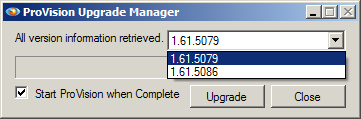
The upgrade service also contains advanced functionality which can be enabled via command-line arguments. It is highly recommended that this option only be used by system administrators. By invoking the upgrade service from the command line with the parameter “-select” the service will poll for information for all available versions of ProVision, and not only the most recent as shown in Figure 3. The upgrade service then explicitly allows the selection of which version of ProVision to request, such that instead of only performing an upgrade operation, a rollback is available as well. After choosing the desired version of ProVision and selecting Upgrade, the service performs normally but requests the specified package instead.
Conclusion
The upgrade service offers a streamlined way to easily obtain updates to ProVision. As ProVision is consistently having new features added to it and being improved, being able to seamlessly upgrade ProVision, without having to manually remove the previous version, then download and install the new one, can minimize downtime.
