
Abstract
The majority of commercially-available software products typically work with files that have a special extension. These extensions are indicative of a proprietary or unique file format custom-tailored to work with the application. Software products provided by Power Monitors are no exception, and thus files generated by PMI communication software can only be accessed via the software that created them.
ProVision uses files with an extension of .xsb, which designates the file as a ProVision Binary Recording File. These .xsb files can only be opened by ProVision, and are generated by ProVision when retrieving recordings from power quality recorders. However, ProVision also offers several options in which relevant data from recording files can be exported to other formats, such that recording data can be viewed in various other third-party programs and applications. This white paper serves as an introduction to, and demonstration of the different data export options provided by ProVision.
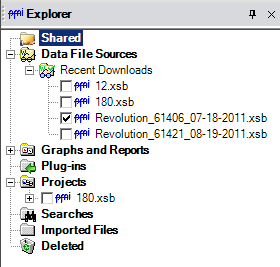
In order to create a report, first select the checkboxes next to the recordings you wish to select reports for in the Recent Downloads node in the Explorer pane, as shown. Then, select the report type to generate from the Report menu on the menu bar. If the recording contains the necessary report data, the report is opened accordingly. From here, the report can be exported into any of four separate formats, each of which has a unique extension that can be handled by third-party programs. The export options can be selected by clicking the generated report with the right mouse button, and selecting the desired export type from the context menu that appears. These options can also be reached by selecting File from the main menu, then selecting Export Options.
Export Options
Files in rich-text format, designated by extensions of .rtf are capable of being opened in most major word-processing software applications, such as Microsoft Word and Open Office. This can be done by selecting Export to Word from the context menu. Once opened in either of these applications, reports can have their appearances adjusted, or can be printed, by using the tools available in the word-processing program. Files saved in rich-text format can also be opened with Wordpad, which is a lightweight word-processing application typically installed as an accessory in Windows. This can be ideal in circumstances in which it’s necessary to view data exported as RTF but Microsoft Word isn’t an option.
Excel spreadsheets, that is, files with extensions typically of .xls can be generated from reports by selecting the Export to Excel option from the context menu. Once exported and opened as a spreadsheet in Excel, reports can be manipulated as any other spreadsheet.
The standard web browser loads files with .html extensions. By selecting Export to HTML in the context menu, ProVision generates the report as one of these files, which can be opened and viewed in any web browser, such as Firefox or Google Chrome. While the majority of modern computers come preinstalled with a web browser, browsers as programs only function to convey information and thus cannot actively modify how the recording data are displayed. If it’s necessary to lay out the data in a different way, or highlight or draw attention to any part of it, it is recommended that one of the other export options be used.
The final export option in the context menu is Export to CSV, which generates files with a .csv extension. This extension is short for comma-separated values. All rows in the report are exported as individual lines, and the individual values in each row are separated by a comma. The majority of spreadsheet programs can recognize, parse, and load comma-separated values and display it appropriately. Furthermore, CSV files are ideal as a source of input for creating custom scripts or programs to extract and manipulate data.
This summarizes all the report types that can be generated from reports available in Recent Downloads. However, for recording objects in Projects, exporting to Power Quality Data Interchange Format—more commonly referred to as PQDIF—can be performed. This can be done by selecting the File menu, then choosing Export to PQDIF, or by clicking the project with the right mouse button, and selecting Export to PQDIF from the context menu that appears. This converts all data types supported by PQDIF, such as stripchart data and their associated harmonics, waveform, and transient capture. The default extension for files generated in this way is .pqd. Any third-party program capable of importing using the PQDIF standard can open these files.
Some settings for how PQDIF exports are performed can be customized via preferences, accessible by opening the Options menu, choosing Preferences, then selecting the tab for PQDIF Setup. Note that in order to export to PQDIF, the recording must be in the Projects node—this can be done simply by dragging and dropping the recording with the mouse from Recent Downloads to Projects.
Exporting Images from Graphs
ProVision is also capable of displaying graphical representations of waveforms. Displaying graphs is done in a way quite similar to reports: select the recordings from the Recent Downloads node in the Explorer Pane, as shown above. Then, select the graph type to generate from the Graph menu on the menu bar. If the recording contains the necessary data, the graph is generated and opened accordingly. From here, graphs can be exported into a variety of different image formats in a number of different ways as shown in Figure 2.
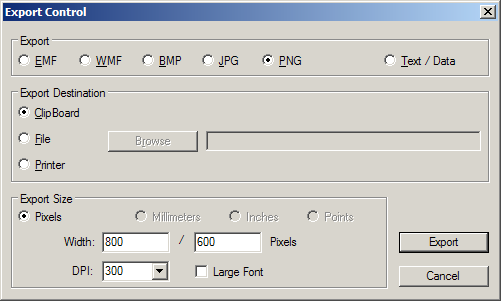
In order to access the image export dialogue, right-click anywhere in the graph area and choose Export Dialog… from the resultant context menu, as shown in Figure 2. This launches the export control, as shown in Figure 3. From here, it’s possible to export the graph to windows metafile format (EMF or WMF), windows bitmap (BMP), jpeg compression (JPG), or portable network graphic (PNG). Each image format has its own strengths and weaknesses, typically consisting of a tradeoff between file size and image quality. The available options for the export are dependent on the specified output format and export destination. The Export Destination option controls where the exported data are to be stored: either on the system clipboard, to a file, or to be printed directly. The system clipboard is ideal for temporary storage and can be used to easily insert the recording directly into another application that supports paste operations for image data, such as most image-manipulation programs and word processing programs. Saving the export to a file allows easy retrieval and transfer of the image data, such as sending as an email attachment or embedding in a web page. Finally, printing the image allows a hard copy of it to be generated quickly. The parameters in Export Size allow fine control over the dimensions of the exported image. However, the accessibility of these options is dependent on the current export format and export destination. It’s recommended to verify the units in which to export against the specified values for width and height prior to commencing the export.
Sending and Receiving Recordings
These export utilities are useful when it is necessary to extract specific data from ProVision recording files. However, situations can present themselves such that it’s not necessary to extract data, and that actually being able to deliver an entire recording file in its native .xsb format is sufficient. ProVision implements features to send and receive recordings and collections of recordings via email in order to accomplish this.
To send a recording or collection of recordings via email, first select the checkboxes of all recordings to be sent in the Recent Downloads node of the explorer pane, as shown in Figure 4. Once this is done, open the Tools menu on the menu bar, and select Send Via Email. This opens a new window.
From here, two options are available: to either send the selected items directly, or to compress them to a single file that can be sent later. ProVision sends emails from within itself by creating a new email message, adding the file to be sent as an attachment, then having that email be sent. Note that it’s necessary for Microsoft Outlook to be installed and be the default email client for this functionality to work properly. Users of web-based clients will not be able to use this feature in this mode.
The second option, Save object to file to send later, allows specification of a single filename that the selected recordings will be saved into. This can be useful when it’s not necessary to send a file via email immediately, when Microsoft Outlook is either not installed or is not the default email client, or the file is to be transmitted in a methodology other than email. After this file has been created, it can be transmitted in any number of ways, ranging from being sent as an email attachment, uploaded via FTP, placed on a network drive, or copied to another physical medium, such as a flash drive or optical disk, or simply kept for organizational purposes.
Note that the files created this way are in the .zip format, which is a common data compression type. These files are designated in Windows as Compressed Folders, and can be opened and have their contents perused. Furthermore, the files can be extracted from the compressed file directly into the Recent Downloads folder. Even if ProVision is already running, it will update accordingly and recognize the new files, allowing interaction with them.
While .xsb files can only be opened and accessed via ProVision, being able to export reports, graphs, and projects to different file types can be very useful when the data are required for manipulation or presentation outside of ProVision. The formats in which reports can be exported—whether to Rich Text Format for word processing documents, Excel format for spreadsheets, HTML for web browsers, or CSV for comma-separated values—are each useful dependent on the necessary situation in which the report is to be handled. Furthermore, exporting projects to PQDIF, as well as graphs to independent image files, makes it much easier when necessary for data to be displayed or manipulated outside of ProVision.
