Abstract
It is always a good practice to update Provision whenever a new version is released. ProVision allows for the retrieval and analysis of power quality data from the entire line of PMI recording devices. ProVision also allows for modification of device settings. This white paper reviews the steps necessary for downloading ProVision.
Downloading ProVision
Find the most up-to-date versions on the PMI website by following these steps:
- Sign in to your account. If you do not have an account, see the second page of this document for instructions on creating an account.
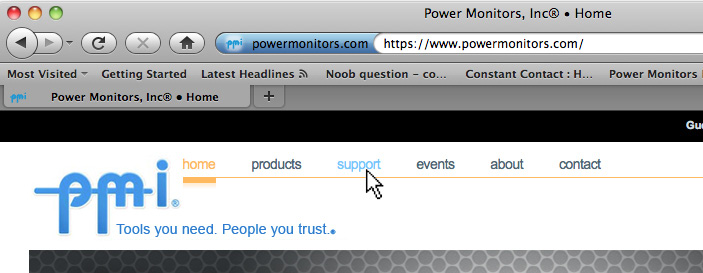
- On the PMI homepage, click on the support link located at the top of the page (Figure 1).
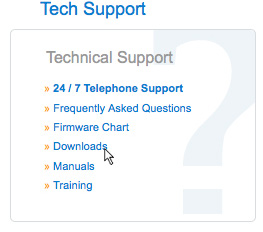
- On the support page, click on the downloads link located at the left of the page (Figure 2).
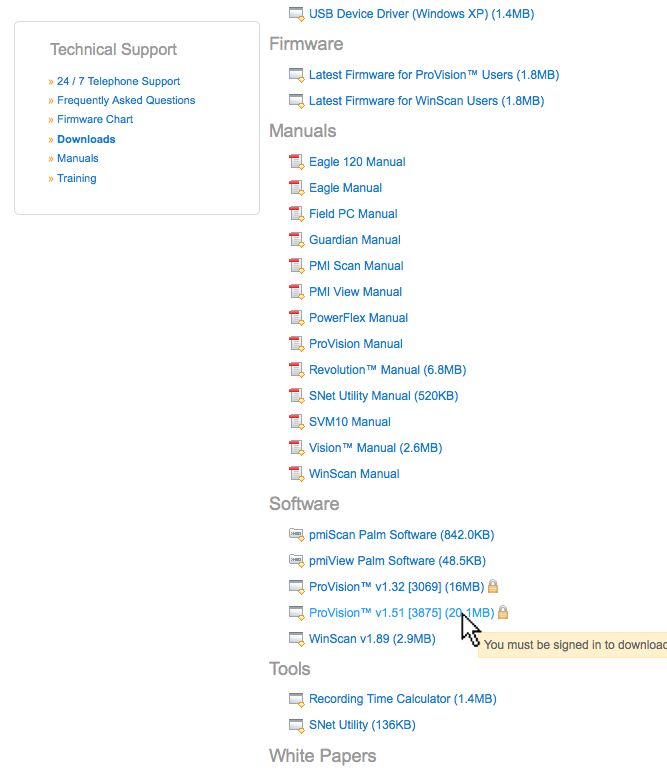
- Under the Software heading, click on the link to the latest version of ProVision. The version number is right after “ProVision” and is prepended with a “V”. (Figure 3).
- Click on the ‘Download Now’ button on the left hand side of the page (Figure 4).
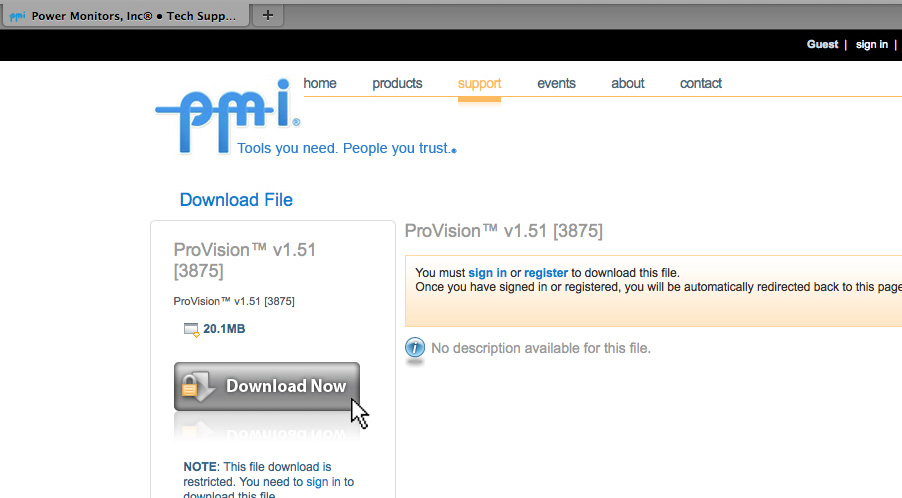
Following these simple steps, you can make sure that you get all the benefits of having the newest version of ProVision. Keeping your copy of ProVision up to date is very important, as it is constantly being improved and new features are being added.
How to Register for an Account on the PMI Website
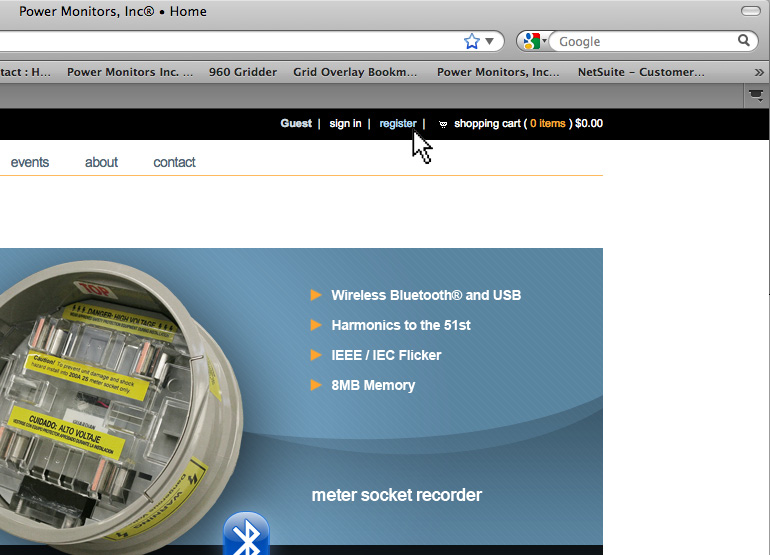
- Click on the register link on the upper right of the PMI homepage as shown in Figure 5.
- Fill out the ‘Create an account’ form. Required fields are marked with an asterisk (*) as shown in Figure 6.
- Click on the ‘Create Account’ button at the bottom of the form as shown in Figure 6. An email will be sent to the e-mail address that is provided on the form, containing a link for account activation.