
Abstract
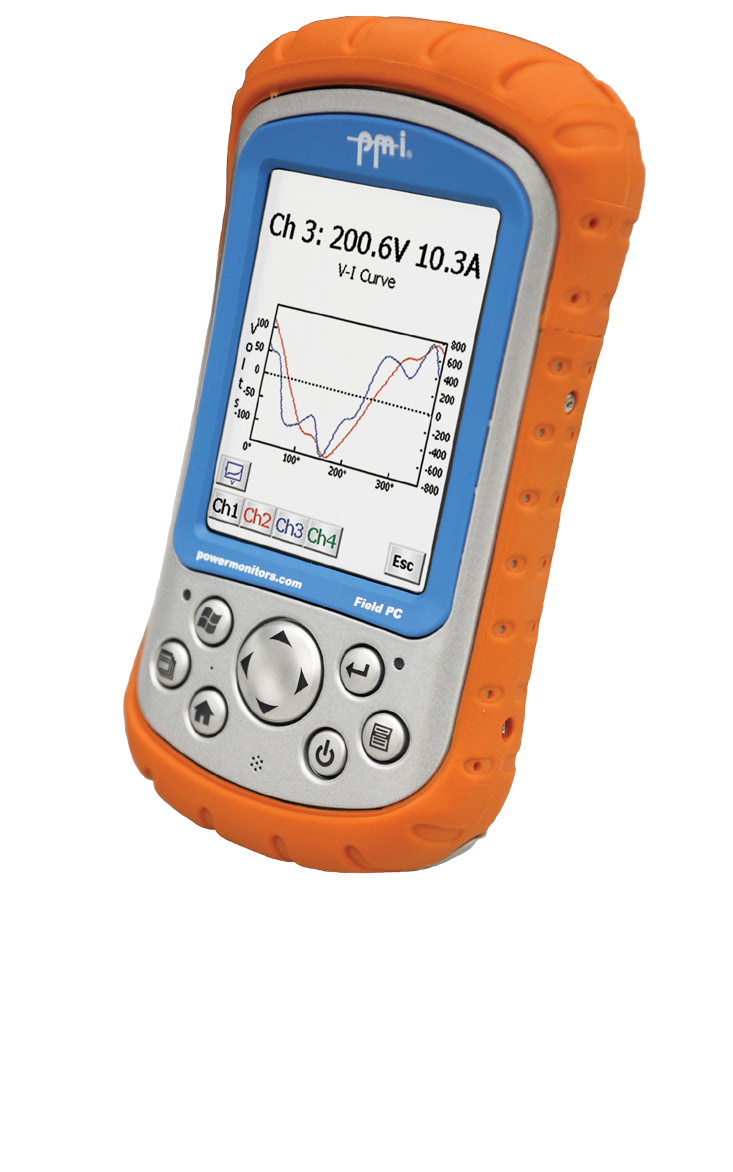
The Field PC is a handheld, ruggedized device running Windows Mobile and offering a wide array of features. The Field PC comes preloaded with ProVision Mobile, the portable version of our communication software. This white paper serves as an introduction to ProVision Mobile and its versatility by demonstrating the procedure for retrieving a recording from a PMI recorder.
Connecting to a Recorder
To connect to your Bluetooth recorder, select “Bluetooth” from the drop-down box on the ProVision Mobile main screen and click “Find Recorders” to locate nearby Bluetooth recorders. After the scan completes, select the recorder you wish to connect to and click “Connect to Recorder”. For other connection types, see “Establishing a Connection to the Field PC”, available for download at www.powermonitors.com.
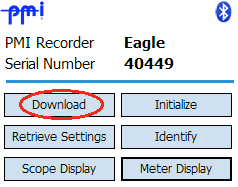
Once the recorder has been connected to the Field PC and ProVision Mobile has established a link to it, the Main Menu is displayed. Alongside different options for interacting with the recorder is basic information such as the recorder’s type and serial number. This paper covers download data.
Downloading a Recording
After selecting the download option, ProVision Mobile will request the recording from the PMI recorder and transfer it to the Field PC as shown in Figure 1. This may take some time given the length of the recording stored in the PMI recorder, the number of channels set to be recorded, whether the recording contains any transient waveforms, and any additional recording options that may have been enabled.
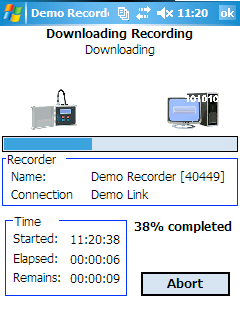
While the recording is downloading, selecting OK or Abort at any point will cause ProVision Mobile to return to the Main Menu. The Field PC will maintain the current state of the transfer such that if Download is selected again, the user will be prompted to resume. If Yes is selected, the download will proceed from the point it was halted at; otherwise, the download will begin anew.
Saving a Recording
After the download completes, ProVision Mobile will display the Save Recording dialogue, and prompt as to where the downloaded recording should be saved. Select from either the recommended default location, or choose Other Location should it be preferable to save the recording elsewhere. Note that selecting Cancel at this point will cause the downloaded recording data to be discarded and cause ProVision Mobile to return to the Main Menu. The only way to access the data for saving is to download it again, so only select Cancel for situations where the data are not necessary, such as an example case where the incorrect recorder was selected.
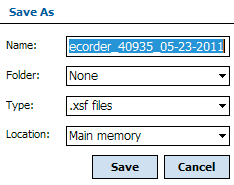
Selecting Other Location shows the Save As dialogue. Options are given to change the default file name, folder, file type, and memory location to save the recording as shown in Figure 3. By default, the filename uses a template consisting of the recorder’s type, serial number, and the current date. Selecting Save will return to the Save Recording screen as shown in Figure 4, with the custom save settings noted and displayed. Selecting Cancel will also return to the Save Recording screen, but discards the custom save settings. At this point, selecting OK will save the recording data to the Field PC in accordance with either the default location or the custom save settings.
Conclusion
After the recording is saved, ProVision Mobile returns to the Main Menu screen. At this point, it’s possible to utilize ProVision Mobile’s other features, or to connect to and download a recording from a different PMI recorder. Being able to retrieve a recording from a recorder is necessary in order to examine the data.
The mobile nature of the Field PC allows retrieval of recordings from recorders still connected to the source they are monitoring. This makes the Field PC invaluable for scenarios in which physically disconnecting, using desktop ProVision to retrieve the recording, then reconnecting the recorder is infeasible.
