
Abstract
ProVision Mobile is the portable version of our power quality analysis software. This white paper demonstrates how to prepare a desktop computer to interact with the Field PC and ProVision Mobile and how to transfer of recordings to a desktop computer via ProVision.
Installing Communication Software
In order to browse the files on a Field PC from a desktop computer or laptop, it is necessary to install software. This software is provided by Microsoft and is dependent on the windows version. It will be necessary to validate your operating system as authentic, otherwise Microsoft will not allow the software to be downloaded. The software can be obtained at their website: http://www.microsoft.com/windowsphone/en-us/apps/65-downloads.aspx
Users of Windows XP will need to install ActiveSync. Users of Windows 7 will need to install Windows Mobile Device Center. The installation routine for both is similar to other windows programs and the default values do not need to be modified. However, it may be necessary to have a system administrator complete the installation process depending on how the network and computer security settings are configured, which is beyond the scope of this white paper.
Once the software is installed, connect the Field PC to the desktop computer using the USB cable supplied with the Field PC. The small end of the cable connects to the “B” port on the bottom of the Field PC; the other connects to any open USB port on the desktop computer. The operating system of the desktop computer should automatically detect the presence of the Field PC and launch either Windows Mobile Device Center or ActiveSync for Windows 7 or Windows XP accordingly, and prompt to form a synchronization partnership.
A synchronization partnership is not necessary in order to retrieve the recording files from the Field PC; it is sufficient to have the appropriate ActiveSync or Windows Mobile Device Center installed on the system. However, forming a partnership allows data such as contacts, calendar information, and e-mail from Outlook to be stored on the Field PC as well as the desktop.
When a partnership is formed, it checks for modifications in the synchronized data each time the Field PC is attached, and automatically updates where necessary. For example, if contacts from Outlook are synchronized, and a new contact is added to the Field PC, that contact will also be added in Outlook on the desktop the next time the Field PC is connected to the desktop computer.
Even without forming a partnership, the contents of the Field PC can be browsed using Windows Explorer, listed under “Portable Devices”. The interface makes it simple for files to be dragged to and from the Field PC.
Transferring Files with ProVision
ProVision itself has functionality to retrieve the recording files on the Field PC. This can be launched from the “SyncMobile” button on the standard toolbar as shown in Figure 1.

This launches the Sync Mobile form, as shown in Figure 2.
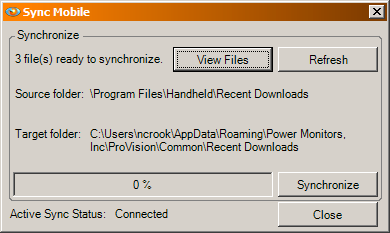
Displayed are the number of files to be retrieved from the Field PC and their location. ProVision will only look for recording files in the default download folder that ProVision Mobile saves recordings to. (For information on downloading your recording using the Field PC, see “Downloading a Recording Using ProVision Mobile”, available at www.powermonitors.com.) Any recording files stored elsewhere in the Field PC directory structure, or on a memory card, will need to be transferred manually.
At this point, selecting “View Files” will show which recordings are on the Field PC that will be transferred. Selecting “Synchronize” will initiate and perform the file transfer. The transfer may take some time depending on the size, number, and complexity of the recordings being transferred. When the file transfer completes, the recordings will be automatically added to the “Recent Downloads” node in the PMI explorer tree, allowing the recording to be analyzed like any other. The file transfer also removes the recording file from the Field PC upon completion.
The mobile nature of the Field PC allows retrieval of recordings from recorders still connected to the source they are monitoring. This makes the Field PC invaluable for scenarios in which physically disconnecting, using desktop ProVision to retrieve the recording, then reconnecting the recorder is infeasible. However, communication software and ProVision’s Sync Mobile makes it easy to retrieve and analyze recordings stored on the Field PC.
