
Abstract
Before any end-user program can be used, it must first be installed. This procedure can be as mundane as simply copying files from a type of removable media or network source manually, or involve a complex series of steps that involves copying files to multiple locations, configuring system files, manipulating the system registry, creating shortcuts and menu entries, or any combination of these such that using an automated tool to perform the installation becomes a necessity.
Software products provided by PMI are no exception and are provided coupled with an automated tool in order to ease and automate the installation process, both for initial setup and, if desired, later removal of the software product. This whitepaper serves as an example of different options available when performing setup and removal operations, specifically for ProVision. The examples and options provided herein are relevant to ProVision 1.51, build 4400, released January 2012, and subsequently released versions. Previous versions of ProVision do not contain these options and it is recommended to upgrade if necessary.
ProVision is bundled as a Microsoft installer package (MSI) and uses this as a framework to install itself. The installation can be invoked either via a wizard-style graphical user interface (GUI), or simply from a command prompt. For most installation procedures, using the GUI is sufficient, but when automating several installations of different software products in sequence with minimal or no user interaction, it’s possible to install via the command prompt and specify all options explicitly beforehand.
For users who are only installing ProVision, the manual control through the graphical user interface is sufficient. However, for computers being configured for the first time where ProVision and other third-party programs are installed consecutively, the command-line options offer the ability to completely automate the installation process, such that ProVision can be installed with absolutely no user interaction. This makes it possible to include the ProVision installation process as part of a script, so ProVision and the other programs can be installed seamlessly. The uninstall process, whether necessary for an upgrade or complete removal of the program, can be done seamlessly as well, in the event of software removal for decommissioning or re-purposing of computers, or simply to allow an uninstallation for an upgrade to be performed automatically.
Installation
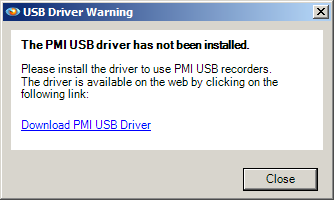
While installing ProVision, the installation framework automatically detects the presence of the USB driver software provided by PMI and displays an alert, as shown in Figure 1, if this software is not found. This verification also occurs each time ProVision is started. However, when ProVision displays the dialogue window, it also offers the option to have any future occurrences of the dialogue to no longer be displayed. This can be useful in situations where ProVision is installed on a computer on which it is not necessary to communicate with USB recorders, and the USB driver software is unneeded.
To automate the installation process via the command line, several parameters can be used. However, it is necessary for the command line window to be running with Administrator privileges. This can be accomplished by clicking the launcher for the command line window with the right mouse button, selecting “Run as Administrator” and selecting “Yes” from the dialogue window that appears.
The program used to handle installations, msiexec.exe, can be run directly from the command line with the specific installer package passed in as an argument. Additional parameters can be specified in order to control the amount of user interaction—if any—that occurs during the installation process. However, these parameters must be specified in a certain order. For example, using msiexec /i ProVision.msi /quiet will launch msiexec, instructing it to install /i the specified package ProVision.msi using the switch for /quiet, which causes the installation process to run quietly in the background, and not prompt the user for any input and use the default installation options.
However, this option does not prevent the installer from displaying the USB Driver warning dialogue box, shown above. For this reason, it is recommended to either install the USB driver software provided by PMI prior to installing ProVision. In the event that it is not necessary or desired to install the USB driver software, the warning dialogue box can be suppressed by using the “suppress” property. For example, using msiexec /i ProVision.msi /quiet suppress=true, as shown in Figure 2, will cause ProVision to be installed with no interaction whatsoever, such that the only notification that the installation has been completed will be the placement of the program shortcut on the desktop. If any value besides “true” is supplied, the dialogue box will be shown regardless.
There are other switches available besides /quiet that all offer varying degrees of interactivity with the installation process. To view them all, type msiexec /? at the command line. An alternative to /quiet is /passive which displays the basic user interface but automates the installation process, displaying only a progress bar. However, it is still necessary to include the suppress=true regardless of the amount of GUI interaction requested, as the Alert Window will be shown regardless without the property, or if it is set to any value other than true.
Uninstallation
If the ProVision installation package is invoked when the software is already installed, the MSI framework automatically offers an option to remove the software package. Alternatively, if the original software package is no longer available, the program can be removed by opening the Start Menu and selecting Control Panel, then choosing “Programs and Features”. (For users of Windows XP, “Add or Remove Programs” is the corresponding selection.)
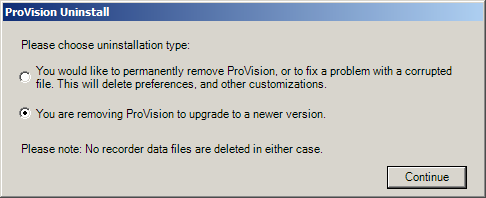
During use, ProVision generates many different customization files based on the user’s interaction with the program and preference settings. Without these customization files, ProVision is as it is “out of the box” as it were installed on a clean machine. Part of the uninstallation process is a prompt on whether these special customization files should be kept or deleted. When uninstalling ProVision to upgrade to a newer version, it is recommended to keep these files in order ease facilitation of the upgrade, such that the new version of ProVision will look and act similar to the previous as a result of these customizations. However, when permanently removing ProVision, or when deciding to upgrade ProVision from a clean slate, these files can be removed as part of the uninstallation process.
Shown in Figure 4 is the custom file deletion option window. Note that any ProVision recording file—that is, those with extensions of either isf, xsf, or xsb—are not removed regardless of the option selected here or at any other point during the uninstallation process.
Much like with installations, uninstalls can also be invoked directly from the command line in a similar fashion, with the specific installer package passed in as an argument as well as parameters to specify the amount of user interaction, if any, that should occur. To modify the example given earlier, using msiexec /x ProVision.msi /quiet will launch the uninstall process. Note the /x opposed to the /i—this instructs msiexec that the denoted package is to be removed from the system, opposed to installed.
Nevertheless, even when using the switch for /quiet or /passive, the uninstaller still needs to be instructed on how to handle the ProVision customization files. However, in order to completely automate the uninstallation, ProVision offers the option of specifying whether the custom files should remain or not preemptively. This is done via the command line by setting the DeleteCustomFiles property, as shown in Figure 5. For example, invoking at the command line msiexec /x ProVision.msi /quiet DeleteCustomFiles=true will uninstall ProVision with no interface and specifying that all custom files should be removed as part of the uninstallation process. By the same token, specifying msiexec /x ProVision.msi /quiet DeleteCustomFiles=false will do the same with the exception of leaving the customization files intact. Note that the only valid parameters for this property are either true or false: if neither of these are specified, the dialogue window for removing the custom files will be displayed regardless and user input will be required.

With the different options available at the command line both as part of the MSI framework and incorporated into ProVision itself, these present a wide array of tailoring the installation and uninstallation experience of ProVision to suit the preferences and needs of those who may wish to control the process manually or via an automated script.
