
Abstract
When software products were first created, it was common to only release a final version, simply due to the overhead of distributing the products via physical medium. However, with the advent of the internet, it’s now possible for upgrades and new versions of software to be periodically released. Software packages provided by PMI, such as ProVision, are no exception to this and are constantly upgraded, modified, and patched in order to meet the changing needs of engineers and technicians, as well as to maintain compatibility with other hardware and software products distributed by PMI.
ProVision is no exception, and new versions are distributed as features are added or existing ones are modified, or when an occasional flaw is repaired. Up until recently, it’s been necessary to manually check the PMI website in order to determine what the latest available version of ProVision is. However, ProVision version 1.60, build 4525, released on May 2012, changes all of that by introducing the upgrade manager. This whitepaper serves as a demonstration of the features, functionality, and capabilities of the upgrade manager.
Functionality
The upgrade manager is set to run by default when ProVision is launched. The initial feature of the upgrade manager includes verification of the local version of ProVision against the most recent one available for download from Power Monitors. In the event that a newer version is available, a download link is shown in the upgrade manager that allows easy access to the installer for this new build. Note in the screenshot shown in Figure 1, the newer version, selectable in blue, exists only for testing purposes and no build of that number has yet been created.
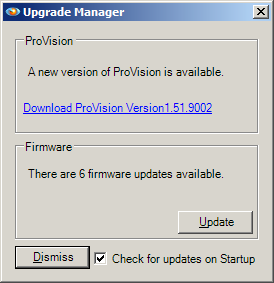
The second feature of the upgrade manager is a verification of the firmware files locally available to ProVision being up to date against any potential new versions available from PMI. Newer firmware files can be conveniently downloaded and saved directly from the upgrade manager—simply select “Update” to perform the download, if new firmware is available. The upgrade manager will report a firmware file as having an update available if the current firmware file is of a lesser version, or if there is no firmware file in place. Note in order for the upgrade manager to save and download new firmware files, ProVision must be running with administrator privileges. In order to grant administrator privileges to ProVision, simply right-click the launcher for ProVision with the mouse, and select “Run as Administrator”. In the event that administrator rights are not available to ProVision, the upgrade manager will not be able to obtain the newer versions of the firmware files and will display an error message to this effect. Since firmware packages are distributed independently of ProVision and not installed alongside it, the upgrade manager will report all the firmware files as being out-of-date the first time ProVision is run after being installation. This makes it easy to initially retrieve all the most recent available firmware.
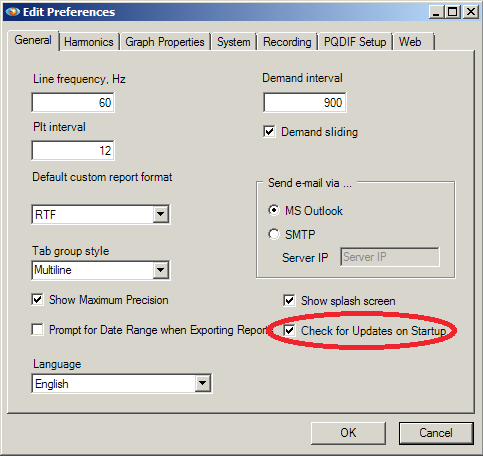
The upgrade manager’s default behaviour is to check for updates when ProVision is launched. However, as shown in Figure 2, this can be modified by clearing the checkbox labeled “Check for Updates on Startup” on the upgrade manager. This functionality can also be modified via the Edit Preferences dialogue, accessible through the ProVision main menu by selecting Options, then Preferences. From here, the upgrade manager can be toggled for checking for upgrades by default by selecting or clearing the “Check for Updates on Startup” box.
When the upgrade manager runs, it requests from Power Monitors the most recent version of ProVision. This received version is compared against the version currently running on the local machine, and from there the upgrade manager window is displayed appropriately. The same holds true for the firmware files—the newest versions for download are compared against the local files available on the running computer. This means that at no point is any information ever sent to Power Monitors. The upgrade manager communicates with Power Monitors using a SOAP web service via port 80 using hypertext transfer protocol (HTTP).
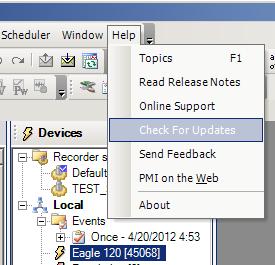
As shown in Figure 3, the Upgrade Manager can also be manually invoked by opening the Help menu in ProVision, and selecting the “Check for Updates” option. Doing so will launch the upgrade manager. Note that it will take several moments while the upgrade manager establishes communication and verifies the running versions before delivering the upgrade report. Note that this doesn’t occur when the upgrade manager runs from startup. This is because on startup, the upgrade manager runs “behind the scenes” and waits until the report is ready before displaying itself. When invoked manually, the dialogue displays immediately and delivers the upgrade report after having received it. This is something to be made aware of when utilizing the upgrade manager.
Other Ways to Obtain Firmware
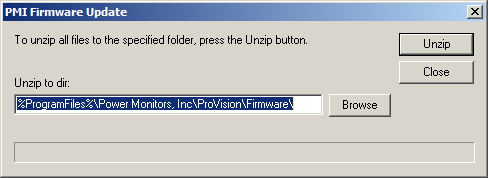
The upgrade manager is a feature only available in ProVision build 1.60 and subsequent releases. Users of ProVision who are using versions prior to this one who do not wish to upgrade, or users of WinScan, will find it necessary to manually update firmware files. Firmware update packages can be downloaded from www.powermonitors.com by selecting the firmware package from the downloads page, for either users of ProVision or WinScan. This package is available as a self-extracting executable that automatically unpacks the updated firmware into the appropriate directory, as shown in Figure 4. If the default options for ProVision were selected when ProVision is installed, it is not necessary to change the default directory. Note that, like the upgrade manager, it is necessary for the self-extracting executable to be running with administrator rights: to do so, simply right-click the downloaded file with the mouse and select “Run as Administrator” from the resultant context menu that appears. After the extraction process completes, the dialogue can be closed.
It’s important to keep the firmware files that ProVision has access to up-to-date. The firmware is ultimately responsible for the operation of the recorder and the correct storage of power quality data in the recorder until the data can be extracted via ProVision. Much like ProVision, firmware updates are also made available to expand on recorder functionality, so it is necessary to transfer these updates to the recorders whenever possible.
Conclusion
The upgrade manager serves as a way of automating the process of checking for new versions of ProVision, and of alleviating the manual routine of installing new firmware. The upgrade manager, along with ProVision itself, both stand to have their functionality and behaviour modified and extended in the future.
