
Abstract
The ProVision software package provided by PMI is capable of retrieving recordings from PMI recorders, analyzing data from these recordings, viewing waveforms in real-time, and much more. Most of these tasks require manual user interaction in order to be performed, or in some cases to be initiated. However, utilizing the ProVision scheduler, it’s possible for ProVision to be scheduled to automatically retrieve recordings from connected recorders at a predetermined time. This can be useful when retrieving large recordings that can take some time to transfer, when recorders are in fixed locations and are checked at regular intervals, when archiving recordings from distinct points in time, or when it’s necessary to retrieve a recording during the evening hours.
The ProVision Scheduler is capable of retrieving recordings, sending settings to recorders, and reinitializing recorders subsequent to the aforementioned retrieval process. When the Scheduler is notified to perform an operation at a certain time or frequency, this operation, the time, and frequency in combination are referred to as an event. The Scheduler monitors the related event in respect to the current system time, and initiates the events as necessary. This whitepaper describes the ProVision Scheduler and how it can be used to create and manage events to automate the retrieval of a recording from a PMI recorder.
Scheduler Service
Events can be created and managed via the menu bar in ProVision, underneath the heading for Scheduler. Initially, the only options available are Add Event. Selecting Add Event opens the Scheduler dialogue, as shown in Figure 1. The Scheduler dialogue can also be made to appear in the Devices window by right-clicking the Events folder and selecting Create Event from the context menu.
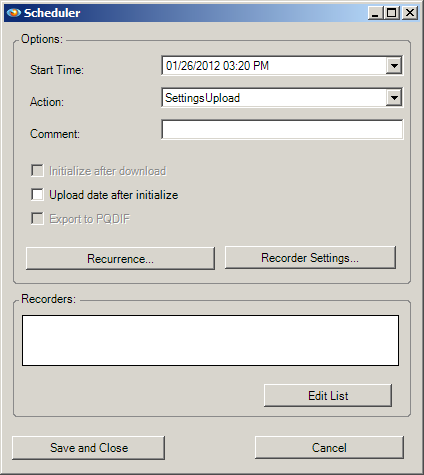
From here, it’s possible to customize parameters to create a new event. The first parameter is Start Time, the date and time in which the event should first trigger. The second is Action; the available options are whether the event is for transfer of settings to the recorders or retrieval of recordings from recorders correlating to the event. The Comment field is for reference information. The checkboxes below this are dependent on the action taken, such as for the Settings Upload action if the date and time should be uploaded as well, and for a recording action if the recorder is to be reinitialized after the recording has been retrieved. Also, for recording actions, if the Export to PQDIF checkbox is selected, a PQD file will automatically be generated for each recording that is successfully downloaded. The location that these PQD files are saved at can be changed by opening the Options menu on the main ProVision menu bar, selecting Preferences, selecting the tab for PQDIF Setup, and entering a folder name in the field for Server-Based Path for Export of Scheduled Downloads.
By default, events occur only once at their start time. However, the event can be set to recur using the options available when the Recurrence button is clicked. Recurrence operations allow the event to repeat itself multiple times during a day, on specific days of the week, or monthly. Furthermore, the recurrence can be configured to only occur a certain number of times, or until an explicit end date is reached, or perpetually. This can be convenient if it is necessary to collect multiple recordings from the same recorder over a time frame for the purpose of comparison or archiving.
In the event that the action is set to upload new settings, or that the recorder is set to reinitialize after the recording has been retrieved, the Recorder Settings button offers an easily accessible Recorder Types dialogue, such that the settings that will be sent to the recorder can be easily customized.
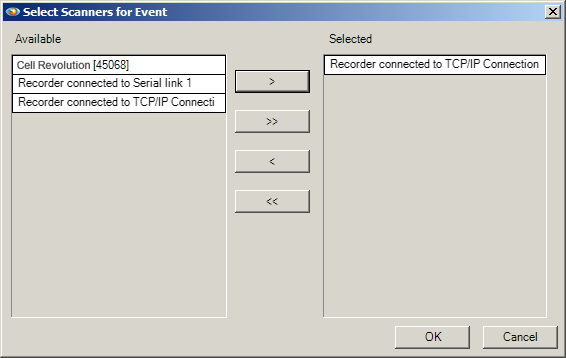
Below this are the actual recorders correlating to this event that will have the Action performed on them when the scheduler initiates the event to occur. To add recorders, select Edit List. This launches a dialogue window in which the recorders associated with the event task are listed, as shown. All currently-connected recorders are eligible for selection. Furthermore, custom-created communication ports are listed and eligible for selection as well. By adding one of these, whichever recorder is currently connected on the selected communication ports will have the event action applied to it when the event occurs. This makes it possible to create events proactively and also makes it unnecessary to edit the event later if it is more feasible to replace the recorder with another one. All recorders and communication ports available that can be associated with the event are listed on the left, and recorders and communication ports already associated with the event are listed on the right, as shown in Figure 2. The buttons between the two panels allow movement of the recorders and communication ports between the two lists. From top to bottom, they are: associate current selection with event, associate all available with event, disassociate current selection with event, and dissociate all from event.
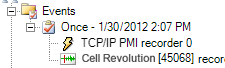
After the event has been created, it is listed under the Events category in the devices pane, as shown below in Figure 3. In order to modify the behavior of an event, the event can be edited by highlighting the event and choosing Edit Event from the Scheduler menu, or right-clicking the event and selecting Edit Event from the context menu. With the exception of the action to be performed, all parameters of the event can be modified from this point. Events can also be deleted summarily from the context menu.
Under normal circumstances, when ProVision is manually instructed to perform one of the actions associated with an event, a progress bar is shown in the Communication Group in the ProVision user interface. When retrieving recordings, “DL” is also shown next to the recorder’s name in the Devices pane. Note that when using scheduled events, the progress bar is not displayed. However, the recorder’s status still changes to show “DL” appropriately. It is recommended in the event that multiple instances of ProVision have a connection established to the same recorder that the events in the scheduler service be coordinated in such a way as to not attempt to interact with the recorder in an overlapping time period. If this occurs, or if an action is initiated with the recorder by a user manually, the most recent action created will be queued until the recorder finishes processing the current one. This can result in unwieldy scenarios where a recorder has so many actions queued to perform it doesn’t have time to perform any recordings, or that all the actions are not completed if it is necessary for them to be performed within a designated timeframe. If the event was set to retrieve a recording from a recorder, the retrieved recording is stored as a parameter of the event and not yet saved to disk.
Note the event shown. The date and time for the event to occur is listed and so is how often the event should recur (in the case of the example in Figure 3 there is no recurrence, as denoted by “Once”). The recorders and connection types associated with the event, any download action scheduled, and any recordings downloaded by the event are also shown. The label for the recording shows such information as the model and serial number of the recorder, and the date and time at which the recording was successfully downloaded. In order to transfer the recording to the Recent Downloads folder in the explorer pane, right-click the recording. From the resultant context menu, select Download Recording. This causes the file to be saved to Recent Downloads, using the standard ProVision filename template of the recorder’s model, serial number, and date downloaded.
There may be some situations where the underlying process ProVision uses to connect to and communicate with recorders is running on a single server, and multiple users each with their own instance of ProVision utilize this singular process, such that each end user can see events created by others and can download recordings associated with those events. This can be useful if multiple users require access to the same recording or recorder, and only one event has to be scheduled instead of each user having to create an independent one, thus accidentally creating one of the scenarios previously mentioned. However, since the downloaded recording does not exist on the same physical machine as ProVision itself, there may be some latency when the transfer to the Recent Downloads folder is initiated.
The ability of the scheduler service to create, manage, and invoke events makes it a powerful and useful tool, capable of retrieving recordings and sending settings with only minimal interaction. Outside of the initial setup, only maintenance of the event is necessary to transfer recordings from the event to the Recent Downloads folder. This makes the scheduler an invaluable tool for any technician requiring automation of downloads.
