
Abstract
One of the most popular, and useful, features in Canvass is the Distribution List, which allows any chosen alert or event, from any Canvass-enabled device, to be transmitted by email to one or more recipients. Until now, every alert or event from a Boomerang in a distribution list would generate an email to all list recipients, every time either was encountered. For momentary interruptions or other temporary events, this can result in a flurry of emails for a problem that’s already resolved on its own. To address these cases, new email aggregation controls have been added. These options, outlined in this white paper, give the user more control over these distribution list emails.
Adjustable Holdoff Time
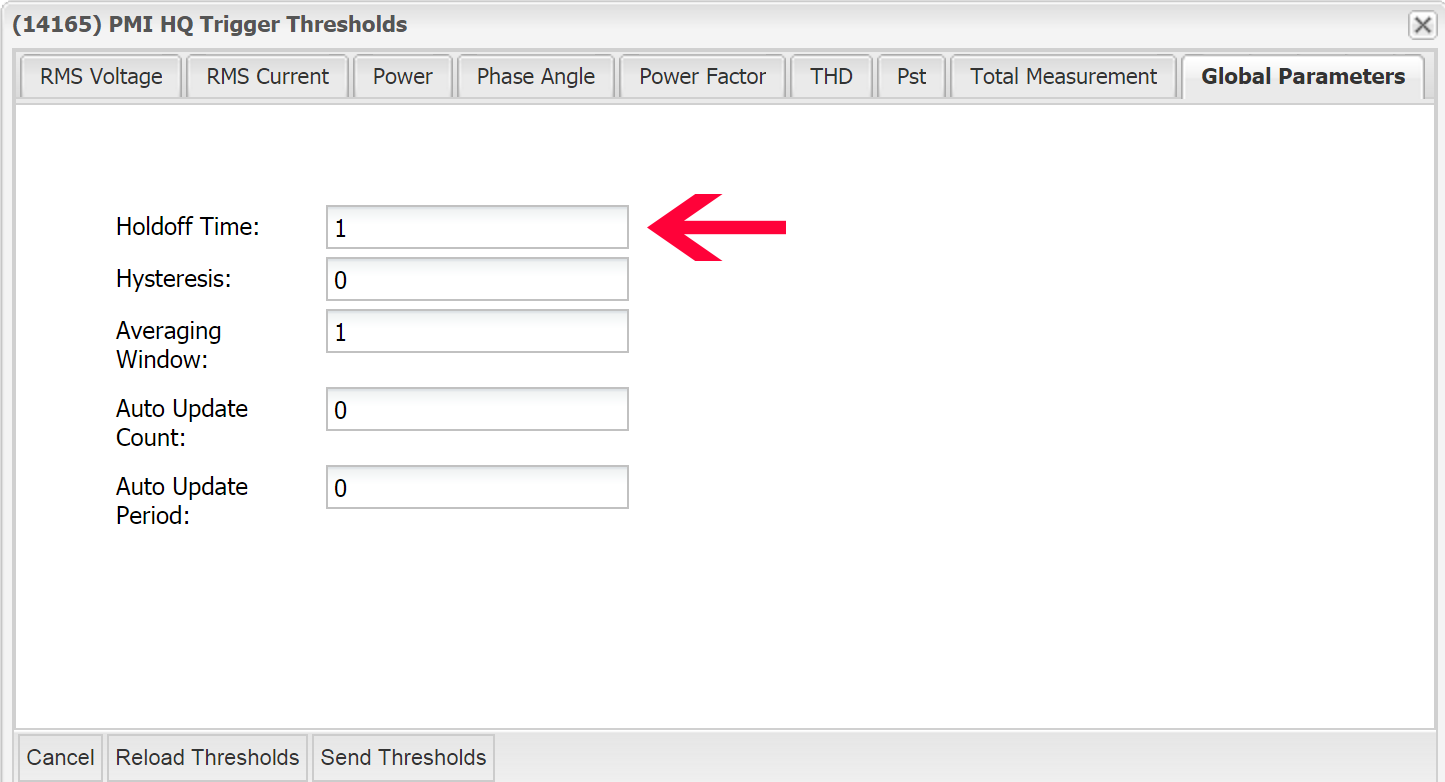
Within Canvass, you can set the Holdoff time for a device’s trigger thresholds, which allows you to make the device tolerant of brief transgressions of the trigger thresholds without actually generating an alert, effectively making the device more or less sensitive. While you may wish to set a short or zero-second holdoff time to capture more out-of-tolerance measurements, you also may wish to be notified of these alerts by email only if they persist for a significant amount of time. In order to accommodate this, we have added a Distribution List holdoff time setting to Canvass (See Figure 2 on following page).
NOTE: For more information on trigger threshold holdoff times, see the white paper “Alert Level Programming and Analysis”
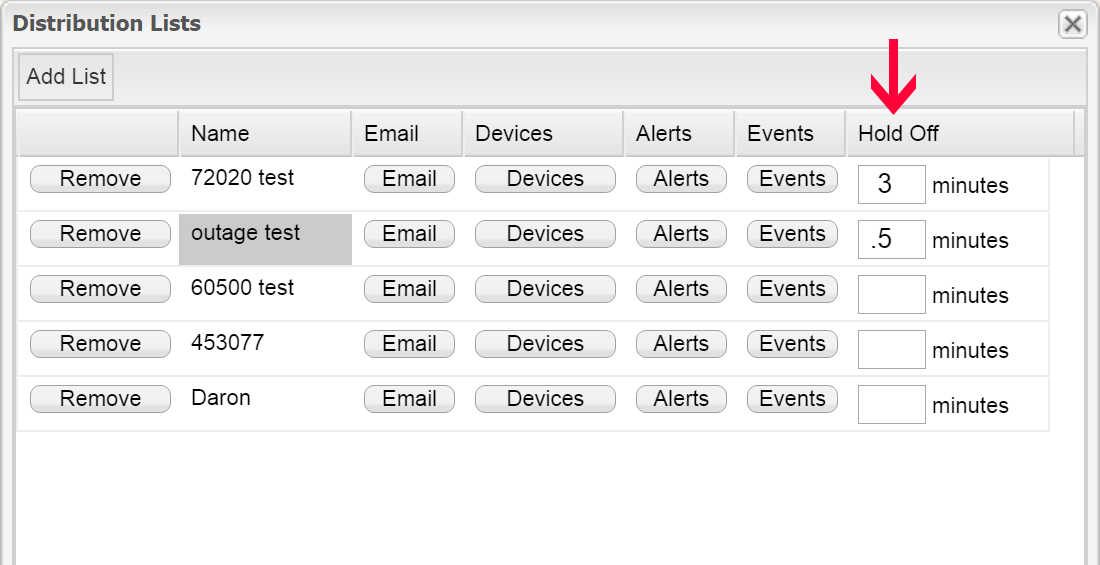
Unlike the trigger thresholds holdoff time, the distribution list holdoff time is set as a number of minutes, not seconds. When set to a non-zero value, Canvass will filter alerts with a duration below the distribution list threshold, and only generate emails to list members for alerts with durations exceeding the list holdoff time. The holdoff time for each distribution list is set individually and defaults to zero (generating an email to distribution list members for every alert, regardless of duration). If the alarm condition returns to normal within the holdoff window, no email is sent.
Configuring Distribution List Holdoff
Setting the holdoff time for a distribution in Canvass is easy. In the Canvass application, click “Administration” in the main toolbar across the top of the interface, then click “Email Alert.” This will open the Distribution List window. You will note there is a new column on the right, with the heading “Hold Off.” Each distribution list has its own holdoff input field. If no holdoff is set, the field will be empty and the default holdoff of zero minutes will be used (no holdoff).
To set a holdoff for a particular distribution list, click in the holdoff input field on that lists’ row, and type in the number of minutes. That’s it. The new holdoff setting is saved automatically. For fractions of a minute, you can use non-whole numbers. For example, for a 30-second holdoff, enter “0.5” in the holdoff field.
Email Aggregation
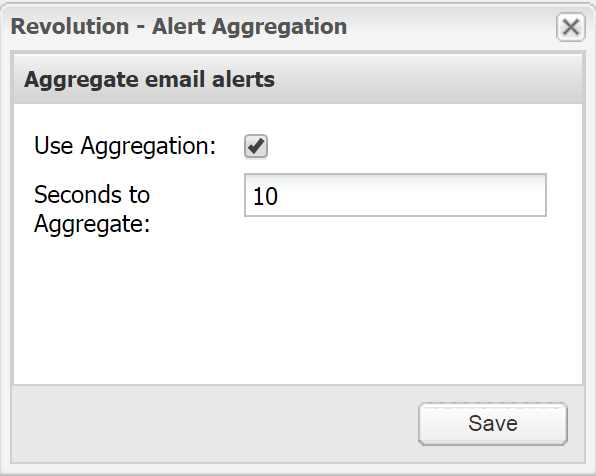
In addition to setting the distribution list holdoff time, Canvass provides an email aggregation feature. This setting applies to individual devices, and not distribution lists. If one device at a particular location is triggering more alerts, and therefore more emails than desired, one can enable “Alert Aggregation”, which will collect all the alerts generated by the device for a given number of seconds, and send them all as a single email.
To enable aggregation for a device, click its “Edit” button in the Recorder list in the left toolbar. This will open the device Settings Window. Then click the “Alert Aggregation” button at the top-right of this window. This will open the device’s Alert Aggregation window. Check “Use Aggregation”, and then enter the number of seconds to aggregate alerts. This number should be greater than 0. Click the “Save” button to begin using aggregation.
Email Format
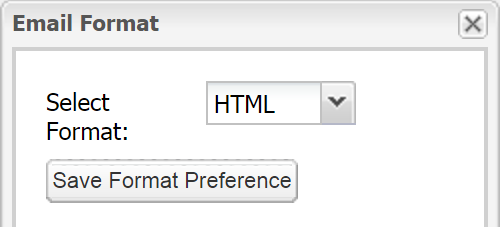
By default, distribution list emails are sent as formatted HTML, with visual cues indicating the type of alert or an event trigger. In some cases, you may wish to receive a text-only email. One such case is when alerts are being sent to a mobile phone which does not render HTML in SMS messages.
Email format is set on a per-user basis, and one can only change his or her own email format preference. To change your email format preference, click “Preferences” in the main toolbar across the top of the interface, and click “Email Format.” This will open the Email Format window. Select your preferred format from the drop-down, and click “Save Format Preference”. You will be notified when the setting has been saved.
Local Time Zone
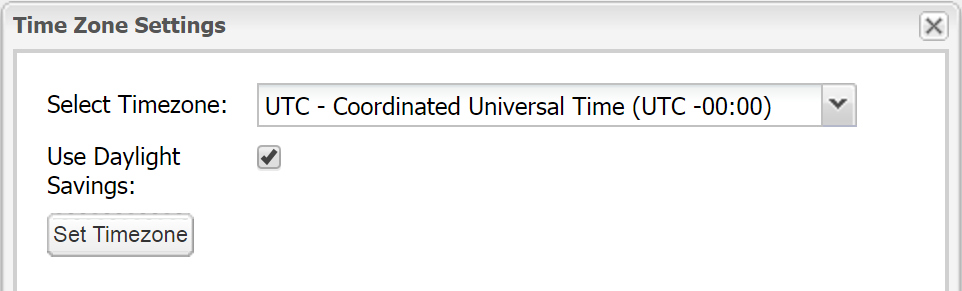
Until recently, all alert and event times were given in UTC, rather than local time. The new Time Zone feature in Canvass allows you to select a timezone for your user account. Once set, all alert and event emails will display times as local to the selected timezone. In addition to selecting a timezone, you may specify whether or not Daylight Savings Time should be respected when formatting alert and event times.
To set your timezone preference, click “Preferences” in the main toolbar across the top of the interface, and click “Time Zone.” This will open the Time Zone Settings window. Select the timezone you want to be associated with your user account, and select whether or not to use Daylight Savings Time. When done, click “Set Timezone.” You will be notified when the setting has been saved. Regardless of the timezone setting, all alerts are still stored internally referenced to UTC.
Suggested Uses
Momentary interruptions on a 3-phase Boomerang can generate up to 8 email alerts – one for each phase as it falls below the outage threshold, one for each phase when it returns, and also a separate outage start and end email. The holdoff time may be used to eliminate all these messages if the event is over within a certain time frame (e.g. 1 minute), for example, if the message is used to roll a truck.
The aggregation feature allows these messages to still be delivered but combined into a single email. This is useful for getting a notification that a single polyphase event has occurred, without unneeded detail in an immediate notification. The event details may be examined in Canvass through several graphs and reports. Aggregation may be used to collect single events that affect all three phases into a single email, or to combine several excursions that occur in quick succession, likely with a single root cause.
Different Canvass users may use separate settings, so each user only receives the notifications that are relevant.
Conclusion
Filtering non-critical alerts with list holdoff times, and combining successive alerts via email aggregation will help separate important notifications from unneeded warnings, enabling you to focus on the triggers that need immediate attention. Email formatting and timezone settings allow you to control the content of your distribution list emails to best suit the platform they’ll be viewed on.
