• Skip to primary navigation
  • Skip to main content

PMI

  • Home
  • Products
  • Library
    • Videos
      • All
      • Bolt Quality Tests
      • Promotional Videos
      • Support Videos
      • Power Quality Decoded
    • White Papers
      • All
      • Artificial Intelligence
      • Case Studies
      • Communications
        • All Communications
        • Cellular Communications
        • General Communications
      • Distributed Generation
      • IEEE Standards
      • Power Quality
        • All Power Quality
        • Analyzing Waveforms
        • Flicker
        • PQ Data Analysis
        • PQ Theory
      • Products
        • All Products
        • Boomerang
        • Boomerang SCADA
        • Box Recorder
        • Canvass
        • Eagle
        • Flex CT
        • Guardian
        • Merlin™
        • Meter Sockets
        • PQ Canvass
        • ProVision
        • Revolution
        • TLAR
        • Using PMI Recorders
      • Voltage
        • All Voltage
        • CVR
        • Voltage Sag
        • Voltage Unbalance
      • Harmonics
  • Training
    • All
    • PDH Eligible Classes
    • On-Site Training
    • Live Webinars
  • Support
  • Our Company
    • About
    • Contact
    • Join Our Team!
    • Receive our Newsletter
    • PQ Resources
    • Power Quality Solutions
  • Account
  • Cart - 0 items
  • All
  • Getting Started
  • Provision Shortcuts
  • Recorder Hookup
  • Updating Firmware
  • Watcher Folder
  • Downloads

Connecting Recorders

Connecting to a PMI recorder

Connecting to a PMI recorder

First Time on a Computer

  • Disconnect any recorders to your machine
  • Install the latest version of ProVision found here under “software”.
  • If using a USB connection: Install the USB Device Driver for Windows found here under “software”.
  • Restart ProVision software.

USB

  • ProVision automatically scans for any connected PMI recorder
  • Detected recorders are displayed in the devices tree in Provision

Cell modem

  • PMI technical support will need to be contacted to initially configure your cell devices
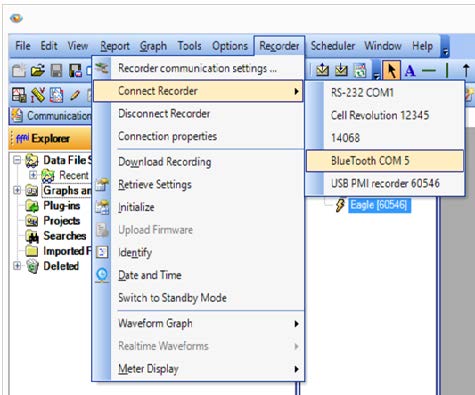
  • Select the recorder tab, then select connect recorder and the recorder name or serial number listed

Serial

  • Serial recorders will need external power applied to the recorder
  • Select the recorder tab, then select connect recorder and the PMI USB adapter cable

Bluetooth

  • First, use the PC’s blueTooth manager to pair the PC to the recorder (pmi is the pairing code)
  • Use the outgoing COMM port number that is created to configure Provision.
    • Select the options tab, then communications port settings. Click the add button, then serial. Name the connection and select a serial port number. Check the “This is a Bluetooth Connection” box and save.
  • Select the recorder tab, then select connect recorder and the blueTooth recorder name

WiFi

  • First, use the PC’s network manager to connect to the recorders WiFi network. Use the recorder’s WiFi address when configuring Provision.

Have a PQ question? Ask Merlin™ — free. Send it to askmerlin@powermonitors.com or text (540) 383-3144.

Power Monitors, Inc. — Tools you Need. People you Trust.

Power Monitors, Inc. is an industry-leading product design and manufacturing firm based in Mt. Crawford, Virginia. PMI® strives to solve power quality problems by listening to our customers and working with them to design and manufacture products. Total customer satisfaction is the primary goal of all PMI® staff.

24/7 Tech Support 800.296.4120

Resources

  • White Papers
  • Videos
  • Training
  • Live Webinars
  • PQ Resources
  • Support

Company

  • About Us
  • Contact
  • Careers
  • Newsletter
  • Product Registration
  • Terms & Conditions
800 N Main St, Mt Crawford, VA 22841 | Toll Free 800.296.4120 | Fax 540.432.9430
© 2026 Power Monitors, Inc.